

API keys and webhooks
An API key opens your data to software, a webhook tells your tools about an event. Both are created in Settings, by the administrator, and kept to the strict minimum.
Objective
By the end of this lesson, you will know how to open your data to software with an API key, and tell your tools with a webhook, without opening more than needed.
The essentials
Demo Rentals wants to connect its sales tool to Fleetee. Two doors, both for the administrator only:
- an API key: the tool calls Fleetee to read or write your data (bookings, customers, vehicles, invoices…);
- a webhook: Fleetee tells the tool as soon as an event happens (“A rental is confirmed”).
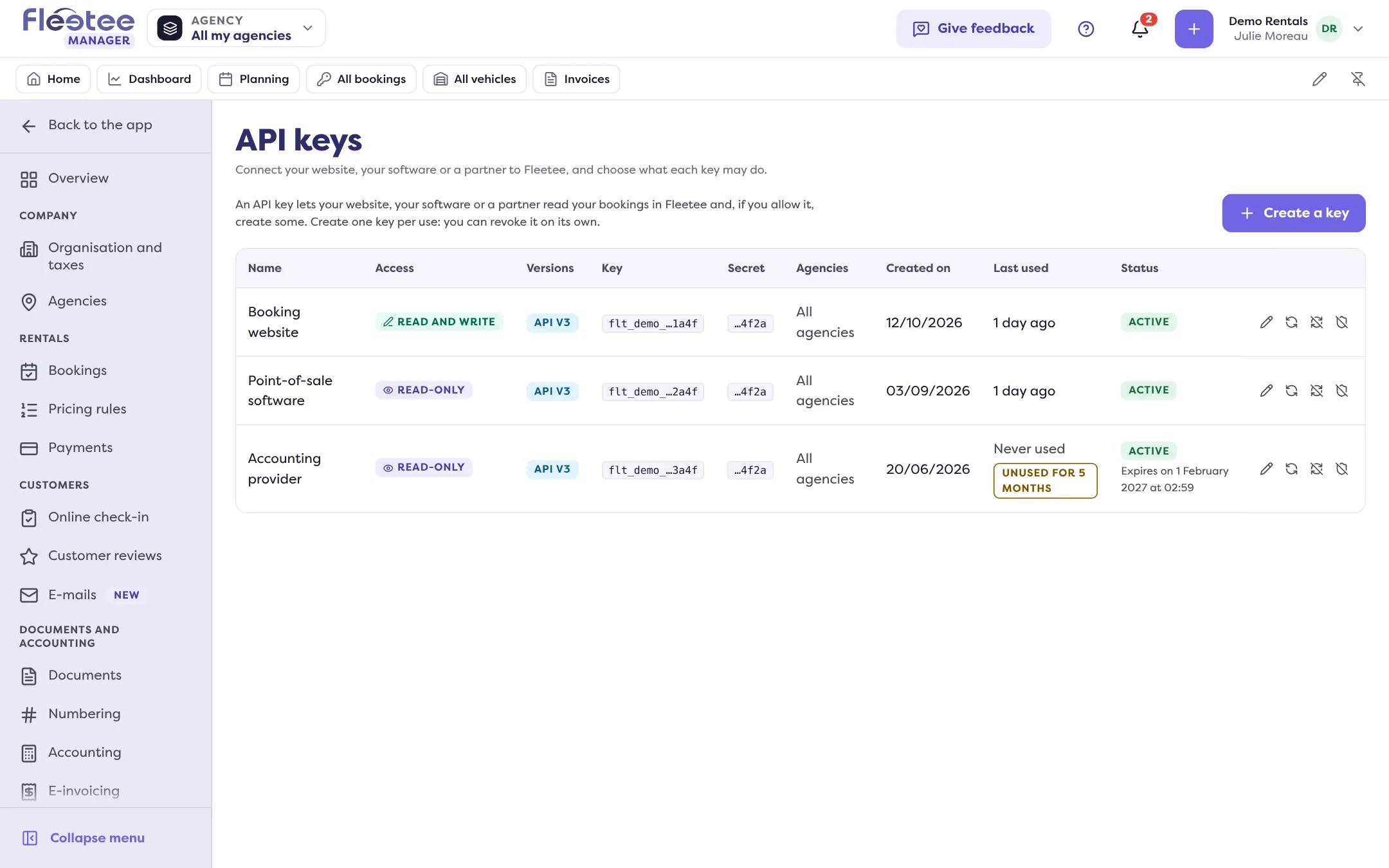
In Settings › API keys, Julie clicks “Create a key”: a name, the access (read-only or read and write), API v3 and the agencies. The key and its secret are shown only once: she copies them somewhere safe.
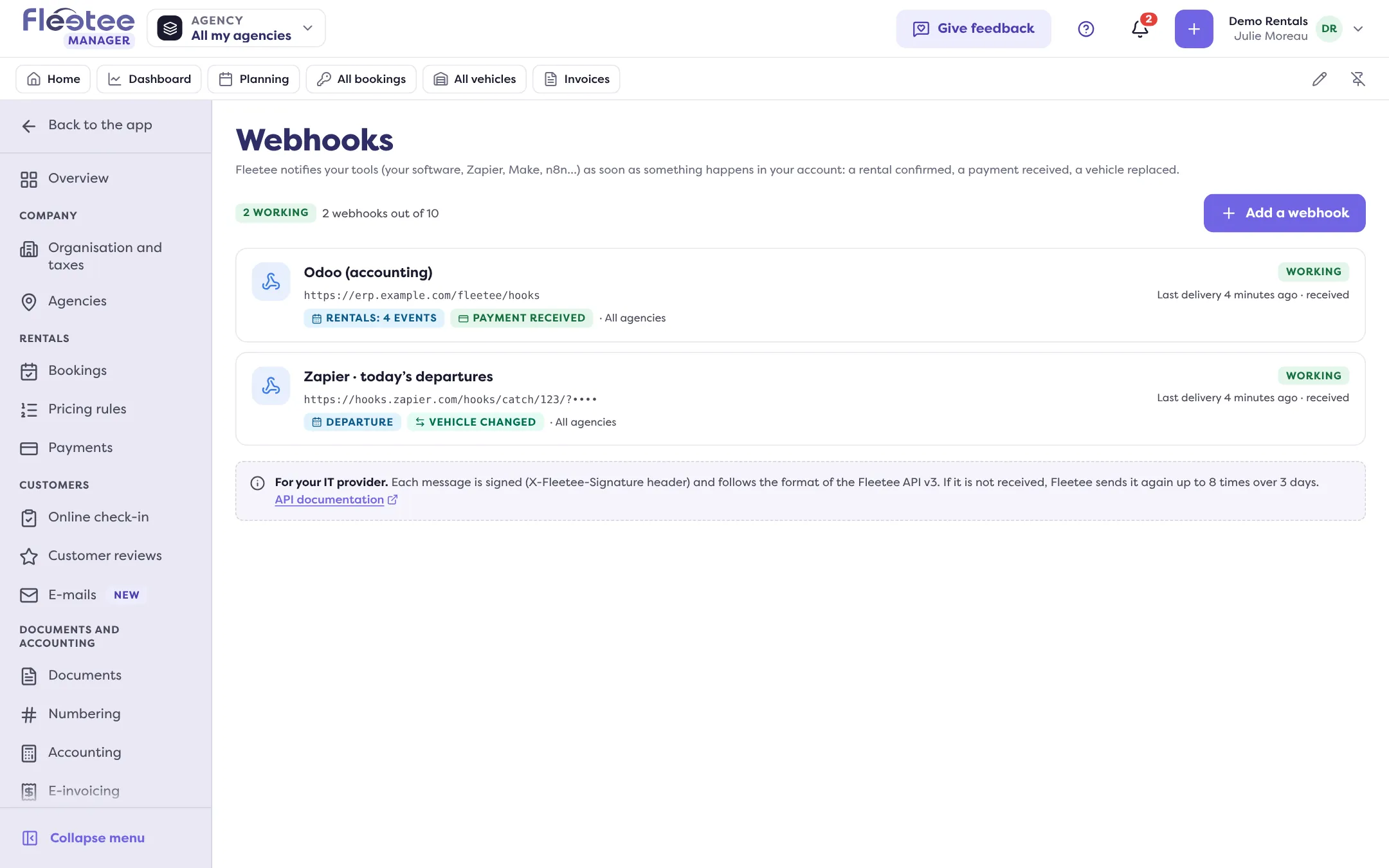
In Settings › Webhooks, “Add a webhook”: the address your tool gives, the events to tick, then a test. Every delivery is signed, and Fleetee retries on failure. For Zapier, Make or n8n it is the same: the tool gives an address, Fleetee sends to it.
A key reads your customers’ data. Open the minimum (read-only, limited agencies), one key per tool. A lost or exposed key is revoked at once, then replaced.
Key steps
Create a key
Settings › API keys › “Create a key”: name, access, API v3, agencies. Copy the key and the secret.
Limit it
“Edit” on its row: “Read-only”, “Limit to some agencies”.
Add a webhook
Settings › Webhooks › “Add a webhook”: address, events, test.
Protect your keys
“Renew the secret” if the secret is lost, “Revoke” if the key is exposed.
Your turn
Tidy up
Open Settings › API keys and review each key: what is it for, does it need to write, all agencies? Note those to limit or revoke, then talk to the person using the tool before cutting anything.
Further reading
Check what you learned
Answer every question correctly to complete the lesson.
Progress kept on this device. Soon with your Fleetee Account.