

A tour of Settings
All settings fit on one page, at the bottom of the menu, sorted by section. The administrator sees them all; start with Organisation and taxes and with Agencies.
Objective
By the end of this lesson, you will find your way around Settings and lay the company’s foundations: its organisation and its agencies.
The essentials
Julie, administrator of Demo Rentals, opens Settings, at the bottom of the menu. The page has its own menu, with a back-to-the-app button at the top. The overview shows one card per settings page, sorted by section:
- Company: Organisation and taxes, Agencies;
- Rentals: Bookings, Pricing rules, Payments;
- Customers: Online check-in, Customer reviews, E-mails;
- Documents and accounting: Documents, Numbering, Accounting, E-invoicing;
- Modules and connectors: Connectors, API keys, Webhooks, Booking site, Fleetee Check, and Keyless if you use it;
- Customisation: Properties, Automations.
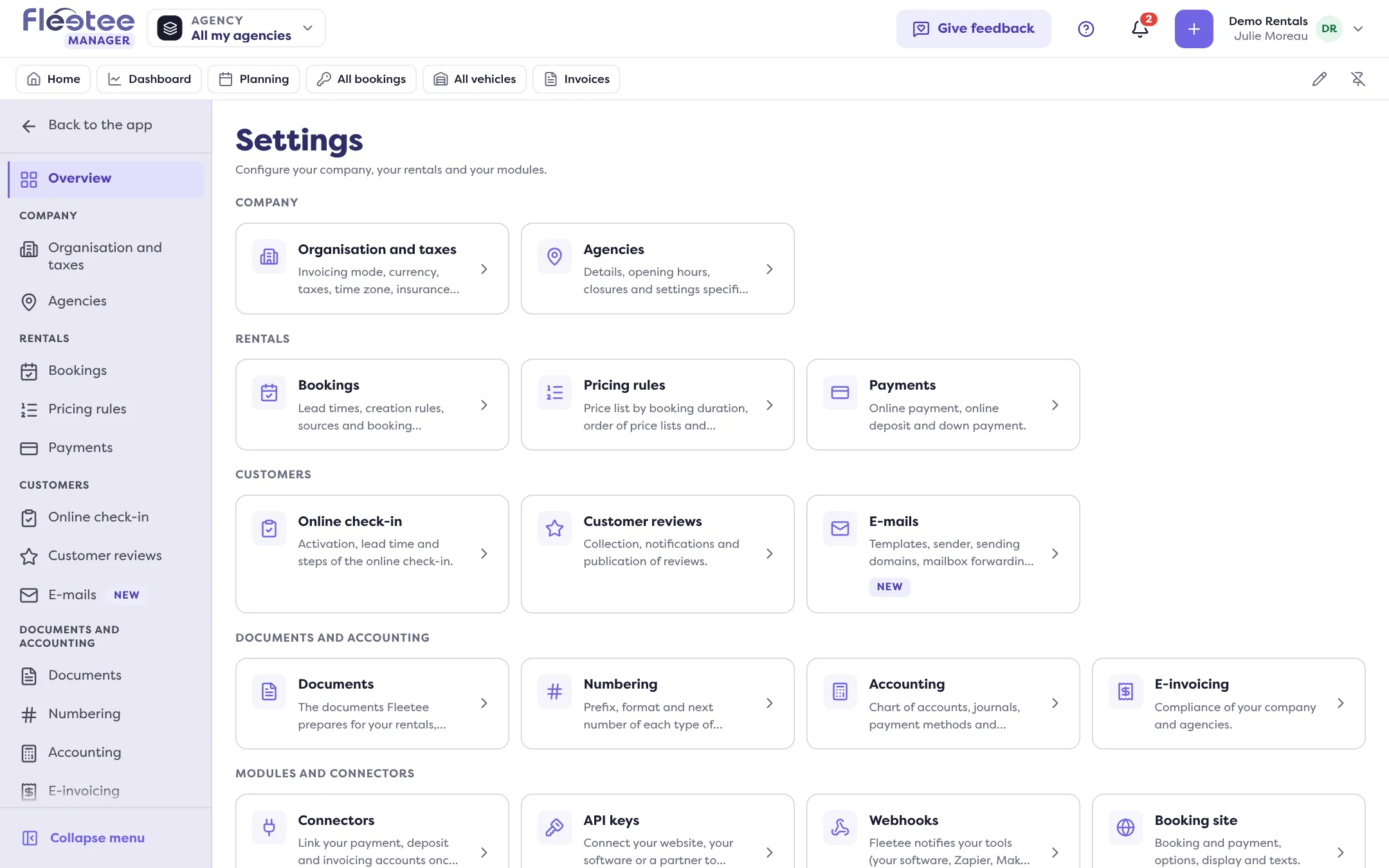
The administrator sees all these pages. An agency manager sees those of their agencies and documents, an accountant accounting and numbering.
Julie starts with Organisation and taxes: the invoicing mode (a single invoicing, or invoicing per agency), the currency, taxes and time zone. Documents already issued do not change. The company’s legal identity (company name, registration number, address, bank details, logo) is set in My account › Entreprise (Company). Then she checks each agency in Settings › Agencies: address, opening hours, exceptional closures.
When an agency is selected at the top of the screen, some settings show for that agency. Choose “All my agencies” to set up the company.
Key steps
Open Settings
At the bottom of the menu, then the overview.
Set Organisation and taxes
Invoicing mode, currency, taxes, time zone.
Check your agencies
Settings › Agencies: address, hours, closures.
Complete the company’s identity
My account › Entreprise: it is printed on your invoices and contracts.
Your turn
Review your company
Open Settings › Organisation and taxes and check the currency and time zone, then My account › Entreprise and check the address printed on your invoices. Only change the invoicing mode after talking it over with your accountant.
Further reading
Check what you learned
Answer every question correctly to complete the lesson.
Progress kept on this device. Soon with your Fleetee Account.