

Setting up Keyless: key sending, statuses, zones
In Settings › Keyless, the administrator chooses when the key is sent, the vehicle statuses that unlock it, the zones, the instructions and the e-mails. The locks (licence, deposit) are set in online check-in.
Objective
By the end of this lesson, you will know how to set up Keyless: when the key is sent, what unlocks it, and where a rental starts and ends.
The essentials
Settings › Keyless only shows if the digital key is turned on for your company. Only the administrator edits; other roles read.
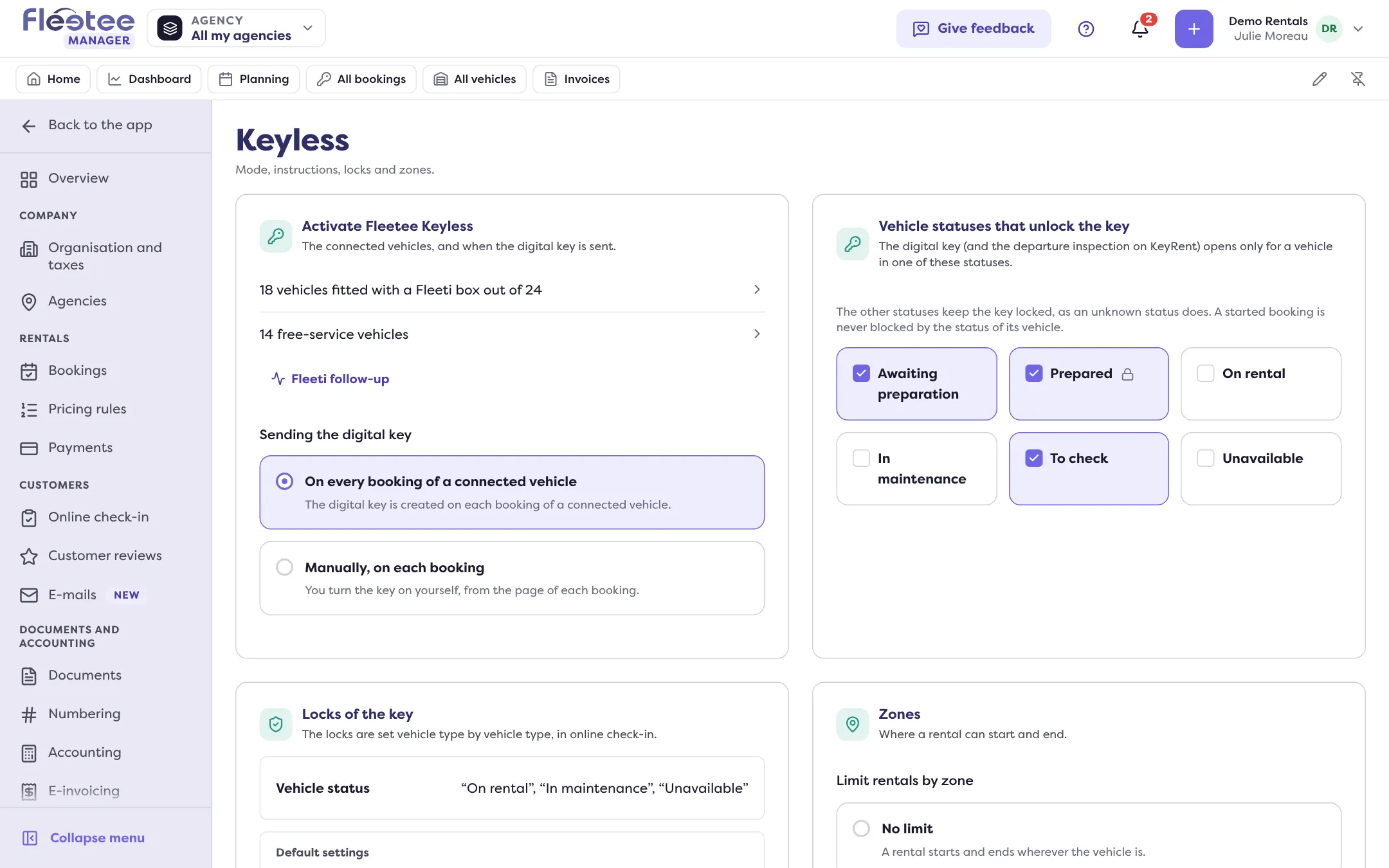
- Sending the digital key: on every booking of connected vehicles, or manually, booking by booking. Until you choose, the key is sent on no booking.
- Vehicle statuses that unlock the key: Prepared is always ticked; the others lock until you tick them. A started booking is never blocked by its vehicle’s status.
- Key locks (read-only): what can prevent opening. Licence, documents and deposit are set vehicle type by vehicle type, in Settings › Customers › Online check-in, Digital key section: “Blocks the key until it is validated” or requested without blocking. If the online deposit is off, it does not lock the key.
- Zones: created at Fleeti, synchronised in Settings › Connectors, Digital key tab. No limit, or “By agency”: each agency has its allowed zones. An agency with no zone ticked can neither start nor end a Keyless rental.
- Instructions and e-mails: what the customer reads at departure and return, and the four e-mails they receive.
Key steps
Choose how the key is sent
Activation card › Sending the digital key.
Tick the statuses
Prepared always is; add others if needed.
Set the locks
Settings › Customers › Online check-in › Digital key.
Set the zones and instructions
Zones › “By agency”, then Instructions and e-mails › “Configure”.
Your turn
Reread your instructions
Open Settings › Keyless › Instructions and e-mails and read the Preview tab: does your customer know where to find the vehicle and where to return it? Note what is missing before editing.
Further reading
Check what you learned
Answer every question correctly to complete the lesson.
Progress kept on this device. Soon with your Fleetee Account.