

Home: what to do today
Read the five parts of Home, from “To handle now” to “What happened”, and adapt it to the way you work.
Objective
By the end of this lesson, you will know how to read Home each morning, tell what is urgent from what can wait, and adapt it to your team.
The essentials
Home answers one question: what do I need to do today? It is the first entry of the menu, and the page Julie opens when she gets to the agency. It refreshes on its own every 5 minutes, and every figure is clickable: it opens the matching list, already filtered.
It reads from top to bottom, from urgent to calm:
- To handle now only shows what needs action: late returns, no-shows, website requests to accept, licences to validate, stop sales starting… When all is well, it says “Nothing urgent for now.”.
- Today gives departures, returns, inspections to finish and deliveries, then “The day hour by hour”.
- To follow holds what is waiting without urgency: pending quotes, invoices to collect, deposits expiring, maintenance, claims…
- Coming days announces tomorrow and upcoming stop sales; What happened lists the latest events.
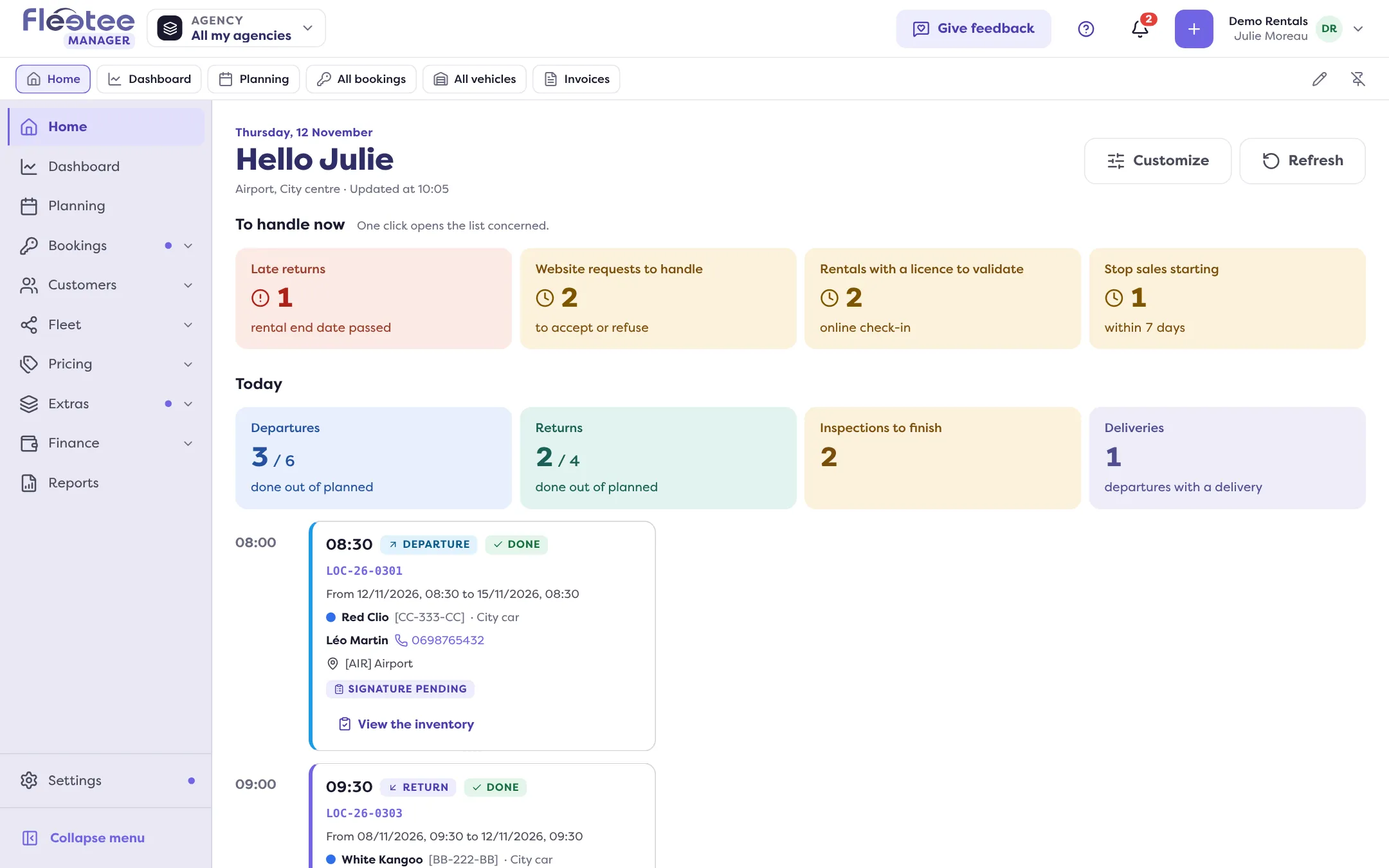
At first, Julie’s Home mostly shows her getting-started steps. Once the company has found its feet, an “An idea for you” card may suggest a feature she does not use yet, based on what she already does; “Later” or “Not for me” make it go away.
Key steps
Start with “To handle now”
Click a tile: the list opens, filtered on what needs handling.
Prepare the day with “Today”
“See all departures and returns” opens the detailed page of the day (chapter 3).
Adapt Home
“Customize” hides a part or a tile and changes their order. By default, your settings only apply to you.
Home follows each person’s role and agencies: a card missing for a colleague opens a page their role cannot see. As the administrator, Julie can also set the starting point for the whole team and decide whether each member may adapt Home for themselves.
Your turn
Read your Home like a morning dashboard
Open Home and click a figure under “Today”: notice the list opens already filtered. Then open “Customize” and look at what you could hide, without changing anything if you do not want to.
Further reading
Check what you learned
Answer every question correctly to complete the lesson.
Progress kept on this device. Soon with your Fleetee Account.