

Your agencies and your categories
Before the vehicles: the agency with its address and hours, then the categories, which carry your prices. Type, category, vehicle: three levels to keep apart.
Objective
By the end of this lesson, you will know why you start with the agency and the categories, and how type, category and vehicle fit together.
The essentials
Before adding her first car, Julie lays the foundations. First the agency: its address and opening hours appear on contracts and on the website, and Fleetee uses them to know when a pick-up or a return is possible. “Location Démo” has a single agency, in town; if she opens one at the airport, each will have its own page, hours and exceptional closures.
Then, the fleet is organised on three levels, from the broadest to the most precise:
- the type groups categories of the same kind (car, van, motorbike, bike…);
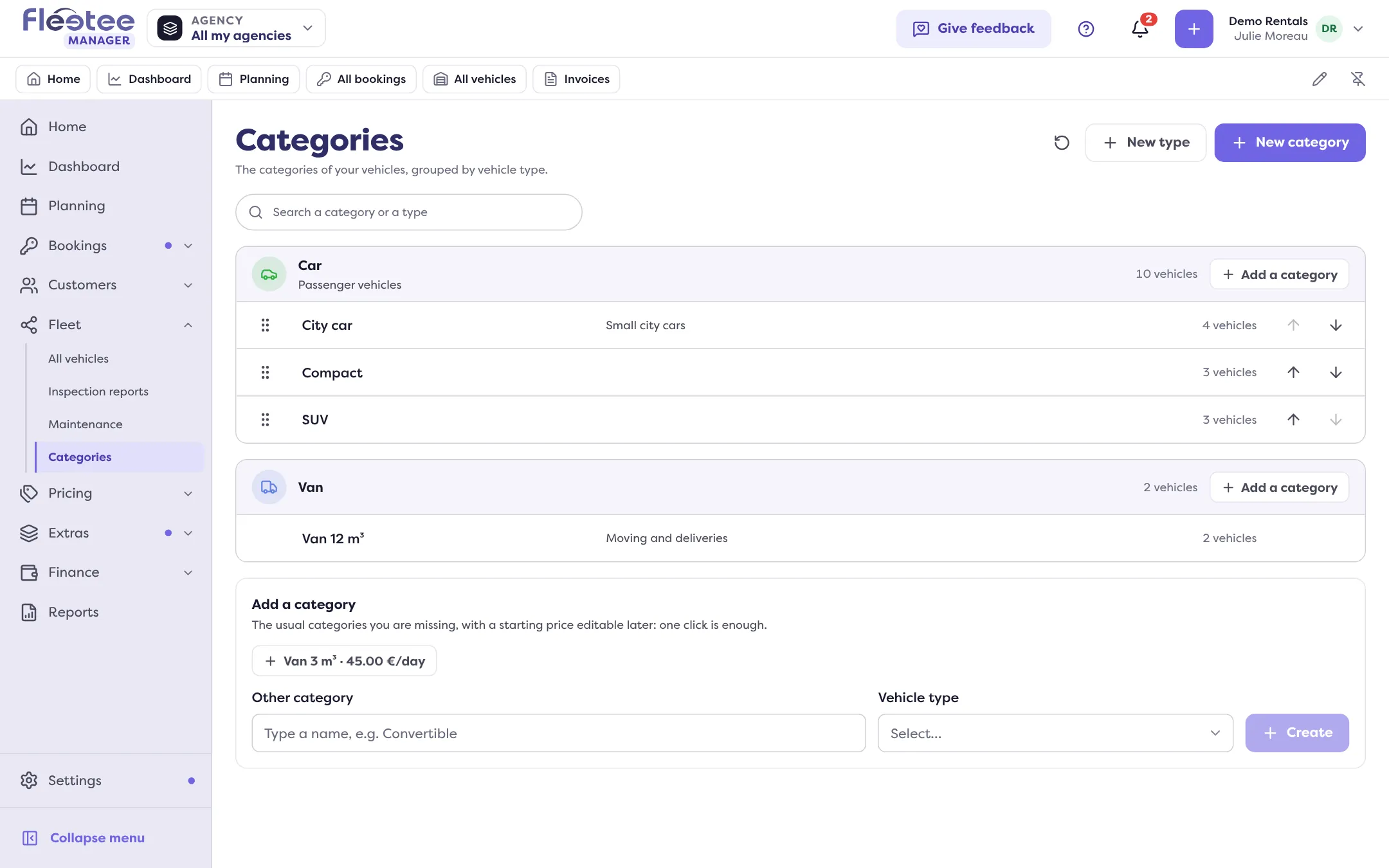
- the category groups similar vehicles (city car, SUV, 9 m³ van…). This is where prices are set, along with the conditions: rates, options, deductibles and deposits, mileage;
- the vehicle is what you rent out, with its number plate, its agency and its mileage. It belongs to one category only.
That is why the order matters: with no category you cannot add a vehicle, and with no category there is nothing to put a price on. Julie creates “City car” and “SUV”; her five cars will go into them in the next lesson. The order of the categories, which she sets by dragging them, is used in the planning and in pick lists.
Key steps
Complete your agency
Settings › Agencies: the “Information” tab for the address (“Use the company address” if it is the same), the “Hours” tab for a preset, then “Apply these hours”.
Add exceptional closures
“Exceptional closures” card › “Add a closure”: public holidays, time off.
Create your categories
Fleet › Categories: the “Add a category” block suggests common categories with a starting price; “New category” opens every setting (name, type, optional ACRISS code, default price).
Put them in the order you want
Drag the categories in the list: the planning will follow that order.
Changing the order of categories is reserved to the administrator; creating or deleting a type, to the administrator and agency managers. Fleetee may ask for confirmation before adding an agency: only an administrator can approve it.
Your turn
Lay your foundations
Check that your agency is “Complete” in Settings › Agencies, then open Fleet › Categories and look at the common categories suggested. Create the ones that match your vehicles.
Further reading
Check what you learned
Answer every question correctly to complete the lesson.
Progress kept on this device. Soon with your Fleetee Account.