

How do I prepare today’s pick-ups and returns?
- Manager v3
- Administrator
- Agency manager
- Rental agent
- 0:58
In short. Open Bookings › Pick-ups and returns: the page lists today’s pick-ups and returns hour by hour, with the customer, the vehicle, what to prepare, the amount left to pay and the inspection. One click opens the rental.
The Pick-ups and returns page shows, day by day, what leaves and what comes back. It is the agency team’s page in the morning: who is coming, with which vehicle, what to get ready and what is left to collect.
Fleetee uses the word for your type of asset: “vehicle”, “bike”, and so on. These articles say “vehicle”.
Open Bookings › Pick-ups and returns
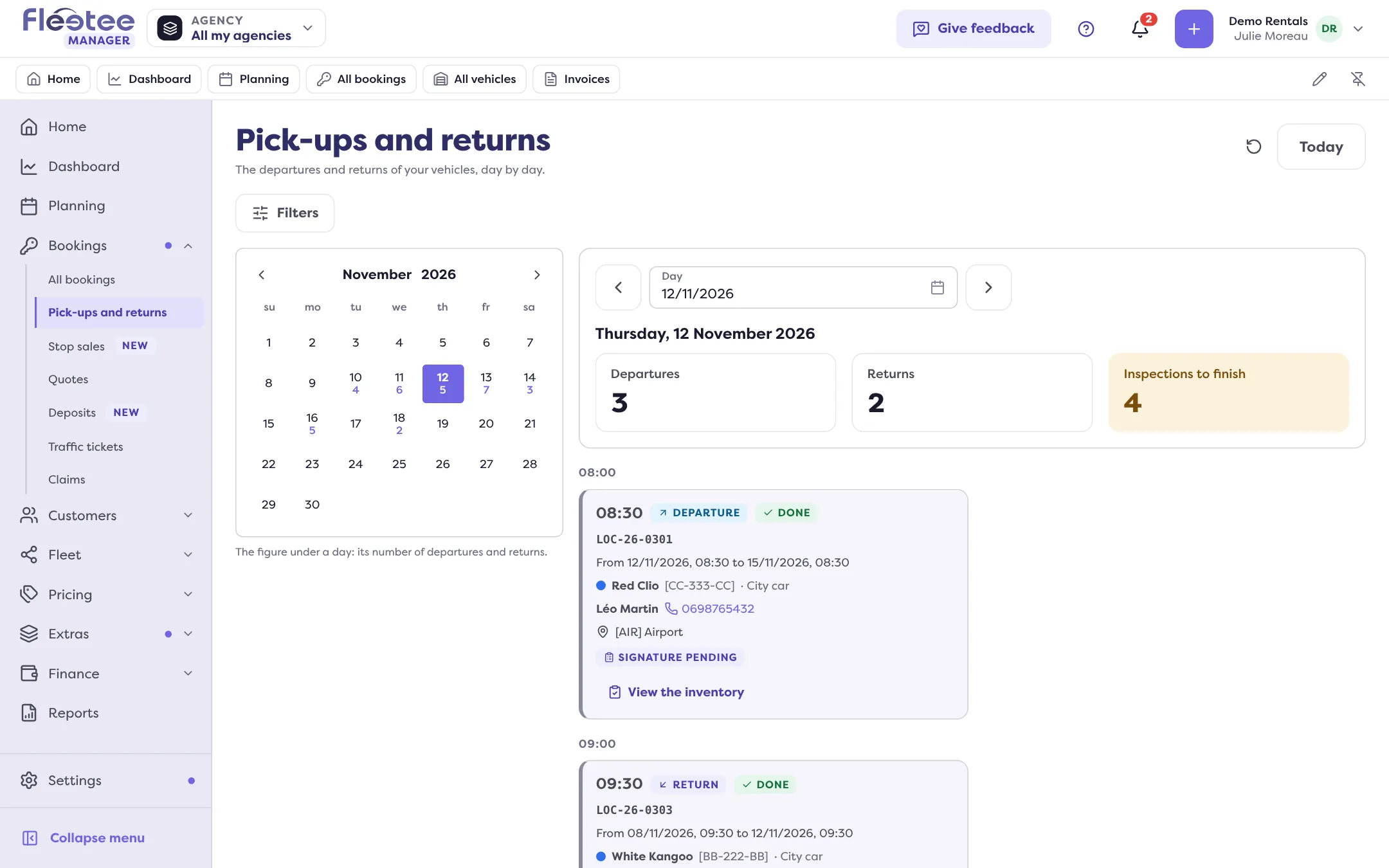
The page opens on the current day. The “Today” button brings you back; “Previous day” and “Next day” change the day. In the calendar, the figure under a day is its number of departures and returns.
Read the figures of the day
Three figures: Departures, Returns and Inspections to finish (the inspections still to do).
Filter if needed
The filters cover the Type (Departures or Returns), the Inventories (Of rentals or Outside a rental) and the Agencies.
Go through the day
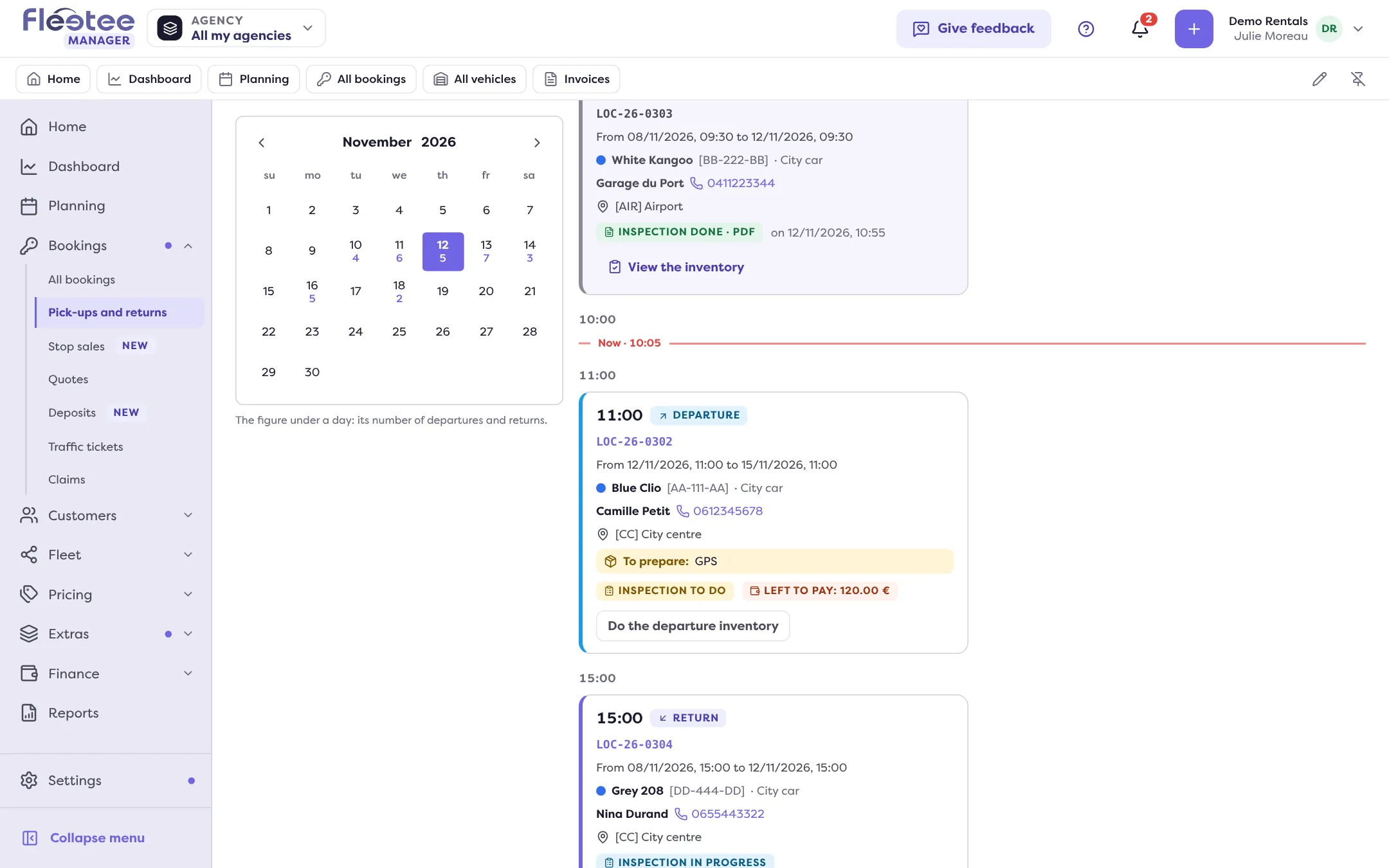
Movements are sorted by hour. A “Now” line marks the current time; “Time not specified” groups the movements with no time.
Open the rental of a card
One click on the card opens the rental page (“Open booking LOC-…”).
What a card tells you
- Departure or Return, the time, the reference of the rental and its period (“From … to …”);
- the vehicle, or “No vehicle assigned”; a “Replacement” badge if the rental has a replacement, “Delivery” and “Keyless” when they apply;
- the customer, with a “Call the customer on …” link;
- “To prepare:” (at pick-up) or “To get back:” (at return): the extras of the rental, for example a baby seat × 2;
- “Left to pay: …” when the rental is not settled;
- the state of the movement: Done, To do, No-show (the pick-up time has passed and the rental has not left), Late (the return time has passed) or Cancelled.
The inspection from the card
The card shows where the inspection stands and offers the next step: “Do the departure inventory” or “Do the return inventory”, “Collect the signatures”, then “View the inventory” and the PDF once it is done (“Inspection done · PDF”).
Movements outside a rental
A vehicle taken out or brought back without a rental appears with “Outside a rental” (“Vehicle taken”, “Vehicle returned”). As long as it has not come back, the card says “Taken on …, not returned yet”.
Where to find it: Bookings › Pick-ups and returns
Where to find it: Bookings › Pick-ups and returns
Go further
Updated on 18 November 2026 with version 3.0