

What does the Home page show me each morning?
- Manager v3
- Administrator
- Agency manager
- Rental agent
- 1:00
In short. Home gathers what needs action (late returns, website requests, licences to validate), today’s pick-ups and returns, what is waiting without urgency, the coming days and what happened. Every figure opens the list behind it.
Home is the first entry of the Fleetee Manager menu. It answers one question: what do I have to do today? At the top you read “Hello” and your first name, the time of the last update (“Updated at …”) and the “Refresh” button. The page also reads itself again every 5 minutes.
Every figure is clickable: it opens the list behind it, already filtered.
Home adapts to your role and your agencies. If a card is missing for you, your role has no access to the page it opens.
The five parts
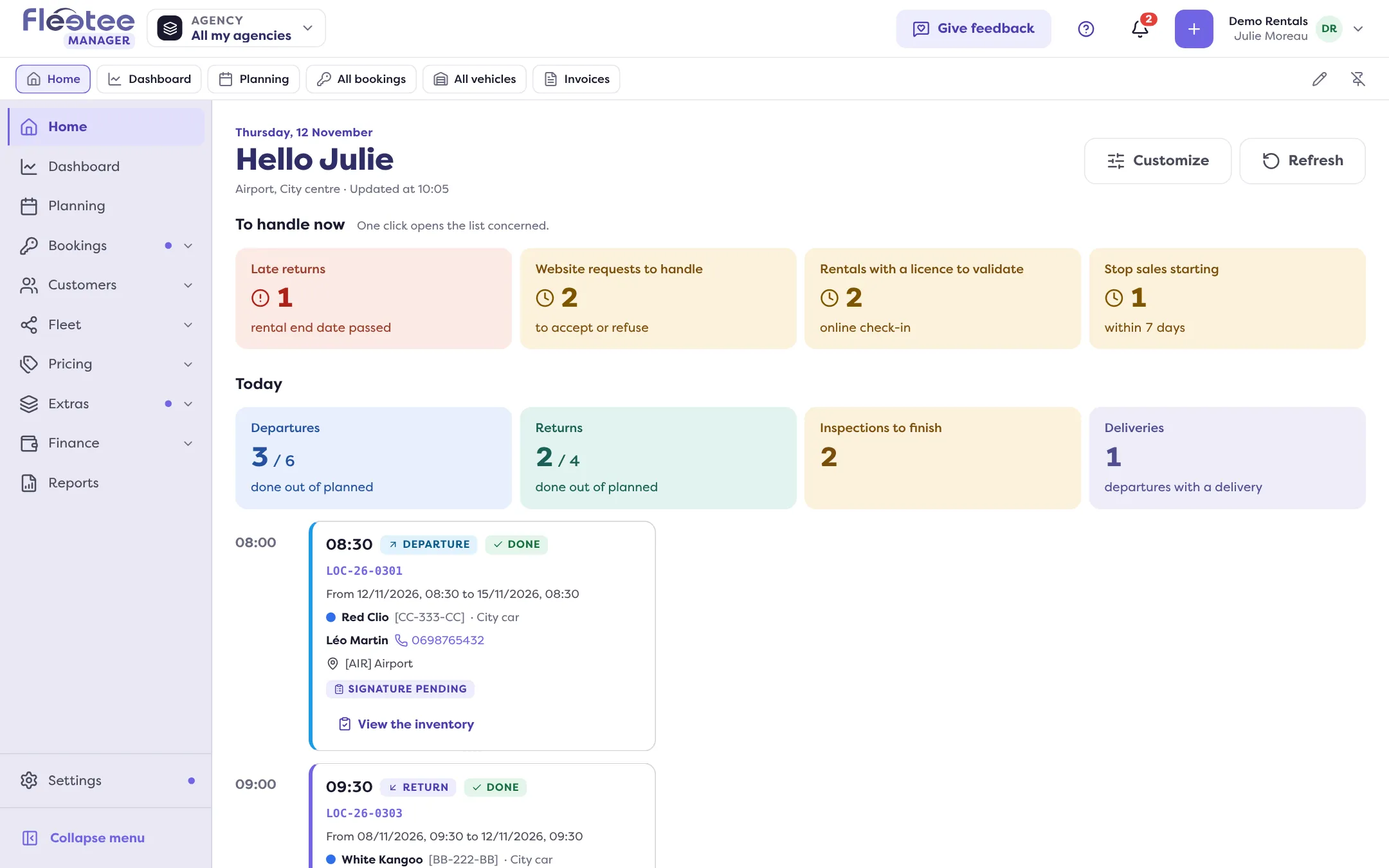
To handle now
This part only shows what needs action. When all is well, it says “Nothing urgent for now.” The possible tiles:
- Late returns: the end date of the rental has passed;
- No-shows: the departure has passed and the rental has not left (last 7 days);
- Website requests to handle: to accept or decline;
- Rentals with a licence to validate and Rentals with documents to verify: they come from online check-in;
- Overbooked categories within 7 days: the tile opens the planning;
- Channels to check and Channel availability alerts;
- Blocked invoices, held by e-invoicing;
- Stop sales starting within 7 days;
- Stocks exceeded or Stocks at zero (options), over 30 days.
Today
The figures of the day: Departures, Returns (done out of planned), Inspections to finish and Deliveries. Below, The day hour by hour lists today’s pick-ups and returns with their state. The “See all departures and returns” link opens the detailed page: see Prepare today’s pick-ups and returns.
To follow
What is waiting, without urgency, sorted in cards:
- Sales: pending quotes, unfinished website requests;
- Invoicing: drafts, to collect, unpaid;
- Deposits: deposits held, expiring, past their end, being checked, rentals with a deposit to give back;
- Fleet: servicing overdue or due soon, reports waiting for an intervention, vehicles waiting for preparation or to check;
- Cases: open claims, traffic tickets awaiting a contest;
- Customers: attachment requests to review, customers to complete for e-invoicing.
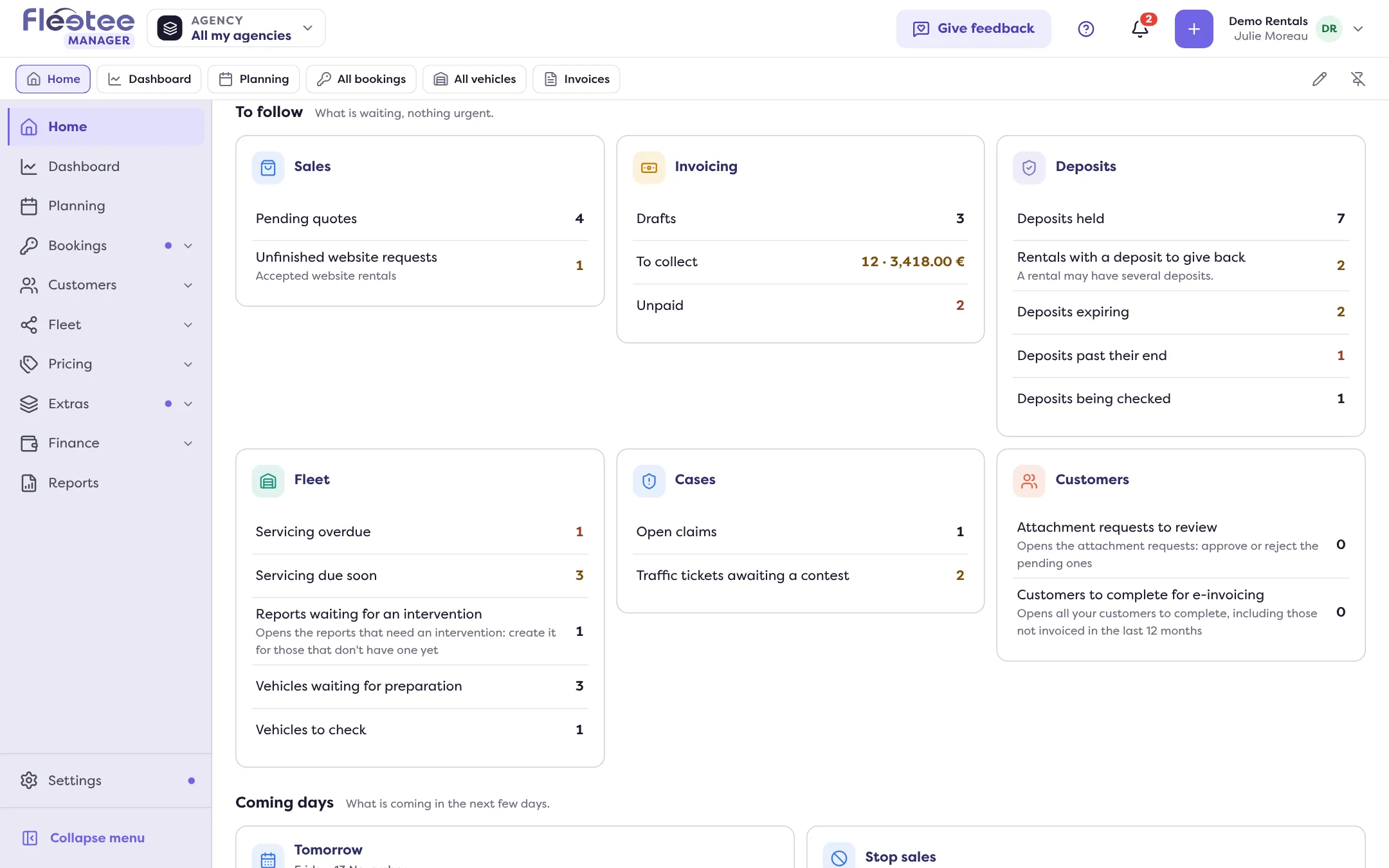
Coming days
Tomorrow: the number of departures and returns, with the time of the first one. Stop sales: those in progress and those coming in the next 7 days; see Stop selling a category for a period.
What happened
The latest events of your rentals, your customers and your website: contract signed, deposit secured, payment link paid… “See more” loads the next ones.
Adapt Home
The “Customize” button lets you hide a part or a tile and change their order. By default, what you set only applies to you. An administrator can also set the starting point for the whole team, and decide whether each member may adapt Home for themselves (“Each member can adapt the home page for themselves”).
Where to find it: Home, the first entry of the menu
Where to find it: Home, the first entry of the menu