

Settings and your company
All settings fit on one page, in sections; the company’s identity is managed once in My account, and booking rules in Settings › Bookings.
Objective
By the end of this lesson, you will know where each setting is, what is set in Manager and what is set in “My account”, and which booking rules to check first.
The essentials
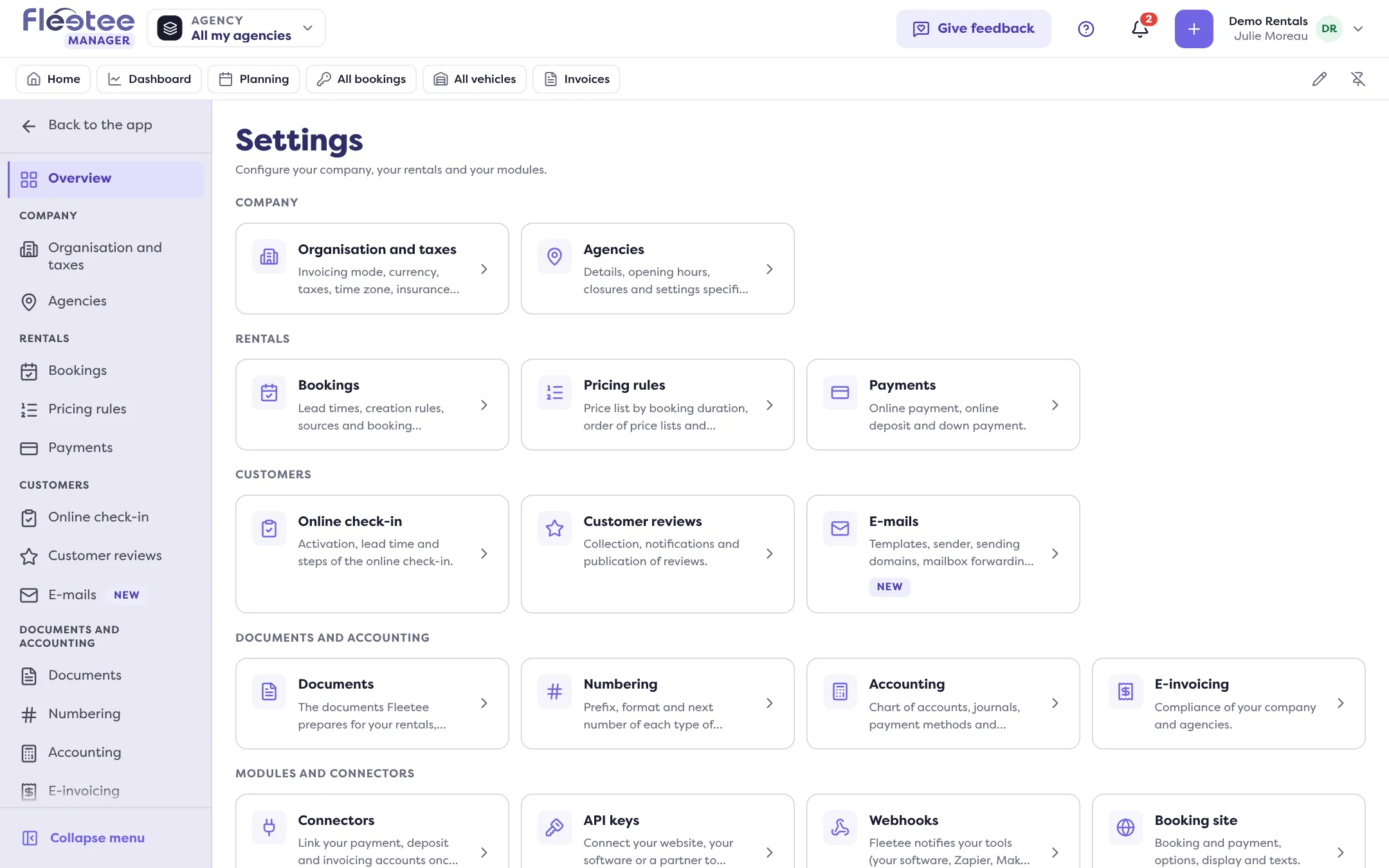
Along the course, Julie has already opened several Settings pages: Agencies, Payments, Connectors, Online check-in, E-mails. They all fit on one page, Settings, at the bottom of the menu, with its own menu and “Back to the app” to return. The “Overview” shows one card per page, with a sentence saying what it is for. Sections follow the job: Company, Rentals, Customers, Documents and accounting, Modules and connectors, Personalisation.
One thing is not in Settings: the company’s identity, users and the subscription. They are managed once in the Fleetee Account (account menu › “My account”), for Fleetee Manager, Fleetee Web and Fleetee Check at once. In My account › Entreprise (Company), Julie checks the company name, address, VAT, IBAN and logo: they are what prints on her invoices and contracts.
In Manager, two pages deserve a visit from the start:
- Settings › Organisation and taxes: currency, taxes, time zone, and the Insurance card, whose details print on contracts;
- Settings › Rentals › Bookings: minimum notice before pick-up, minimum and maximum duration, gap between two bookings, and the creation rules (overbooking, creation in the past, price editable by hand), each open to “Everyone”, “Administrators only” or “Nobody”.
Key steps
Open Settings › Overview
Look through the sections; a page marked “New” did not exist in the old version.
Check the company’s identity
Account menu › “My account” › Entreprise: Identité, Coordonnées, Fiscalité, Coordonnées bancaires, Logo tabs (the Fleetee Account shows in French).
Set your booking rules
Settings › Rentals › Bookings: lead times and durations, creation rules, sources, statuses and planning.
Each role only sees in Settings the pages its rights open. Settings › Bookings and My account › Entreprise are reserved to the administrator. Changing the IBAN asks you to confirm it is you.
Your turn
Tour the Settings
Open Settings › Overview and read each card’s sentence. Then open Settings › Rentals › Bookings and read the summary sentence of “Lead times and durations”: does it match the way you rent?
Further reading
Check what you learned
Answer every question correctly to complete the lesson.
Progress kept on this device. Soon with your Fleetee Account.