

Creating a customer and reading their file
Create a person or a company, fill in the file by photographing the licence, avoid duplicates, and find their documents, account and history in the file.
Objective
By the end of this lesson, you will know how to create a customer cleanly, with no duplicate, and what you will then find in their file.
The essentials
A customer is first of all a person or a company. For a person, first and last name are enough; the e-mail and phone are used for messages (confirmation, payment link, online check-in). For a French company, Julie types its SIREN or name: Fleetee fills in the company name, VAT and address.
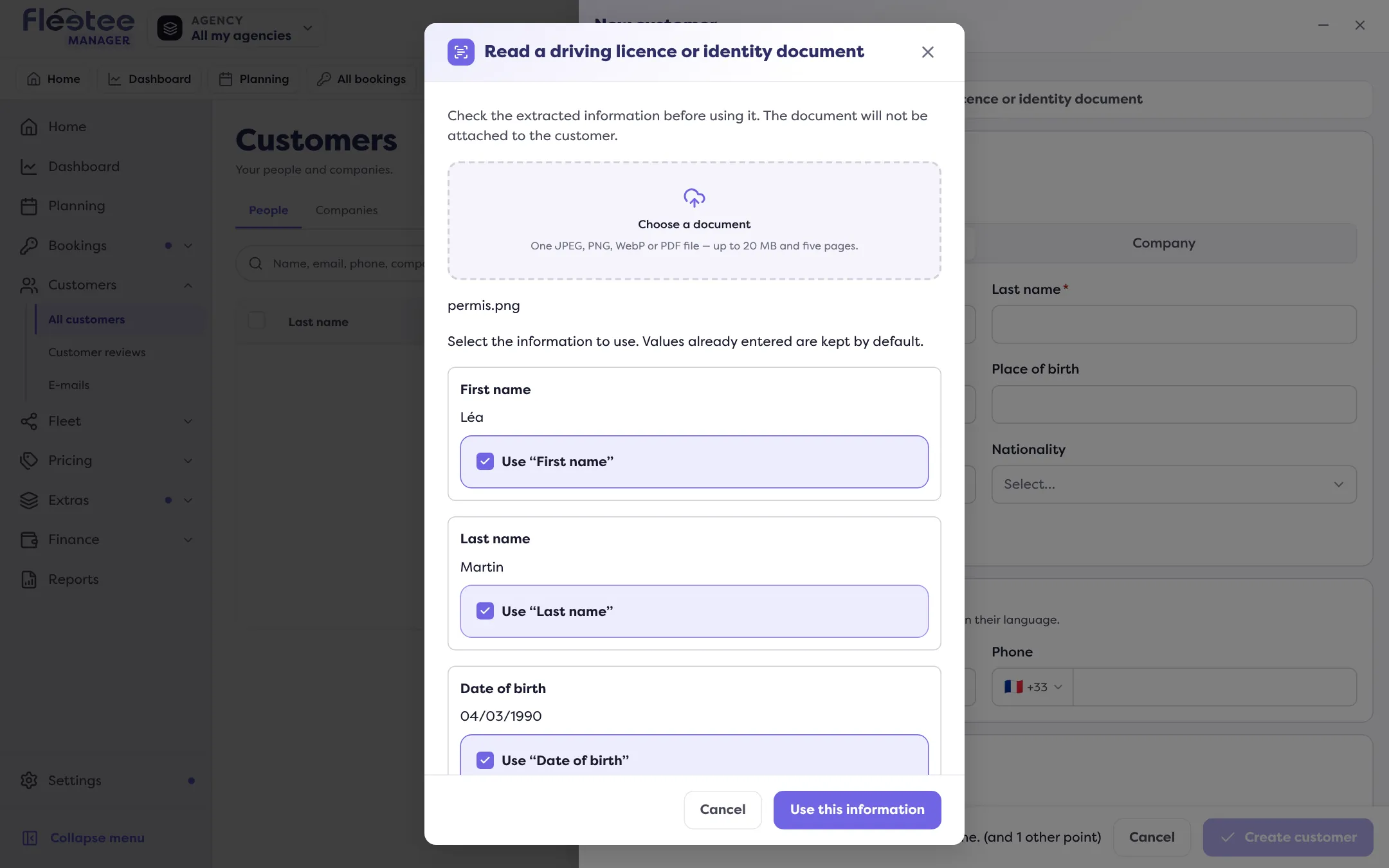
At the counter, Julie no longer copies a licence by hand: “Read a driving licence or identity document” fills in the form from a photo. She ticks what she keeps; an uncertain value is flagged for checking, and nothing is made up. The document itself is not attached to the file: to keep it, she adds it afterwards in the Documents panel.
While you type, Fleetee spots duplicates: if the e-mail, phone or SIREN matches an existing customer, a “This customer already exists” card offers to open their file. A clean file means a reliable history.
The customer file then gathers everything: their details and licence, then the Documents, Customer account (wallet and ledger), Reviews, E-mails, Timeline and Activity panels. Everyday actions are one click away: “Edit”, “Create a booking”, “Create a quote”.
Key steps
Click “Add a customer”
Customers › All customers. Choose Person or Company.
Photograph the licence (for a person)
“Read a driving licence or identity document” › “Choose a document” or “Take a photo” › “Read document” › “Use this information”.
Read the “This customer already exists” card if it shows
“Open the file” of the existing customer, or “That’s not them, create anyway”.
Click “Create customer”
The “Customer created” screen offers to “Create a rental for this customer”.
Your turn
Have your own licence read, without creating anything
In Customers › All customers, click “Add a customer”, Person type, then “Read a driving licence or identity document” and photograph your own licence. Look at what was read and what is flagged for checking. Then close the form without clicking “Create customer”: nothing is created before that button.
Further reading
Check what you learned
Answer every question correctly to complete the lesson.
Progress kept on this device. Soon with your Fleetee Account.