

Where can I find an inspection report and its PDF?
- Manager v3
- Administrator
- Agency manager
- Rental agent
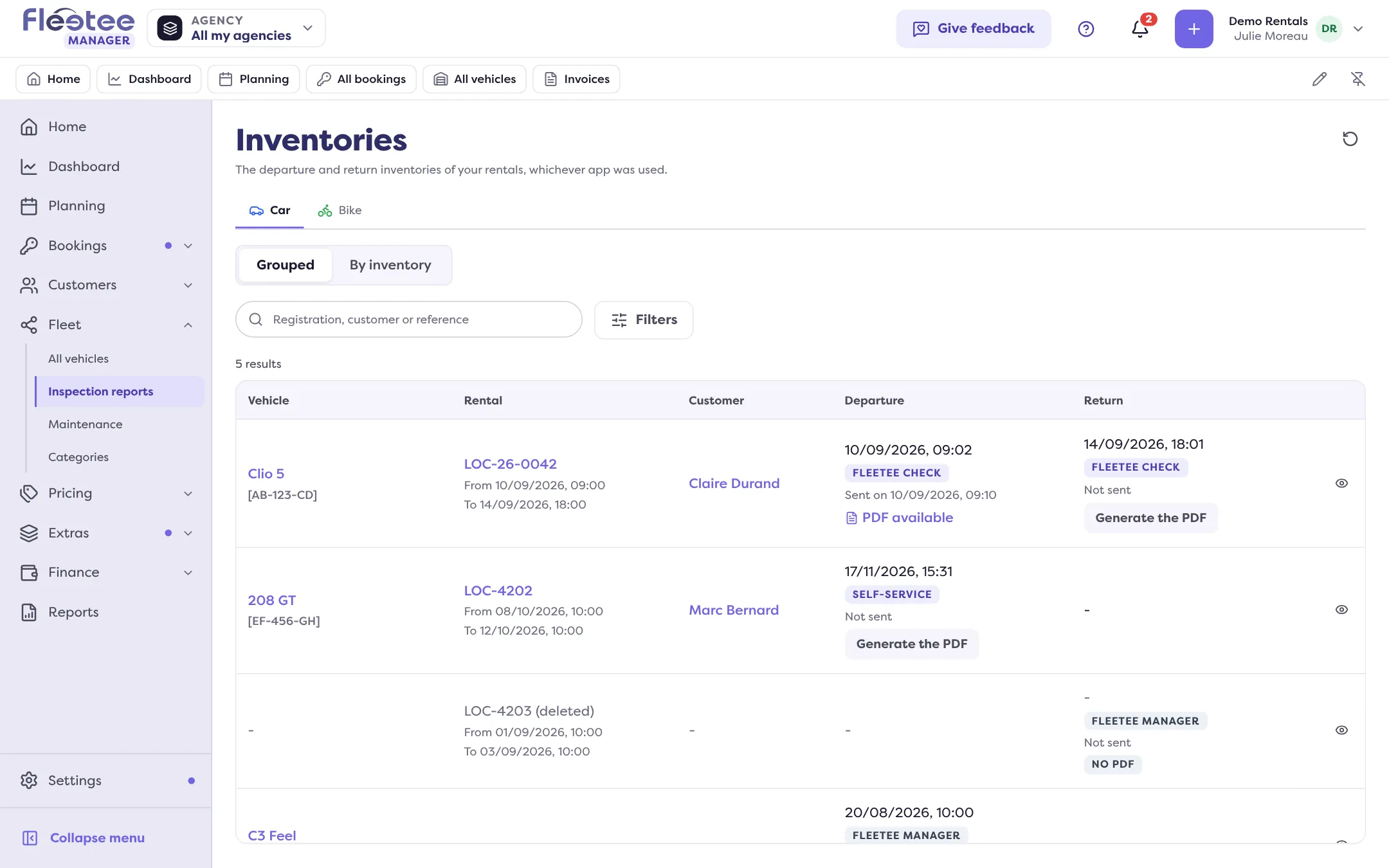
In short. Fleet › Inspection reports lists the departure and return inspections, whichever app was used. Click a row to see photos, signatures and damage, and to open, generate or send the PDF.
All the inspections of your rentals are in one place, whether they were made with Fleetee Check, in Manager, with the digital key or in self-service. They appear with their photos and signatures.
Open Fleet › Inspection reports
For each inspection the list shows the rental, the customer, the vehicle, the departure and return dates, the type (Departure, Return, Preparation), the date, the agency, done by, the mileage, the fuel, the damage and the Status / PDF. A badge gives the origin: Fleetee Manager, Fleetee Check, Keyless or Self-service.
Search or filter
The field searches by registration, customer or reference. The filters: Type, Inventories (Of rentals or Outside a rental) and vehicle type. Two displays: Grouped (default: the departure and the return of the same rental on one row) or By inventory (one row per inspection, with the date, agency, author, mileage, fuel and damage). You can save your views.
Click a row
The “View the inventory” sheet shows the state of each side (departure, return), who did it and when, the signatures (“Signed by the renter and the agent”…), the measures and properties recorded (mileage, fuel…), the photos (vehicle walk-around, damage, other, with the annotation or the original photo), the driving licence photos, the customer, the comments (damage found), and the rental’s claims with “Create a claim”.
Open the PDF
“View the PDF” opens the document of each side. In the list, the Status / PDF column says PDF available, PDF to generate or No PDF.
Generate or send the PDF
- “Generate the PDF” creates the document of an inspection that has none yet (it can take a minute: do not close the screen). If a signature is missing, Fleetee asks “Generate without all the signatures?”: the PDF is then generated without it. See Why can’t a signed inspection report be changed any more?.
- “Send to the customer” e-mails the PDF: choose the side, the recipient (prefilled with the customer’s address, to enter if they have none), an optional subject and message. The PDF must be generated first. The list then shows “Sent on …” or “Not sent”.
- The “Have it signed” and “Resume the entry” actions appear when the inspection is waiting for a signature or is not finished. See How do I do an inspection from Manager?.
From the rental
A rental’s file also has “View the inspection” and “PDF” for each vehicle, next to departure and return.
Where to find it: Fleet › Inspection reports
Where to find it: Fleet › Inspection reports
Go further
Updated on 18 November 2026 with version 3.0