

How do I send the inspection report to the customer?
- Manager v3
- Administrator
- Agency manager
- Rental agent
In short. In the inspection report’s sheet (Fleet › Inspection reports), “Send to the customer” e-mails the PDF of the departure or return inspection report. The report must be finished and its PDF generated.
The customer can receive their inspection report by e-mail, with a link to download the PDF. It is useful after a return, or to resend a lost document.
Open the inspection report
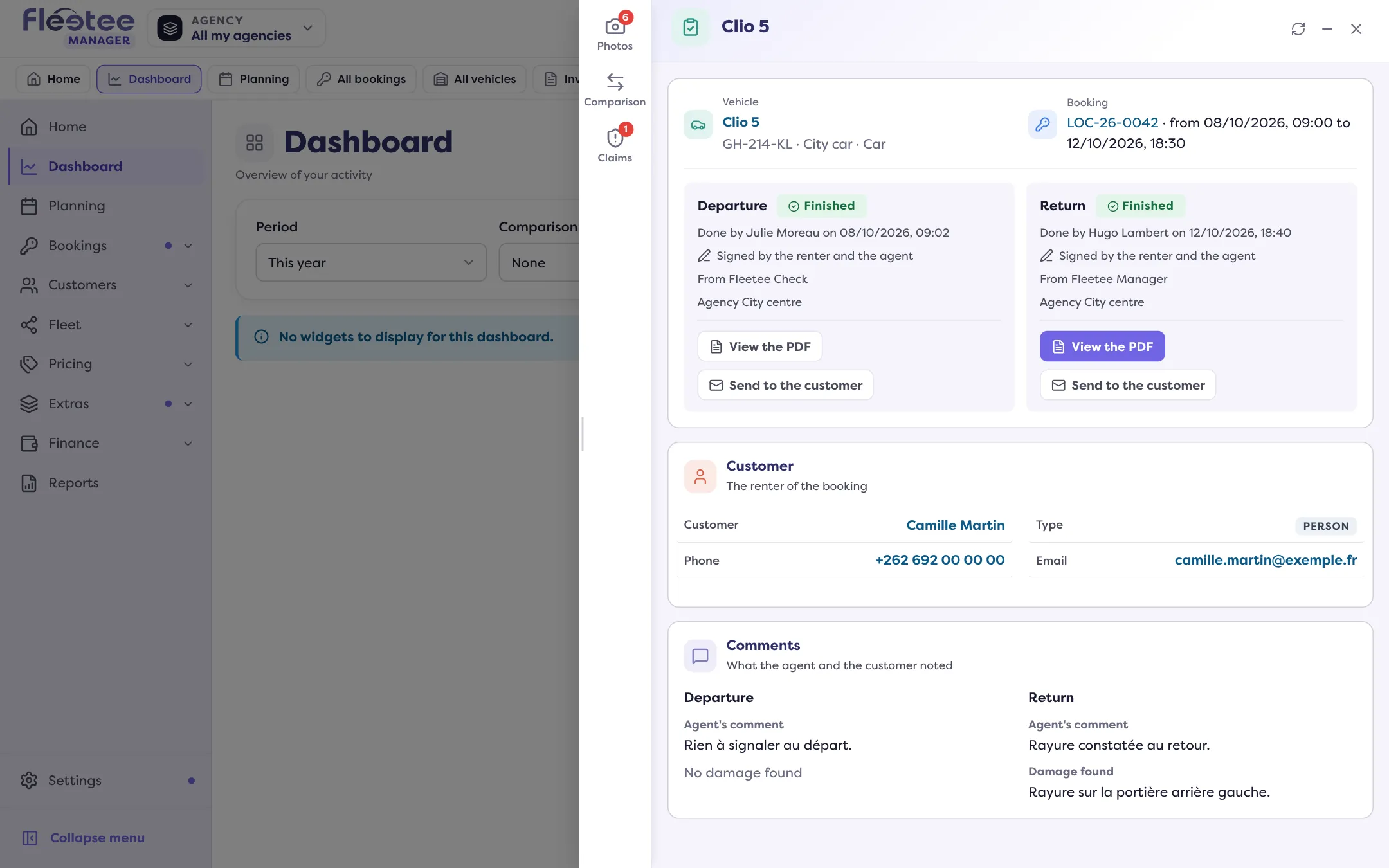
In Fleet › Inspection reports, click the line. The list shows for each one “Sent on …” or “Not sent”. The sheet shows, on each side (departure or return), “Sent to the customer on …” or “Not sent to the customer”.
Generate the PDF if needed
“Send to the customer” is only possible once the PDF is generated: otherwise the button is greyed out and the sheet says “‘Send to the customer’ will be possible once the PDF is generated”. Click “Generate the PDF” when the button is offered (see Do an inspection from Manager).
Click “Send to the customer”
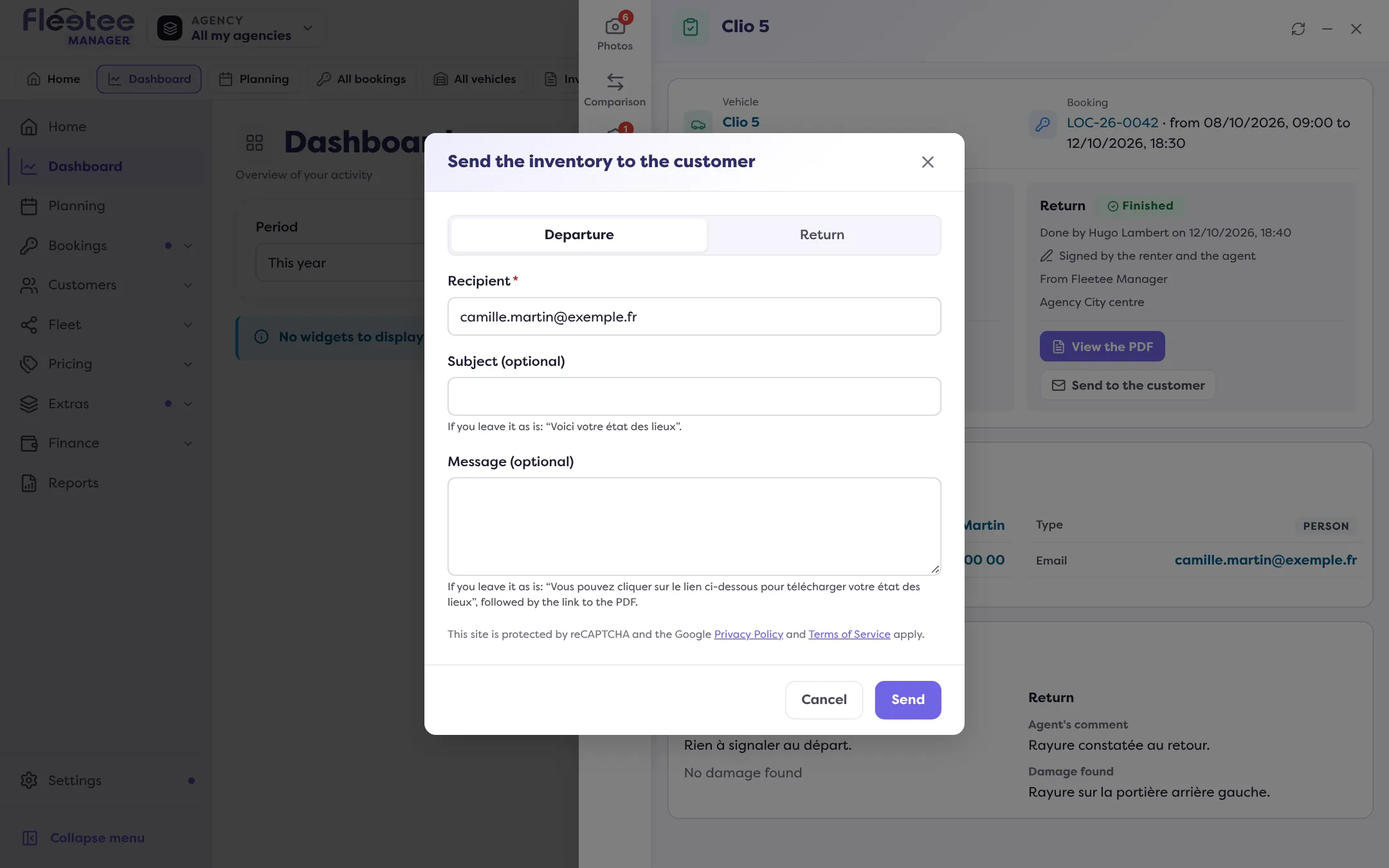
In the card of the side you want. The “Send the inventory to the customer” window opens. If the departure and the return reports both have a PDF, choose “Inventory to send”; otherwise the window says which PDF will be attached.
Check the recipient
“Recipient” is pre-filled with the customer’s address. With no address, Fleetee says so (“No known address for this customer: enter the recipient”): enter one.
Personalise if you like
“Subject (optional)”: unchanged, “Voici votre état des lieux”. “Message (optional)”: unchanged, “Vous pouvez cliquer sur le lien ci-dessous pour télécharger votre état des lieux”, followed by the PDF link.
Click “Send”
“E-mail sent to …” confirms. The send date shows on the sheet and in the list.
If the send does not go out
- No button: the report is not finished, has no rental, or its PDF does not exist yet. The sheet explains it under the buttons (for example “Waiting for the renter’s signature”).
- “This side has no PDF to send: generate it first”: generate the PDF.
- “The recipient’s e-mail address is not valid”: correct the address.
- “The e-mail could not be sent: no send is recorded”: try again in a moment.
- “The security check was refused”: try again, or reload the page.
If the customer did not get the e-mail, see My customer says they didn’t get an e-mail.
Where to find it: Fleet › Inspection reports › a report › “Send to the customer”
Where to find it: Fleet › Inspection reports › a report › “Send to the customer”
Go further
Updated on 18 November 2026 with version 3.0