

How do I do an inspection from Manager?
- Manager v3
- Administrator
- Agency manager
- Rental agent
In short. In the rental’s file, vehicle panel: “Do the check-out inspection” or “Do the check-in inspection”. Fill in the fields, save after the summary, then have it signed and generate the PDF. Photos are taken with Fleetee Check.
You can enter a vehicle’s departure and return inspection directly in Manager, for example at the agency or counter. Photos are not taken in Manager: they are made with the Fleetee Check app (see How do I set up Fleetee Check from Manager?).
The departure
Open the rental’s file, vehicle panel
Click “Do the check-out inspection”. For a rental with several vehicles, the inspection is done vehicle by vehicle.
Fill in the vehicle’s condition
The “Condition of the vehicle at departure” card takes the fields set for this vehicle type (mileage, fuel level, cleanliness, papers, your own properties…). The mileage is required. If no field is set, only the damage, the remarks and the date are to be filled in.
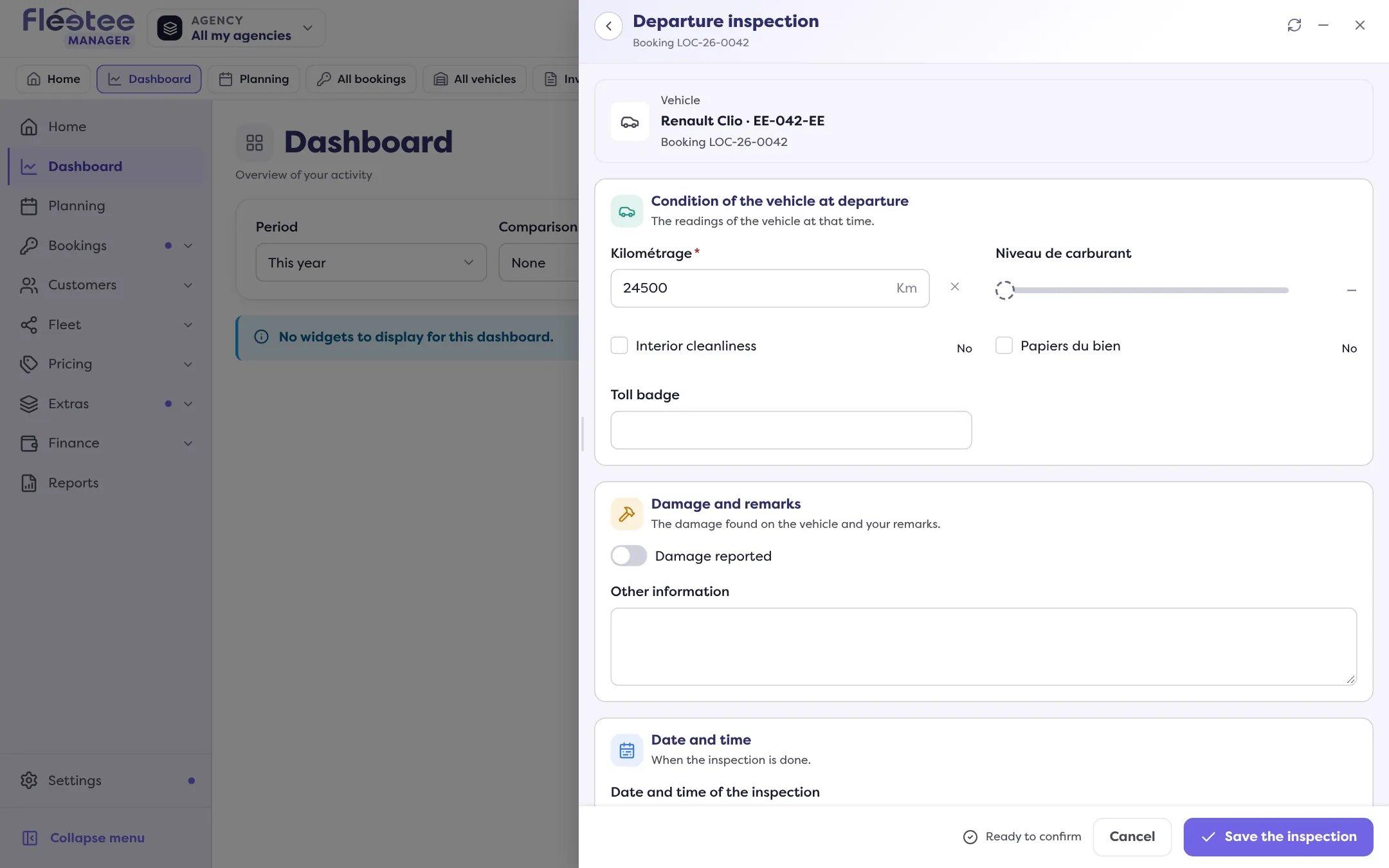
Report damage
“Damage reported”, “Damage details” and “Other information” are not required.
Check the date and time
“Date and time of the inspection” is required; it is prefilled.
Click “Save the inspection”
Fleetee shows “Save the departure inspection?” with what will happen: the rental becomes In progress, the vehicle becomes Rented, the departure mileage is recorded on the rental and the digital key is activated (unless it was locked by hand). This cannot be undone: once saved, the departure inspection can no longer be cancelled or changed here. Click “Confirm and save”.
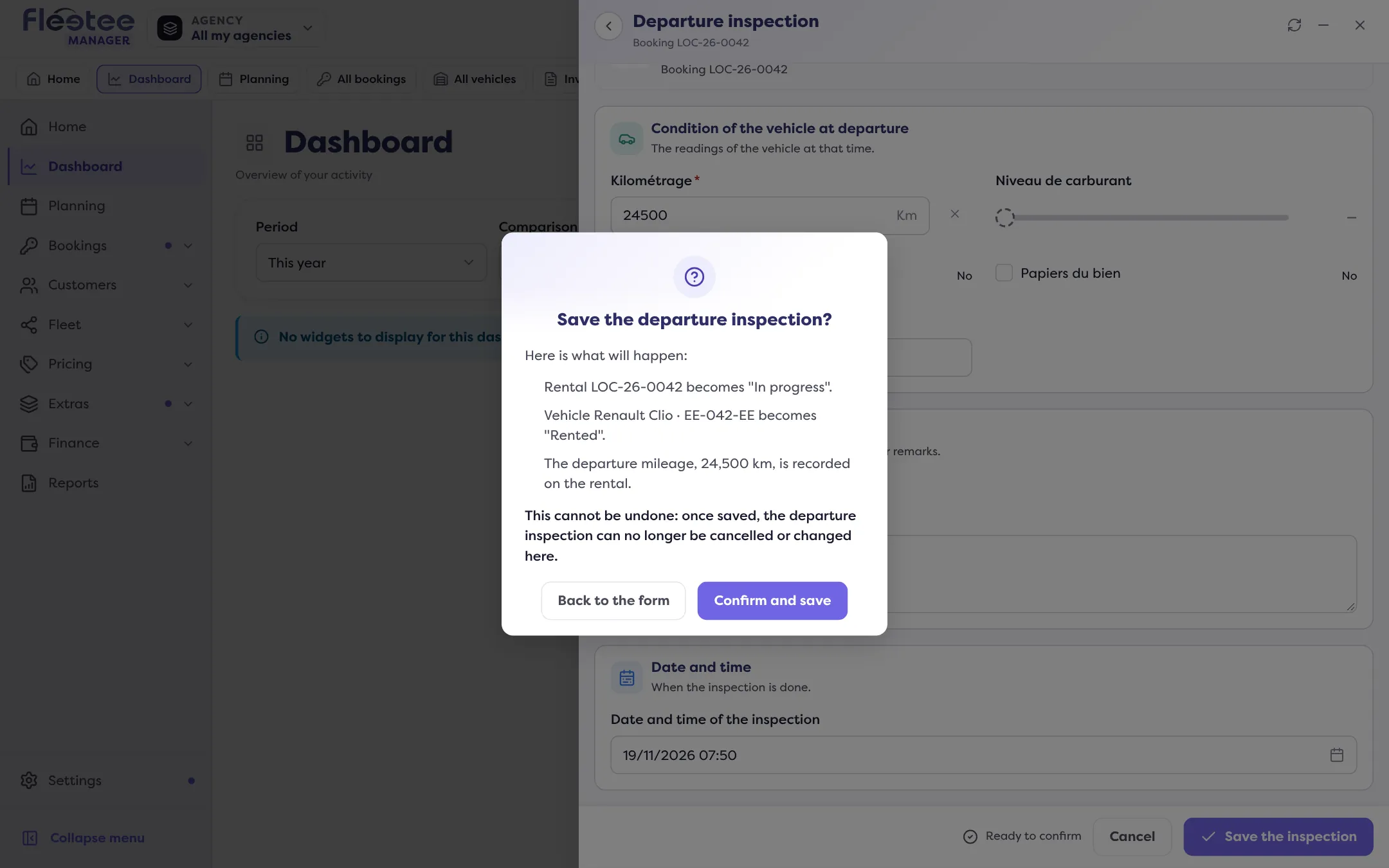
If a departure inspection was started in Fleetee Check for this vehicle, Fleetee says so: taking it over here detaches its photos from the inspection. If the departure is already saved, there is nothing to enter.
The return
The return follows the same page (“Do the check-in inspection”), with in addition:
- the “At departure” values next to each field, to compare;
- the kilometres driven, those included in the rental and any excess;
- a warning if the return mileage is lower than the departure’s (odometer replaced?): you must confirm it;
- an estimate of the return fees (excess, fuel, cleanliness…). You can leave a fee out (“Add “…” to the rental”). Final amounts are calculated when saving. With no departure inspection, no fee is calculated.
The summary announces: the rental becomes Completed (it stays In progress if a replaced vehicle is returned), the vehicle becomes available again, the return fees are added to the rental, and a review request goes to the customer if your company turned reviews on and the customer has an e-mail address. Here too, this cannot be undone.
Have it signed and generate the PDF
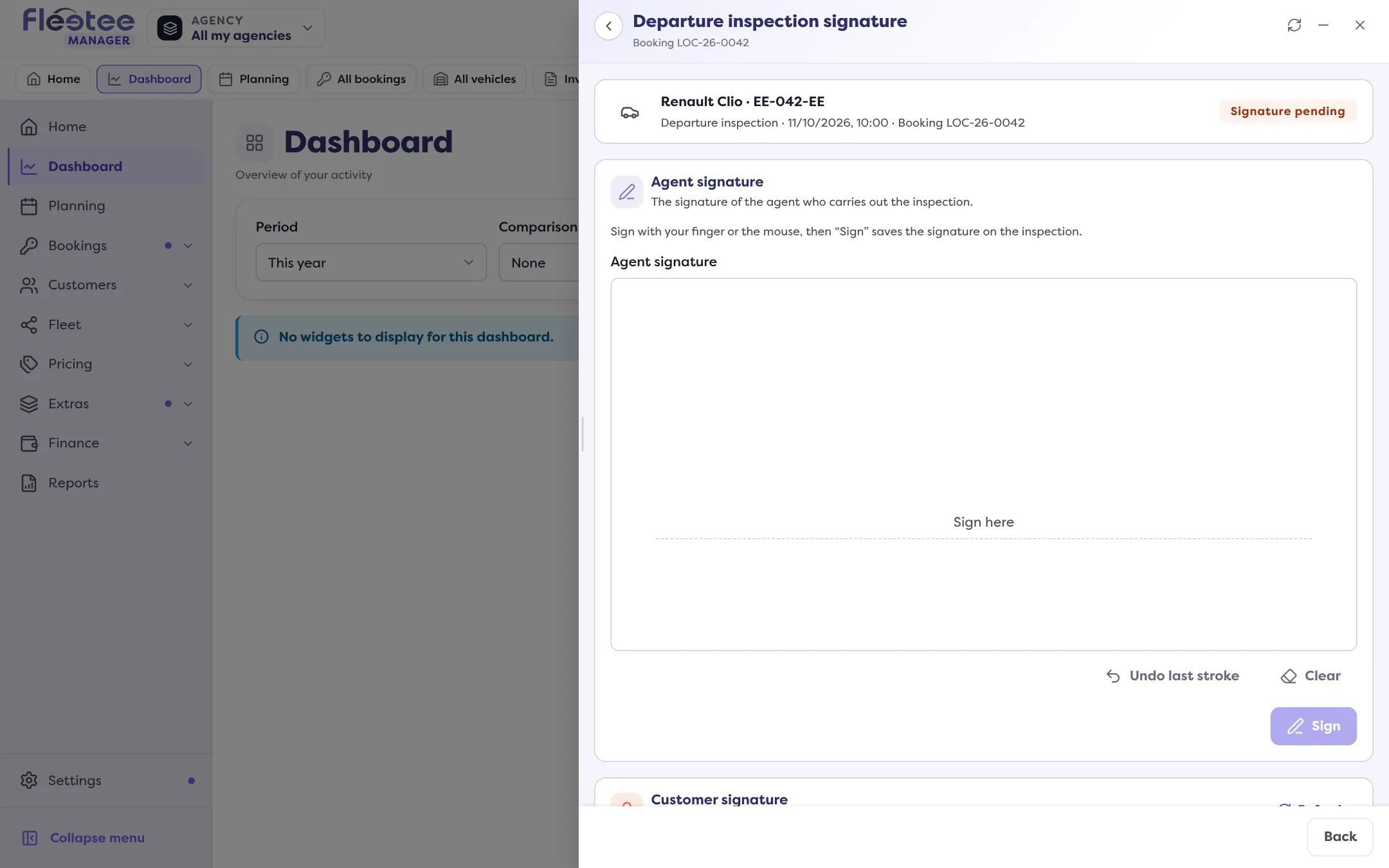
After saving, the signature page opens.
The agent signs
Sign with your finger or the mouse, then “Sign”. The customer signs next: “Sign first: the customer’s signature closes the inspection”.
The customer signs
“Have it signed on the spot” opens the signature page in a new tab; “Send the link by e-mail” sends it to the customer, remotely.
Generate the PDF
“Generate the PDF” produces the document with the signatures collected. If some are missing, Fleetee says so: “What is missing will not appear on the document”.
Once the PDF is generated, the inspection is closed: no more signature can be added. See Why can’t a signed inspection report be changed any more?.
You then find the inspection in Fleet › Inspection reports and, in the rental, with “View the inspection” and “PDF”.
Where to find it: Rental file › vehicle panel › “Do the check-out inspection” / “Do the check-in inspection”
Where to find it: Rental file › vehicle panel › “Do the check-out inspection” / “Do the check-in inspection”
Go further
Updated on 18 November 2026 with version 3.0