

My customer says they didn’t get an e-mail: what should I check?
- Manager v3
- Administrator
- Agency manager
- Rental agent
In short. Find the e-mail in Customers › E-mails › History and read its status: never sent, not delivered, blocked address, or delivered (then it is in the junk folder). Each case has its fix, then “Send again”.
Fleetee keeps a trace of every e-mail sent, with its status for each recipient. Start by finding it.
Find the e-mail
Open Customers › E-mails › History
Search by “Customer or rental” (name or reference), or filter by Status, Type, Trigger, Period or Recipient address.
Or open the rental’s E-mails panel
The rental page and the quote page have an E-mails panel listing what was sent.
Click the row
The detail shows the summary, each recipient with their status, the attachments, the preview and the Activity (created, sent, delivered, opened…).
The Overview tab gives the last 30 days at a glance: Sent, Delivered, Not delivered and Blocked addresses. “See these e-mails” opens the History filtered on those that did not arrive.
Cause 1: the e-mail never left
No row appears for this customer, or the send shows “Not sent”.
- The customer has no e-mail address on their file: add it. When you send a quote, Fleetee tells you (“Add the customer’s e-mail”).
- The automatic sending is off: for example, online check-in e-mails only go out if “Send e-mails to the customer” is on (see Set up online check-in).
- The status says “Not sent: too many e-mails” or “Blocked: quota”: Fleetee held the send. Wait, then send again; if it persists, write to support.
What to do Fix the cause, then send the e-mail again from the file or the E-mails panel (“Send an e-mail”).
Cause 2: the address is wrong or does not exist
The status is “Not delivered”, “Failed” or “Blocked”: the e-mail did not arrive, and it counts in the Not delivered tile of the Overview. When the address does not exist, it is then blocked (reason “Address does not exist”).
What to do Correct the address on the customer’s file. Careful: “Send again” goes to the same recipients. To write to the right address, use “Send an e-mail” from the customer’s file.
Cause 3: the address is blocked
The status is “Not sent: blocked address”. Open the Blocked addresses tab: each row gives the address, the Reason, the date (Since) and a “See the e-mail” link. The possible reasons: Address does not exist, Marked as spam, Unsubscribed, Blocked by hand.
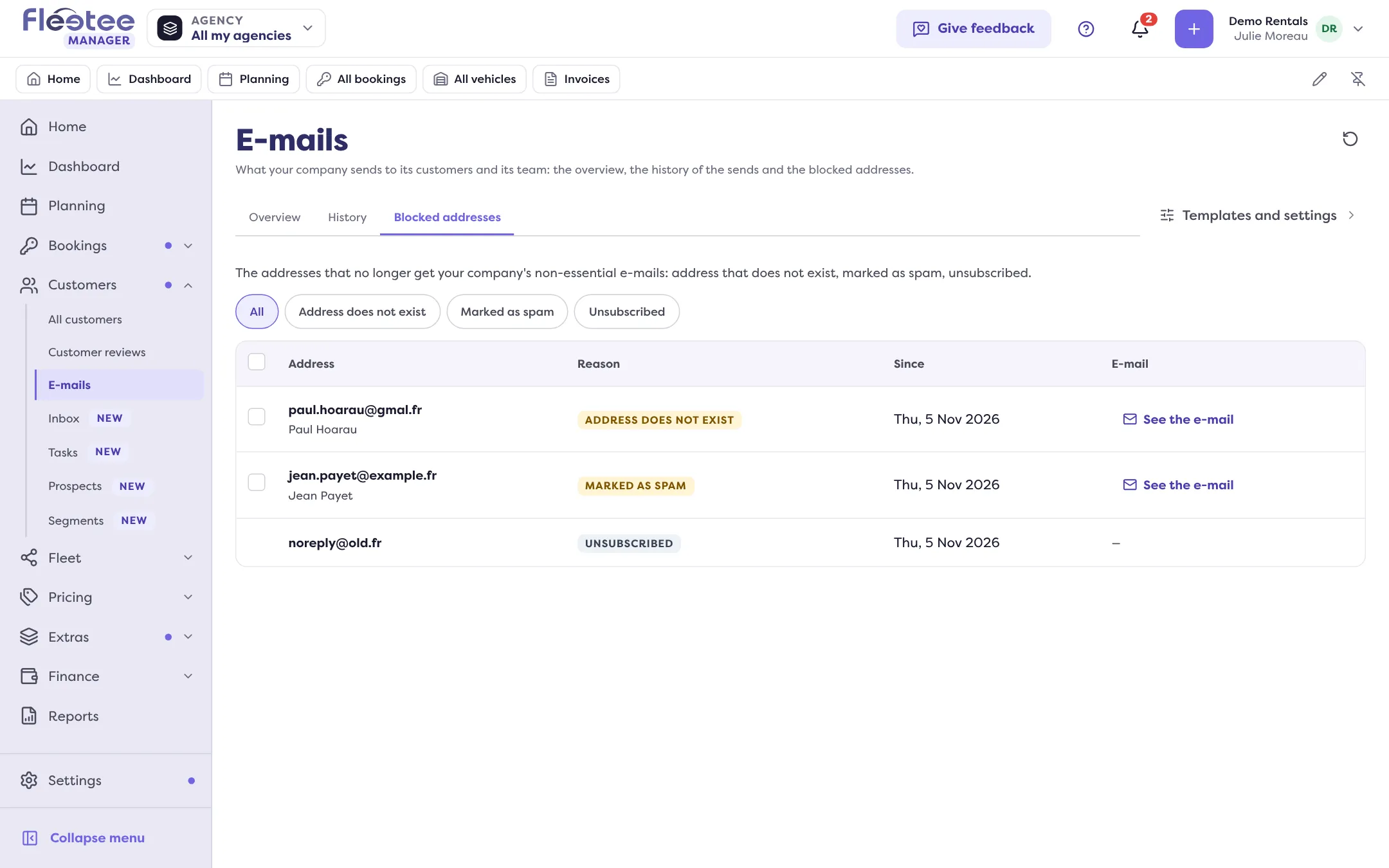
What to do Only an administrator can click “Put back into service”.
- For an address marked as spam, Fleetee asks for a confirmation: writing again to a person who reported an e-mail may send your next e-mails to spam. Only do it if they asked you to.
- An unsubscribed address cannot be put back into service: only the person can ask for the e-mails again.
- Once the address is back in service, the e-mail detail offers “Send this e-mail again”.
Important e-mails (invoices, contracts, payment links…) go out even to a blocked address; it is the other e-mails that are held back.
Cause 4: the e-mail arrived
The status is Delivered, Opened or Link clicked: the customer’s mailbox accepted it. Ask the customer to look in their junk mail and the other folders of their mailbox. If it is Marked as spam, the customer filed it that way: see cause 3.
Cause 5: the e-mail is still on its way
“Sending” means the e-mail has not left Fleetee yet; “Delayed”, that the customer’s mailbox is holding it for now. Wait a little before sending again.
Send an e-mail again
- Open the e-mail and click “Send again”, then confirm. For several e-mails: in the History, “Select”, tick the rows (100 at most), then “Send again”.
- Fleetee announces how many e-mails will go again, to how many addresses, and which ones will not, with the reason: address not delivered or blocked, content unavailable, already sent again less than 10 minutes ago, send in progress.
- The e-mail sent again shows as a new send at the top of the History.
The rental agent and the agency manager read and resend the e-mails of their agencies; the administrator sees every agency. When Fleetee staff are signed in as a member of the company, e-mails can be read but not sent again.
Still stuck?
Write to support with the rental reference and the time of the send.
Go further
Updated on 18 November 2026 with version 3.0