

How do I create an agency and set its opening hours and closures?
- Manager v3
- Administrator
- Agency manager
In short. In Settings › Agencies, click “Add an agency”, name it, then complete its address and hours on its page. Its exceptional closures are set in the “Hours” tab.
An agency’s address and opening hours appear on your contracts and on your website. Each agency has its own page.
Open Settings › Agencies
The list shows each agency’s name and code, address, hours and status: “Complete” or “To complete” (address or hours missing).
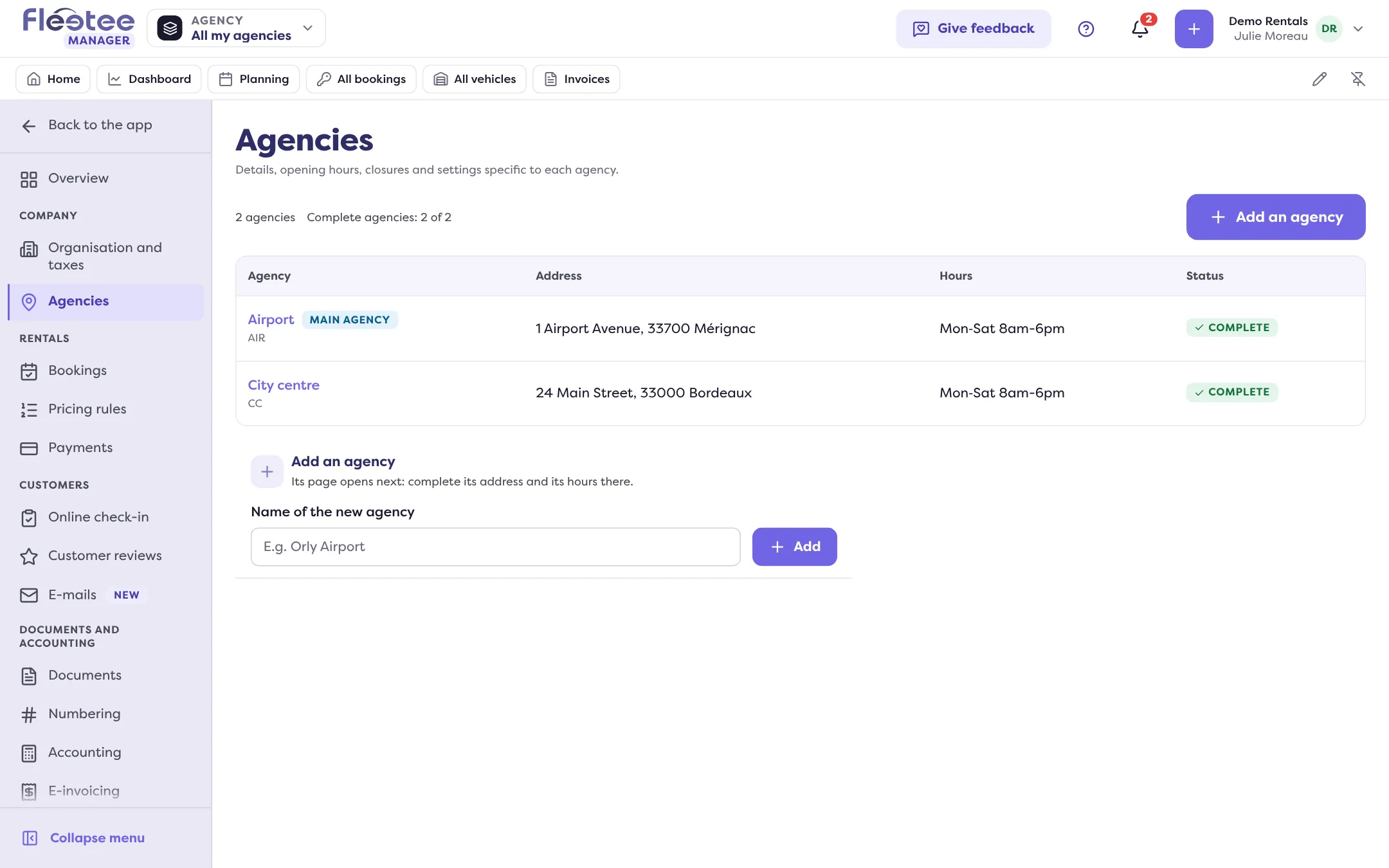
Click “Add an agency”
The “Name of the new agency” field gets the focus, under the list. Type the name (for example “Orly Airport”), then click “Add”. The agency’s page then opens: complete its address and hours there.
Complete the “Information” tab
Enter the address (street, postcode, town). “Use the company address” copies it if it is the same. You can also give a public name, which your customers see, and a code.
Set the “Hours” tab
Choose a preset (“Mon‑Sat 8am-6pm”, “Mon‑Fri 8am-6pm” or “Every day 8am-8pm”) then “Apply these hours”, or open the detailed hours to set each day.
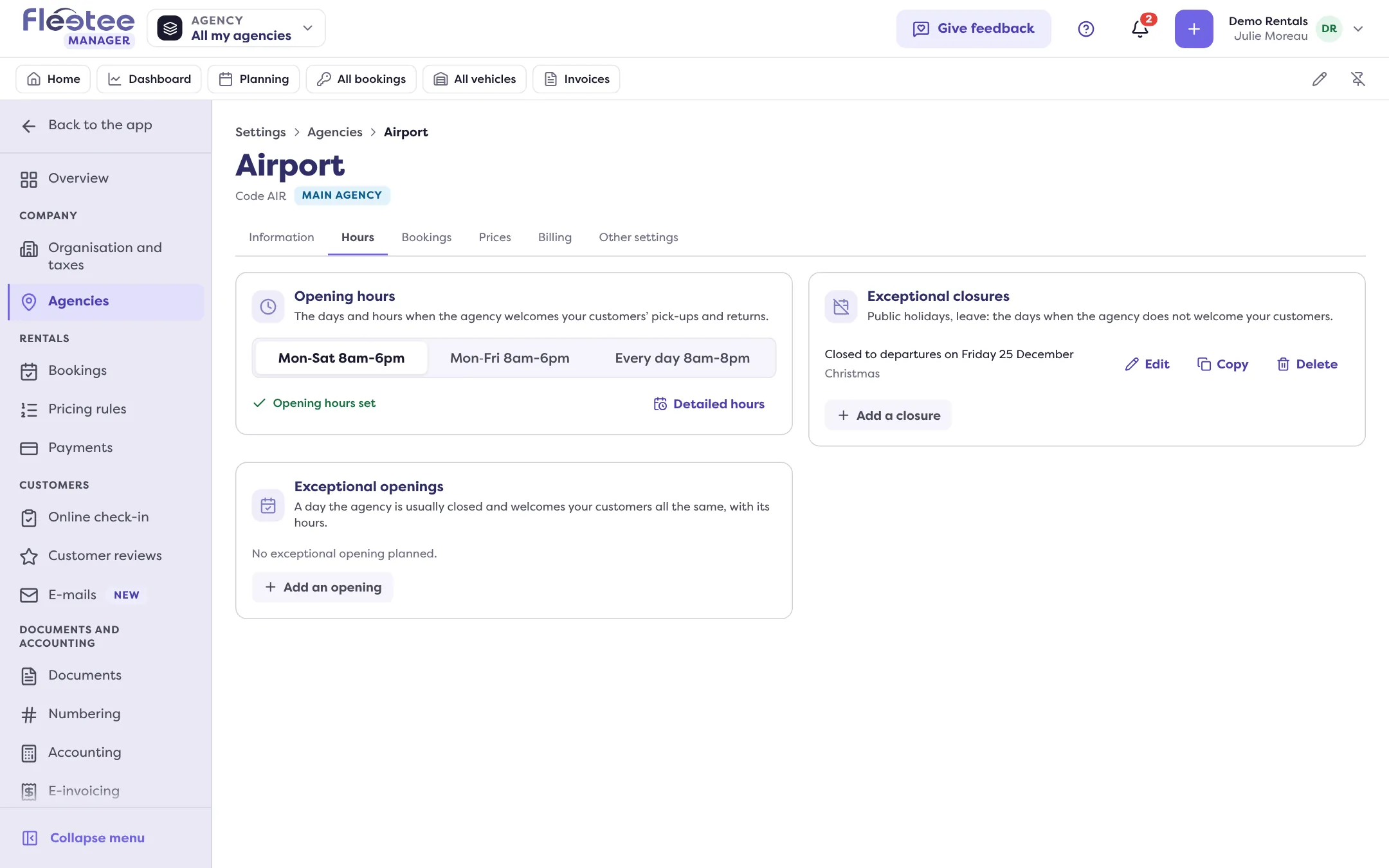
Add exceptional closures
In the “Exceptional closures” card, click “Add a closure”.
Detailed hours
Day by day, you mark the day “Open” or “Closed” and enter the opening ranges. “Add a range” allows a lunch break. “Copy to every open day” copies one day’s ranges to the others. Save with “Save the opening hours”.
If departures and returns do not follow the opening hours, tick “Departures and returns have different hours”: two weeks, “Departures” and “Returns”, then replace the opening hours for departures and returns.
Exceptional closures
Public holidays, leave: these are the days when the agency does not welcome your customers. In the form, enter “From” and “To”, and an optional reason (for example “Christmas”). “Set the times” limits the closure to certain hours. “Closed to departures only (returns remain possible)” closes departures and keeps returns.
“Copy” reproduces a closure on other agencies. If you delete a closure, your customers can book these dates again.
Conversely, “Exceptional openings” lets you open a day that is usually closed, with its hours.
What each tab of an agency page does
- Information: name, public name, code, address, image, contact, practical information for your customers, display on the booking site and “Main agency”.
- Hours: opening hours, exceptional closures and openings.
- Bookings, Prices, Billing and Other settings: the settings specific to the agency.
The agency code shows in square brackets in the lists. It goes into the invoice number when numbering is per agency.
One agency is included in your subscription; each additional agency is billed on top (see What does my Fleetee plan include?). Before creating a paid agency, Fleetee asks for confirmation: “Add an agency? It will be billed … excl. VAT a month, on top of your subscription.” (or “a year” if you are billed yearly). Click “Add the agency” to confirm. Only an administrator can add a paid agency: “Only an administrator can add a paid agency.” If your subscription does not allow another agency, Fleetee says so. Companies that were customers before the new price grid keep all their agencies included. On Home, the “Your agencies” step opens a quick version of these settings.
Where to find it: Settings › Agencies › “Add an agency”