

Where are all the Fleetee settings?
- Manager v3
- Administrator
- Agency manager
- Accountant
- 0:56
In short. All settings are under Settings, at the bottom of the menu. Its menu groups them into six sections: Company, Rentals, Customers, Documents and accounting, Modules and connectors, then Customisation. Users and the subscription are in My account.
Each role only sees the Settings pages its rights open: the administrator sees them all, an agency manager those of their agencies and documents, and an accountant the accounting and numbering pages.
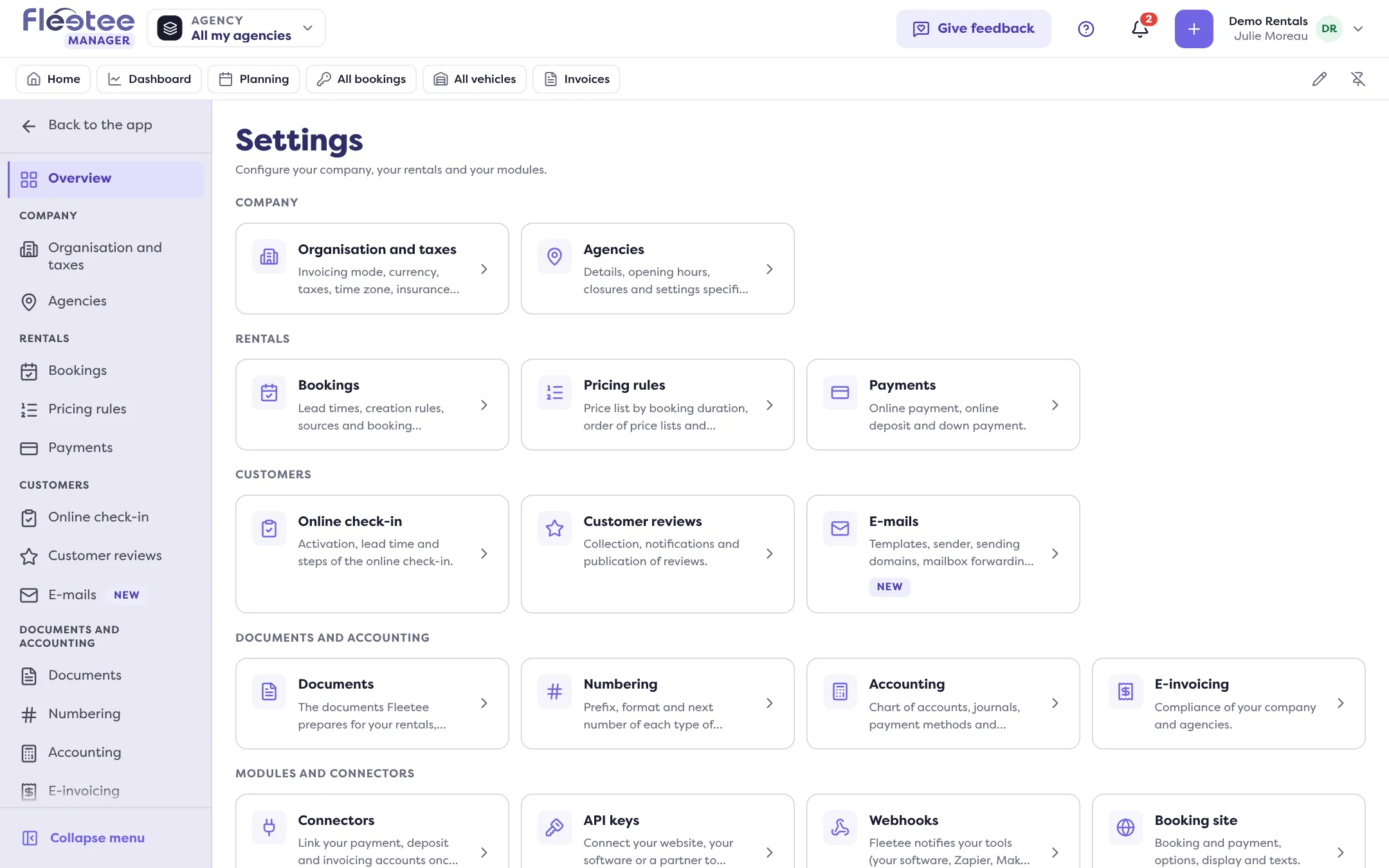
In Manager v3, all the settings live in one place: Settings, at the bottom of the menu. It opens its own menu, with a “Back to the app” button at the top to return. “Overview” shows one card per settings page, with a sentence saying what it is for.
The sections
Company
- Organisation and taxes: invoicing mode, currency, taxes, time zone, insurance and manager. See How do I set up my company: invoicing, currency, taxes and time zone.
- Agencies: details, opening hours, closures and settings specific to each agency. See How do I create an agency and set its opening hours and closures.
Rentals
- Bookings: lead times, creation rules, sources and booking statuses. See How do I set booking lead times and rules.
- Pricing rules: price list by booking duration, order of price lists and recalculation when the duration changes.
- Payments: online payment, online deposit and down payment. See How do I set up online payment, online deposits and down payments.
- Drivers: appears only if former young driver surcharges are left to migrate to their option.
Customers
- Online check-in: activation, lead time and steps. See How do I set up online check-in for my customers.
- Customer reviews: collection, notifications and publication of reviews.
- E-mails: templates, sender, sending domains, mailbox forwarding and volumes.
Documents and accounting
- Documents: the documents Fleetee prepares for your rentals, what they print and their languages. See How do I brand my contracts, invoices and inspection reports.
- Numbering: prefix, format and next number of each type of document.
- Accounting: chart of accounts, journals, payment methods and payments received list.
- E-invoicing: compliance of your company and agencies.
Modules and connectors
- Connectors: link your payment, deposit and invoicing accounts once, then your booking channels, your mailbox and your calendars. See How do I connect my Stripe, PayZen or Swikly account to Fleetee.
- API keys: connect your website, your software or a partner to Fleetee, and choose what each key can do.
- Webhooks: Fleetee alerts your tools (your software, Zapier, Make, n8n…) as soon as something happens in your account.
- Booking site: booking and payment, options, display and texts. This page opens in Fleetee Web, in a new tab.
- Keyless: mode, instructions, locks and zones. It exists only for companies that use Keyless.
- Fleetee Check: vehicle walk-around, inspection properties and return fees.
Customisation
- Properties: custom properties of your records, their creation, edition and use.
- Automations: actions that happen on their own, at the right time, for example a rental marked paid or the team alerted of a cancellation.
What is no longer in Settings
Users and their rights, the company and the subscription are managed in the Fleetee Account: account menu › “My account”. See How do I invite a colleague and choose their role.
Good to know
- A page marked “New” did not exist in the old version.
- The pages you see depend on your rights.
- When an agency is chosen at the top of the screen, some settings show for that agency: “Settings of …, the agency chosen at the top of the screen. Choose “All my agencies” to see those of the company.”
- Cannot find a setting from the old version? See Where is my old screen in v3?.
Where to find it: Settings, at the bottom of the menu
Go further
- How do I set up my company: invoicing, currency, taxes and time zone?
- How do I create an agency and set its opening hours and closures?
- How do I set booking lead times and rules?
- How do I brand my contracts, invoices and inspection reports?
- How do I set up online payment, online deposits and down payments?
- How do I connect my Stripe, PayZen or Swikly account to Fleetee?
- How do I find my way around the Fleetee Manager menu?
- Where is my old screen in v3?
- Video · One Settings page, in sections
- Academy lesson · Chapter 8
Updated on 18 November 2026 with version 3.0