

How do I set up my company: invoicing, currency, taxes and time zone?
- Manager v3
- Administrator
In short. In Settings › Organisation and taxes, the administrator chooses the invoicing mode, currency, secondary currencies, taxes, time zone and default phone code. The legal identity is set in the Fleetee Account.
This page gathers the settings that apply to the whole company. Only an administrator of the account can change them. At sign-up, the currency, VAT and language follow the country you chose: often you only have to check them.
Open Settings › Organisation and taxes
“Settings” is at the bottom of the menu. The page is in the “Company” section.
Choose the invoicing mode
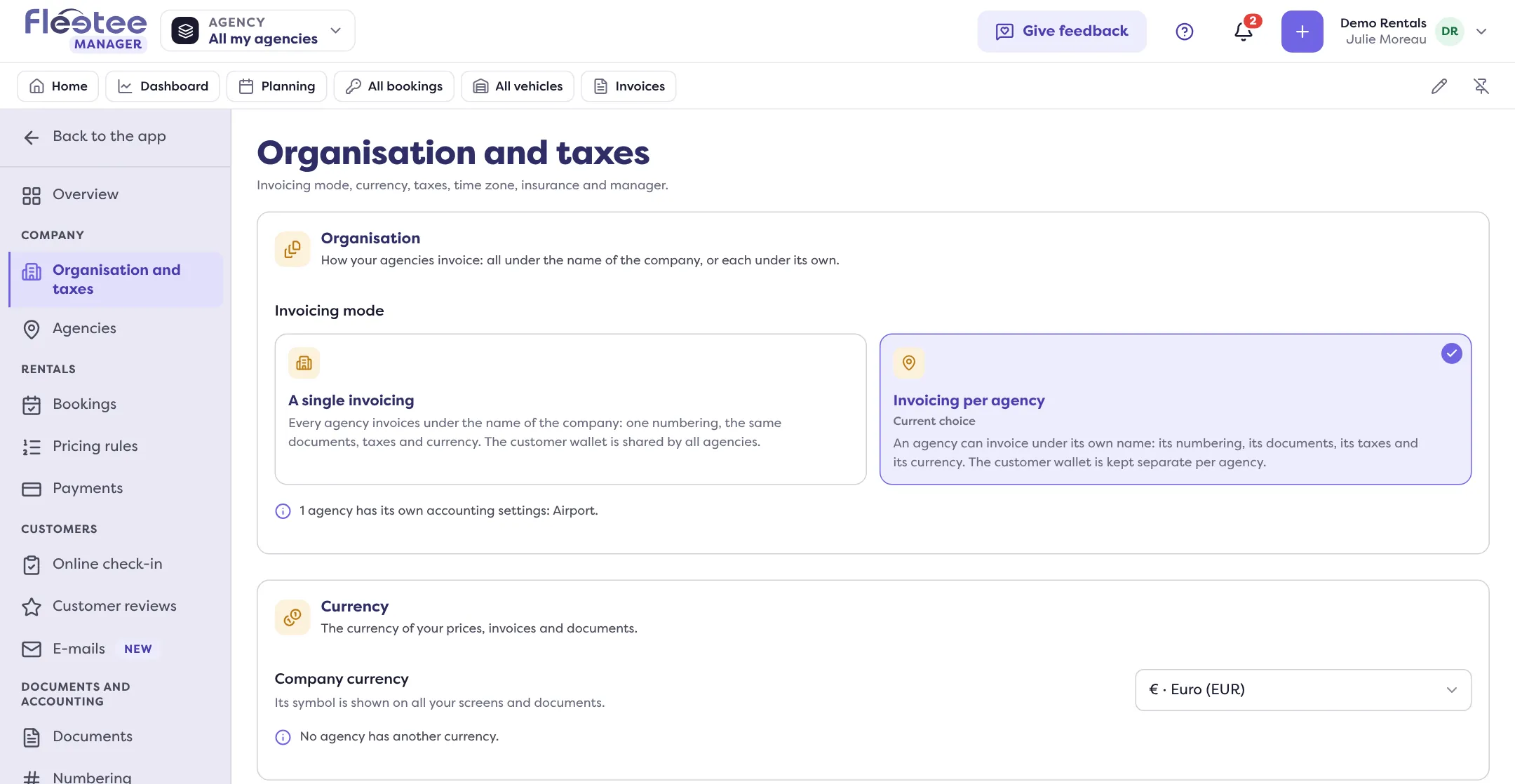
In the “Organisation” card, choose “A single invoicing” or “Invoicing per agency”. Fleetee shows what the choice changes before you confirm. Documents already issued do not change and keep their number.
Check the currency
In “Currency”, choose the “Company currency”. Its symbol shows on all your screens and documents.
Set your taxes
In “Taxes”, click “Add a tax”.
Set the time zone
In “Regional preferences”, choose the “Time zone of the company”, then, if needed, the time zone of an agency.
A single invoicing or invoicing per agency
- A single invoicing: every agency invoices under the name of the company, with one numbering, the same documents, taxes and currency. The customer wallet is shared.
- Invoicing per agency: an agency can invoice under its own name, with its numbering, documents, taxes and currency. The customer wallet is kept separate per agency. An agency without accounting settings of its own keeps the company’s.
The card also says how many agencies already have their own accounting settings. Going back to a single invoicing deletes nothing: the agencies’ settings stay saved, but are no longer used.
The currency
Changing the currency converts nothing. Fleetee warns you: a price of 100 in the old currency will show as 100 in the new one. Change your prices if needed.
“Secondary currencies” let you accept an amount in another currency. Click “Add a secondary currency”, then choose a “Daily rate” (updated every night) or a “Fixed rate”. The amount is converted into the account currency, and the original amount stays shown on the rental. A daily rate that has not been updated for more than 3 days is flagged: amounts in this currency can no longer be converted.
Taxes
Each tax has a name, a type (“Percentage” or “Fixed amount”), a rate from 0 to less than 100%, and an accounting code. You can pre-select it on new products (only one tax can be), or make it a compound tax, computed on other taxes too.
- After creating it, Fleetee offers “Apply to products”: tick the products that carry the tax.
- A tax that is already on invoices or rentals is “Locked”: its type, rate, accounting code and place in the list no longer change. Its name and its pre-selection can still be edited.
- To change the order of the taxes, drag a tax by its handle. The order is saved at once.
- A deactivated tax is no longer offered on your products. It is reactivated from the group of deactivated taxes.
Time zone and phone code
The time zone of the company is the one it is in. Your agencies follow it, unless you give them another one: choose “Other time zone” for the agency, or “Same as the company” for it to follow the company again. Choose the company’s time zone first.
The “Default phone country code” is the country offered first in phone number fields.
Other cards on the page
- Insurance: the company, policyholder number and assistance of your insurer, printed on your rental contracts.
- Manager: only to fill in if the manager is not the legal representative, who is given in the Account.
- Agency managers: the “Dashboard editable by the agency managers” switch.
The logo, legal identity and contact details of the company are set in the Fleetee Account (account menu › My account). Choose “All my agencies” at the top of the screen to change the company settings: with one agency chosen, only that agency’s taxes and time zone can be changed.
Where to find it: Settings › Organisation and taxes
Go further
Updated on 18 November 2026 with version 3.0