

Online check-in
Before pick-up, the customer confirms their details, sends their licence and leaves their deposit through a secure link. You set it up once, and you follow each booking.
Objective
By the end of this lesson, you will know how to set up online check-in, and follow on a booking where your customer stands.
The essentials
On Saturday mornings, the queue at the “Location Démo” counter costs Julie a lot. With online check-in, customers do before they arrive what used to take time on site: they receive a secure link, confirm their details, upload their licence and documents and, if you ask, leave their deposit.
It is set up once, per vehicle type, in Settings › Customers › Online check-in: when the link goes out (right after confirmation, or a number of days before the rental), which steps are asked (Information, Documents, Deposit, Drivers), and whether documents are checked automatically or by you. The deposit is only asked if the online deposit is set up (chapter 4); otherwise, a banner says so and leads to Settings › Payments.
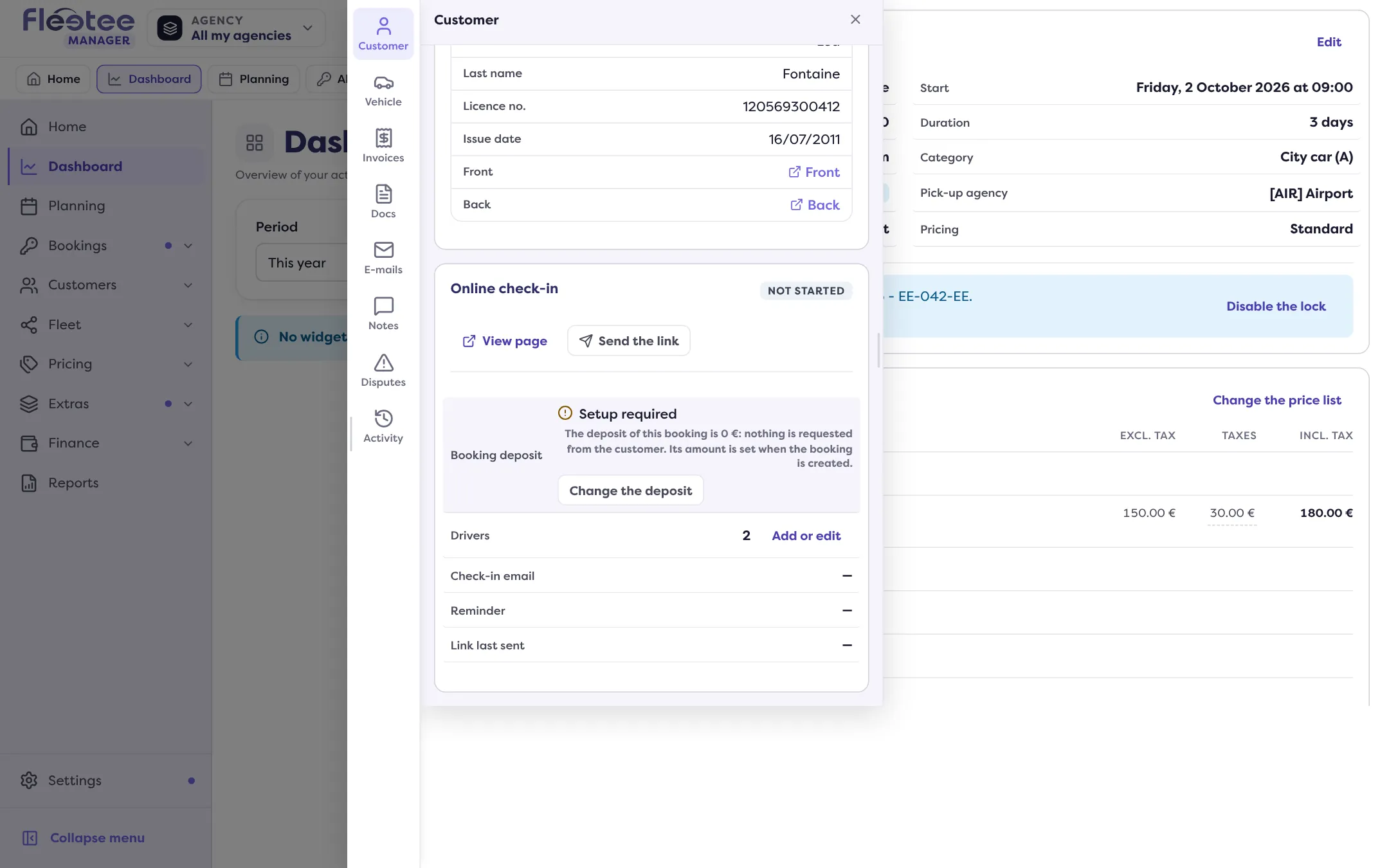
On each booking, the “Online check-in” card, in the record’s Customer panel, says where the customer stands: Not started, Waiting for the customer, For you to check, Ready. A dot on the panel lights up while an action is waiting for you: a licence to accept or refuse, for example. A refusal e-mails the customer, who uploads a new document.
Key steps
Turn on online check-in
Settings › Customers › Online check-in › “Turn on online check-in”.
Configure each vehicle type
“Configure”: delay and e-mails, details asked, documents, deposit, additional drivers.
Follow each booking
Booking record › Customer panel › “Online check-in” card: “Send the link”, “Check the licence”, “Validate manually”.
Only administrators set up online check-in as a whole; an agency manager only sees their agencies, if the company customises per agency. Everyone can follow a booking’s card.
Your turn
Read your default settings
Open Settings › Customers › Online check-in and read the “Default settings” table: link sent, steps asked, deposit. Click “Configure” for a type and look through its sections. If you do not want to change anything, close the panel and choose “Discard”.
Further reading
Check what you learned
Answer every question correctly to complete the lesson.
Progress kept on this device. Soon with your Fleetee Account.