

E-mails, templates and automations
What Fleetee sends on its own, how to put those e-mails in your own words, and how to create a “when… if… then…” automation or a customer segment.
Objective
By the end of this lesson, you will know which e-mails go out without you, how to customise them without touching their trigger, and how to create your own automatic sends.
The essentials
Many of the e-mails Julie’s customers receive go out without her doing anything: booking confirmation, payment link, online check-in link and its reminders, digital key, review request after the rental. Others go out when she sends them from a record (quote, invoice, contract).
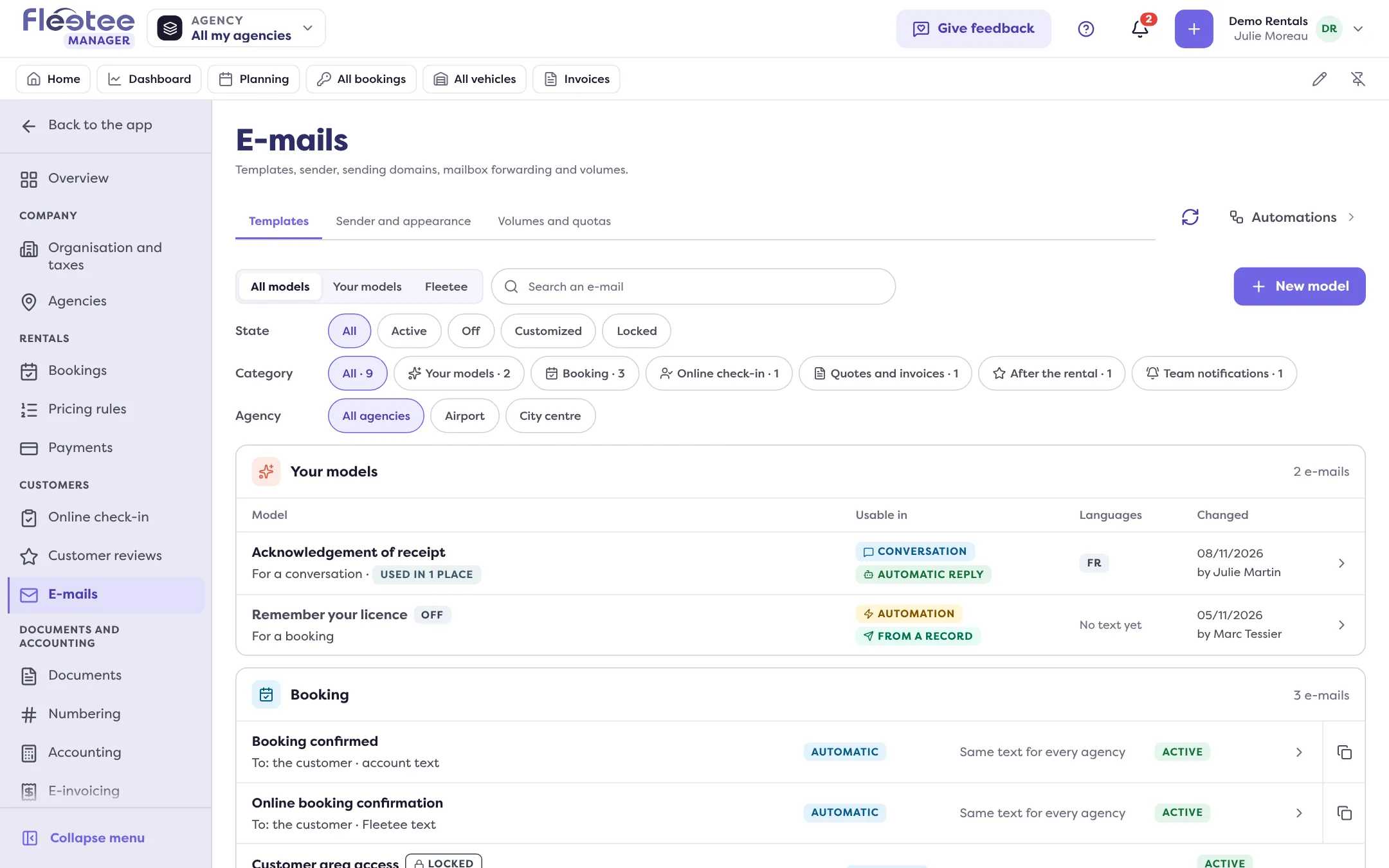
She does not change when they go out, but she can change what they say: in Settings › E-mails › Templates, each e-mail has its row. She edits the subject and the message, inserts variables (the customer’s name, the reference, the dates) filled in when sending, looks at the preview, and sends herself a test before saving. “Restore Fleetee’s text” brings back the original. An e-mail that carries a sign-in link is Locked: its text stays Fleetee’s, for customers’ safety.
Going further, an automation reads like a sentence: when an event happens (a booking is completed), if conditions are met (the source is online), then actions happen (send a thank-you e-mail, notify the team, create a task). Julie starts from a template (“Add from a template”), which is added switched off, and tries it with “Test on…” before turning it on: Fleetee shows what would happen, without sending anything.
Finally, a segment groups customers by criteria (“at least two rentals and over €1,000 invoiced”); it updates itself and sends nothing.
Key steps
Open Settings › E-mails › Templates
Filter by category (Booking, Payment, Online check-in…) and click an e-mail.
Edit, check, save
Subject, message, “Variable”; “Preview”, “Send me a test”, then “Save”.
Add an automation from a template
Settings › Automations › “Add from a template”: check it, “Test on…” a booking, then switch it on.
E-mail templates and automations are reserved to the administrator and agency managers (who only change what concerns their agencies). A rental agent sends e-mails without changing their texts.
Your turn
Put the booking confirmation in your own words
In Settings › E-mails › Templates, open the booking confirmation e-mail, add a welcome sentence signed with your name, look at the “Preview”, then “Send me a test”: the e-mail goes to your address only. Save only if you like the text.
Further reading
Check what you learned
Answer every question correctly to complete the lesson.
Progress kept on this device. Soon with your Fleetee Account.