

How do I follow a booking’s online check-in?
- Manager v3
- Administrator
- Agency manager
- Rental agent
- 0:58
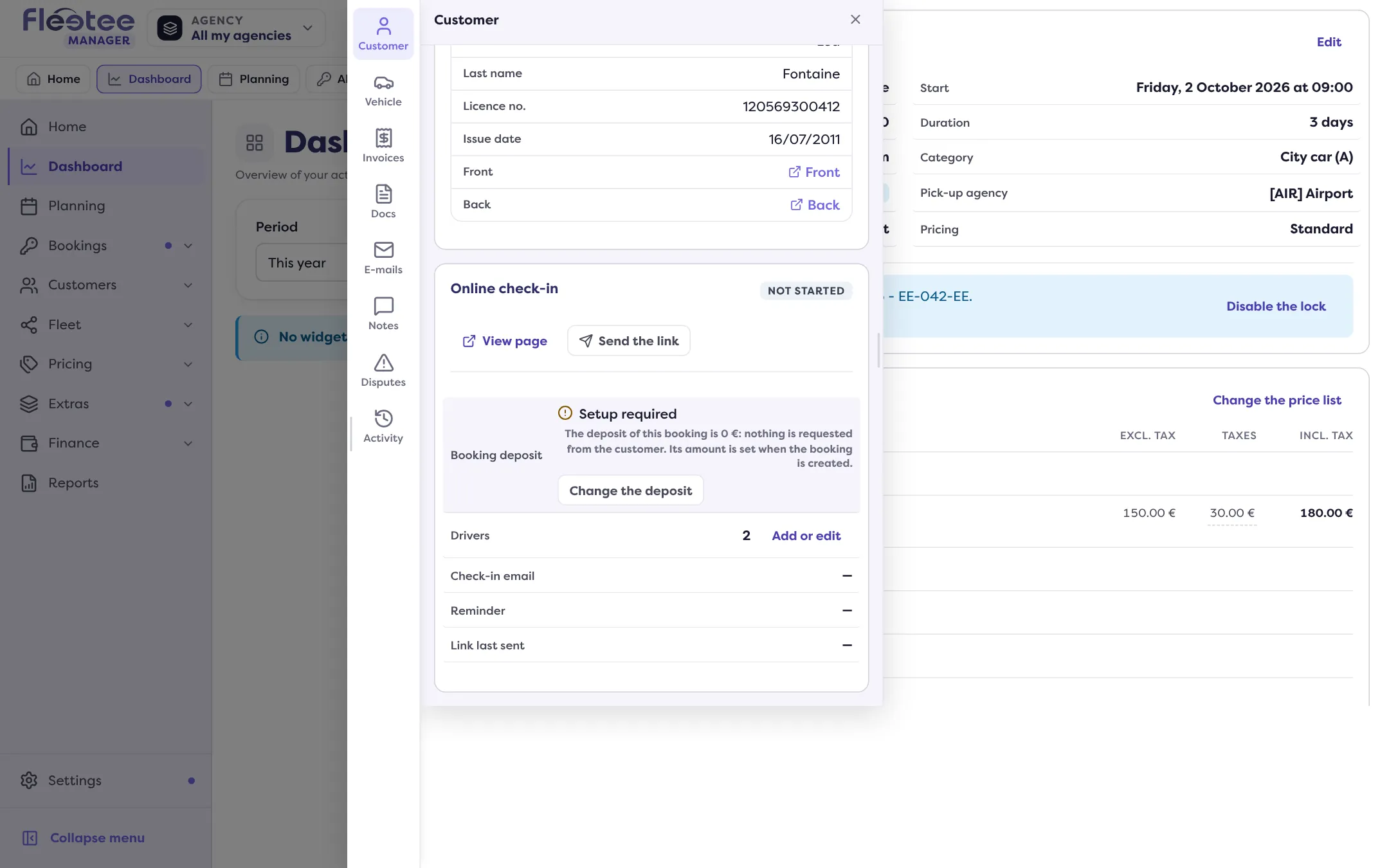
In short. On the rental page, Customer panel, the “Online check-in” card shows where the customer stands and what is left to provide or check, and lets you send or resend the link, validate a step or accept or refuse a licence.
Before departure, the customer fills in their details, sends their documents and, if you ask for it, leaves their deposit. The “Online check-in” card tells you where they stand, without leaving the rental. It does not exist on a quote.
Open the Customer panel
On the rental page, open the Customer panel of the rail: the “Online check-in” card is there. A dot on the panel stays lit as long as an action is waiting for you.
Read the status
The badge at the top of the card: Not started, Waiting for the customer, For you to check or Ready. The “What is requested” summary says what the customer must provide (details, licence, documents, deposit), for each driver or once for the rental.
Read the detail per driver
A table shows, for the holder and each driver, the state of the Information (Received, Not provided yet), the Driving licence (Not provided yet, Received, to check, Checked) and each Document (Received, Refused…). A licence already checked on the customer’s file is not asked again: it is marked “On file, checked on …”.
Read the deposit and the e-mails
Booking deposit: Paid, Not paid yet, Setup required, or Not requested for this booking. The Check-in email (“Sent on … to the holder”, “Planned on …”, “When the booking is confirmed”), Reminder and Link last sent lines say what has gone out.
Act if needed
See below.
What you can do
- “View page”: opens this customer’s check-in page in a new tab. The button is greyed out if the page address is not available.
- “Send the link”, then “Resend the link” once a first one has gone out: the link goes to the holder’s e-mail, after a confirmation.
- “Validate manually” a step (details, licence, documents, deposit) when you checked it yourself; each validation asks “Do you really want to validate the … step manually?” and is noted “validated manually”.
- “Check the licence” when a licence is waiting: you see its number, date, country, front and back, then “Accept” (the customer receives a confirmation e-mail) or “Refuse” (the customer receives an e-mail and must upload a new licence).
- “Check” or “View” a document: “Accept” or “Refuse”; a refusal sends an e-mail with the check-in link, and the customer must upload the document again.
- “Add or edit” the drivers, or “Choose the deposit” / “Change the deposit”.
A clear message confirms each action or says why it failed (“The step has not been validated”).
What is not asked
The card says “Driving licence not required” for a non-motorised vehicle and “Deposit not required” when the deposit amount is not set. What you ask for is set in Set up online check-in; the digital key can stay locked until a locked step is validated.
Where to find it: Rental page › Customer panel › “Online check-in” card
Where to find it: Rental page › Customer panel › “Online check-in” card
Go further
Updated on 18 November 2026 with version 3.0