

The rental invoice and the final invoice
Rental invoice, then a final invoice for what is left to invoice: from the draft to the validated invoice, numbered and sent to the customer.
Objective
By the end of this lesson, you will know which invoices a booking carries, how to create the final invoice, and how to validate it and send it to the customer.
The essentials
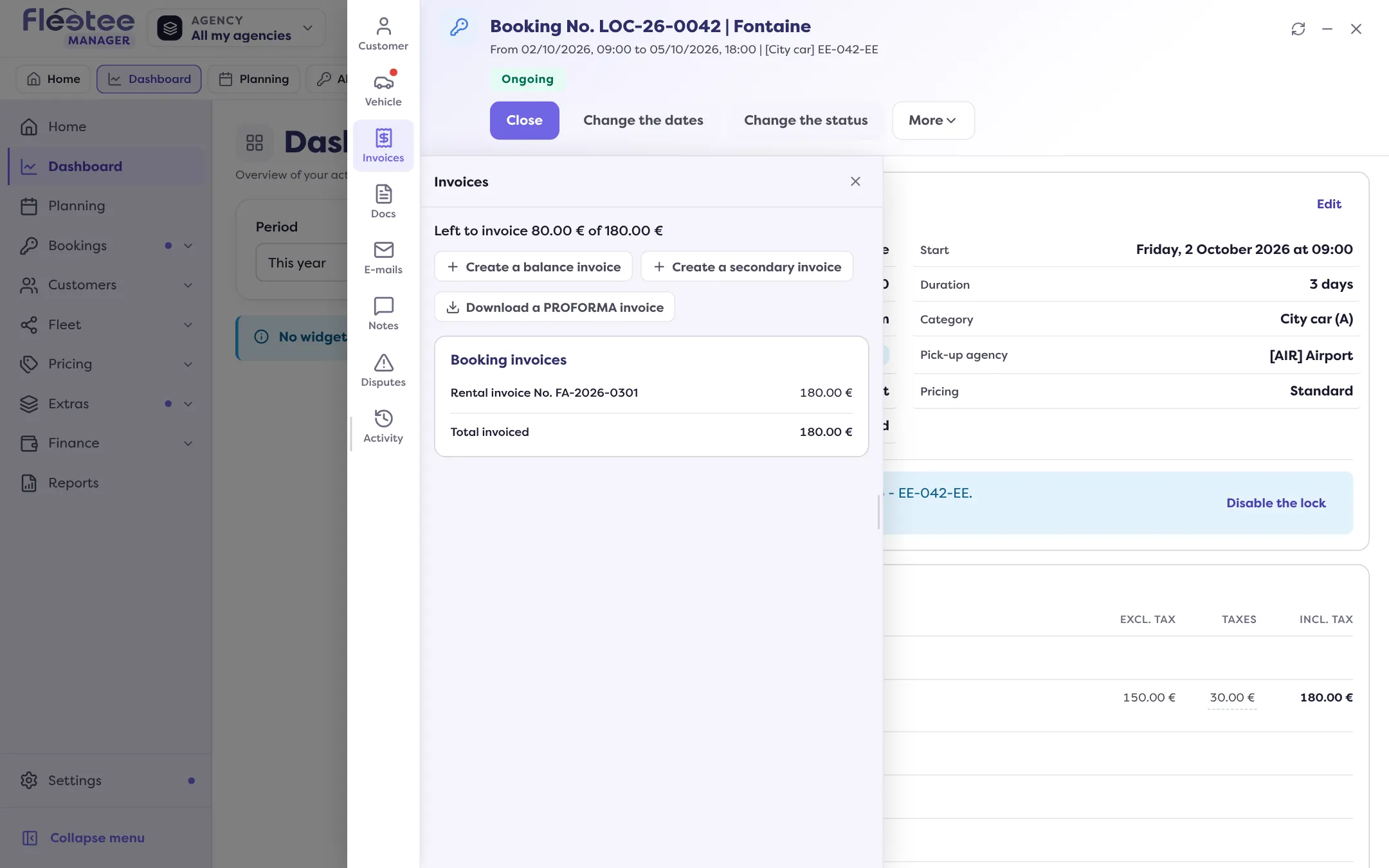
A booking’s Invoices panel sorts its invoices in two groups. Booking invoices: the rental invoice (the booking as it was reserved), the down payment invoice if there is one, the balance invoice and, if the booking is cancelled with fees, the cancellation invoice. Other invoices: secondary invoice, claim, traffic ticket.
The final invoice, called balance invoice on screen, bills what is left to invoice once the rental invoice is issued: an option added at the counter, an extension, return fees. The panel shows it with “Left to invoice”. When the booking is Completed with something left to invoice, the record’s “Invoice” button opens the same panel directly.
Every invoice goes through two states. A draft has no number and no legal value: it can be edited or deleted. Validation gives it its final number, today’s date and its PDF; after that, it can no longer be edited or deleted. It is an accounting rule, and that is why Julie reads the preview before validating.
Key steps
Open the booking’s Invoices panel
It shows the Total invoiced and what is Left to invoice.
Click “Create a balance invoice”
Payment step: collect now, or “Do not record a payment”. Preview step: due date, invoiced customer, template.
Create the invoice, or keep a draft
“Create the invoice”, or “Save the draft” to validate it later.
Validate and send a draft
Finance › Invoices, Drafts tab › the draft › “Validate”. Tick “Send the document to the customer after validation”: the button becomes “Validate and send”.
Creating and validating invoices is reserved to the administrator and agency managers. If information is missing for e-invoicing, the invoice is saved as a draft and the “points to settle” card says what to complete.
Further reading
Check what you learned
Answer every question correctly to complete the lesson.
Progress kept on this device. Soon with your Fleetee Account.