

How do I validate an invoice and send it to the customer?
- Manager v3
- Administrator
- Agency manager
In short. Open the draft and click “Validate”: the invoice gets its number and date, and can no longer be edited. Tick “Send the document to the customer after validation” to “Validate and send” in one go.
This is reserved to the administrator and the agency managers. With another role, ask one of them to do it.
A draft has no number and no legal value. Validation gives it its final number, the day’s date and its PDF. After that, the invoice can no longer be edited or deleted: to correct it, cancel it with a credit note.
Open the draft
In Finance › Invoices, the Drafts tab gathers them. You also find them in the rental’s Invoices panel (“Balance invoice (draft)”), and on Home, in To follow › Invoicing, “Drafts” line.
Check the preview and the points to settle
If information is missing for e-invoicing, the “points to settle” card lists it. A blocking point prevents validation: “N points to settle prevent the validation”.
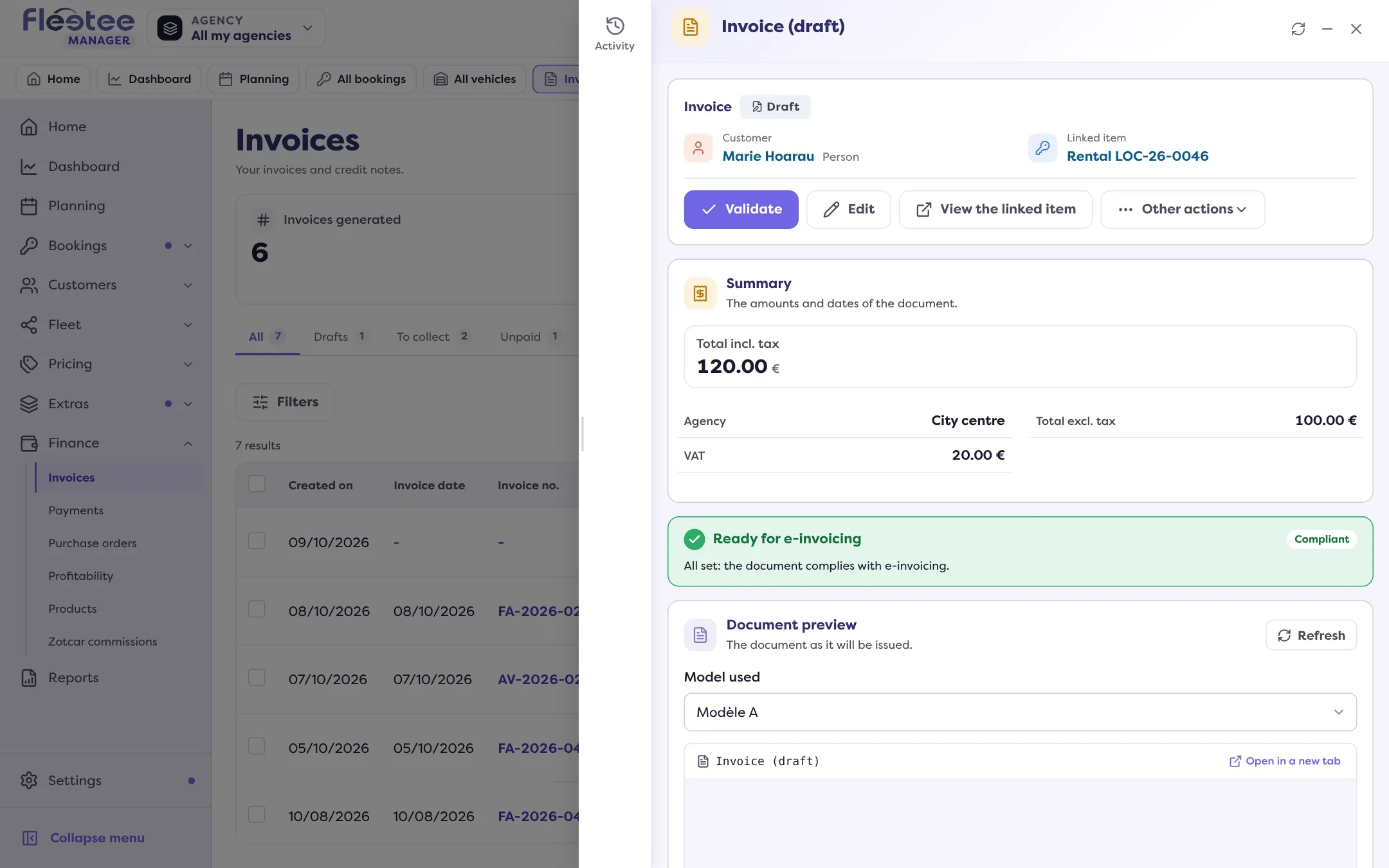
Click “Validate”
The button is greyed out, with the reason, while the draft has no line or no customer (“Choose a customer first.”). The “Validate the invoice” window opens.
Read what will happen
The window gives the planned number (the final number is given when the document is validated) and warns: “The invoice will be dated … You will no longer be able to edit or delete it.”
Decide on sending it to the customer
Tick “Send the document to the customer after validation” to send the e-mail right away. The recipient, subject and message are prefilled: edit them if needed, or ask to “Receive a copy of the e-mail”. The button becomes “Validate and send”. Without this box, it stays “Validate”.
Click “Validate” or “Validate and send”
Message: “The invoice has been validated.” or “Invoice validated, e-mail sent to …”.
If the validation is refused
- Information missing for e-invoicing: “The validation was refused: information is missing for e-invoicing.” Complete it. If the Manager can still validate after a confirmation, the button becomes “Validate anyway”; otherwise, complete it first.
- Security check: the window is protected by reCAPTCHA. If it does not load, turn off your ad blocker for this site, reload the page, then try again. Nothing is validated until the check has gone through.
- The draft changed in the meantime: the sheet is read again, check it before trying again.
If the e-mail does not go out
Validation and sending are two gestures: the invoice can be validated without the e-mail having left. The message says so, for example “Invoice validated. The e-mail did not leave: no recipient could be determined for this customer.” Use “Try sending again”. If the message says the e-mail “may have left”, check the invoice’s E-mails tab before sending again.
Send later
On an invoice already validated, “Send to the customer” opens the “Send the invoice to the customer” window: recipient, subject, message, copy, and the invoice as an attachment. If it was already sent, the window says so: “Already sent on … to …”.
And after validation?
- The invoice becomes Paid if the payments cover the total, otherwise Awaiting payment.
- The invoice’s Transmission tab follows its sending to the approved platform.
- To follow what is left to collect: How do I keep track of unpaid invoices?.
Where to find it: Finance › Invoices › a draft › “Validate”
Where to find it: Finance › Invoices › a draft › “Validate”