

How do I create a booking’s final invoice?
- Manager v3
- Administrator
- Agency manager
In short. On the rental page, in the Invoices panel, click “Create a balance invoice”: choose the payment if any, check the preview, then “Create the invoice” or “Save the draft”. You need a rental invoice and an amount left to invoice.
This is reserved to the administrator and the agency managers. With another role, ask one of them to do it.
The balance invoice bills what is left to invoice once the rental invoice has been issued: options added, return fees, extension…
Before you start
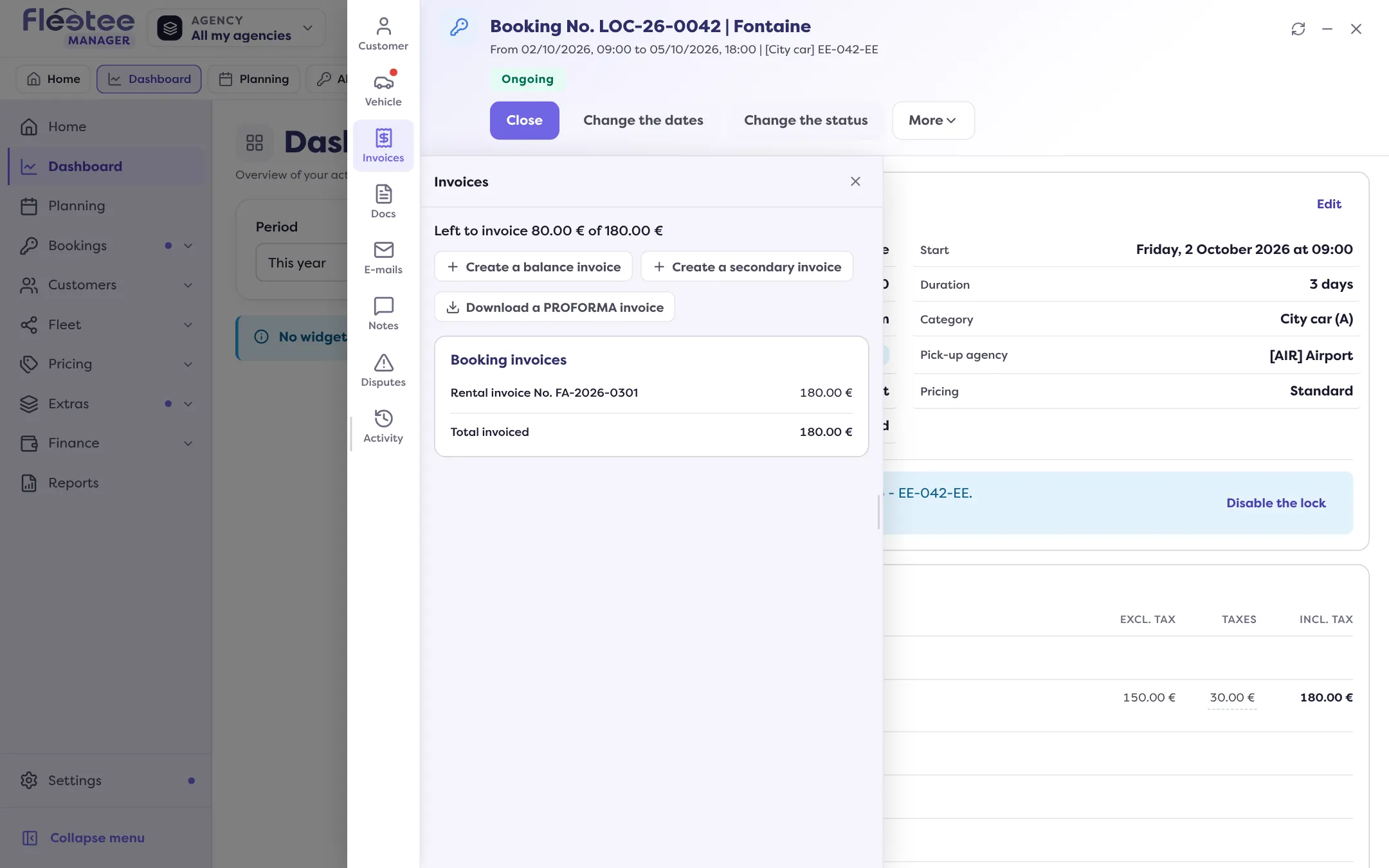
The button only shows if:
- the rental already has a rental invoice; otherwise the button is called “Create the booking invoice”;
- something is left to invoice: the panel shows “Left to invoice”;
- the rental has no cancellation fees (in that case, it is a cancellation invoice).
If the button is missing, read I can’t create a booking’s final invoice.
Open the rental page, Invoices panel
The panel lists the rental’s invoices, the Total invoiced and the Left to invoice.
Click “Create a balance invoice”
The “Invoice the balance” panel opens. It recalls the balance to invoice and what is already paid. Once the rental is Completed with an amount left to invoice, the “Invoice” button on the rental page opens the same panel.
Payment step: collect, or not
Choose how the customer pays: “Record a payment”, “Payment link”, “Wallet”, or “Do not record a payment”. If payments already recorded cover this balance, “Payments to associate” lets you tick them.
Preview step: check
The invoice preview is generated. You can choose the due date, the invoiced customer (locked on the paying customer if a payment is entered), the template (“Default” or one of yours) and specific conditions, which are optional.
Click “Create the invoice”
The invoice is created. Message: “Balance invoice created”. To keep it as a draft and validate it later, click “Save the draft” instead: “Balance invoice saved as a draft”.
A validated invoice can no longer be changed. Read the preview again before creating.
If information is missing for e-invoicing
The panel counts the “points to settle”. If required information is missing (your company’s identity, the customer’s address or number…), the invoice cannot be validated: it is saved as a draft with the message “Invoice saved as a draft”. Complete the information, then validate it.
Other invoices on offer
Depending on the situation, the panel also offers “Create a down payment invoice”, “Create the booking invoice”, “Create a cancellation invoice”, “Create a secondary invoice” and “Download a PROFORMA invoice”. To settle the balance with a deposit, read How do I keep part of a deposit for charges?.
Where to find it: Rental page › Invoices panel › “Create a balance invoice”
Where to find it: Rental page › Invoices panel › “Create a balance invoice”