

Branding your documents
Contracts, invoices, inspection reports: check what they print, create a template, attach your terms and conditions and set the numbering. An issued document no longer changes.
Objective
By the end of this lesson, you will know where the details printed on your documents come from, how to create a template, attach your terms and conditions and read your numbering.
The essentials
Every document Fleetee prepares (quote, contract, amendment, inspection report, invoices, receipts) has a default template. Julie can keep it, or brand it, without retyping anything for each booking, in Settings › Documents.
Before creating a template, she looks at the “Identity and mentions” tab: what her documents print (logo, company name, address, SIREN, VAT). These details are not edited in a template: they come from the company (My account, previous lesson) or from the agency that has its own invoicing settings. Missing mentions are flagged “To complete”.
A template is created in four steps: General (name, vehicle type, agencies, language), Content (the blocks and fields to show), Layout (order, logo, colours, with a live preview) and Template choice (an optional rule that picks it automatically). Terms and conditions are entered once, as a PDF or as text, and attached to quotes and contracts.
One rule to remember: a template applies to new documents. A contract or invoice already issued keeps the rendering it was issued with, even if the template changes later. And a credit note reuses its invoice’s rendering, an amendment its contract’s.
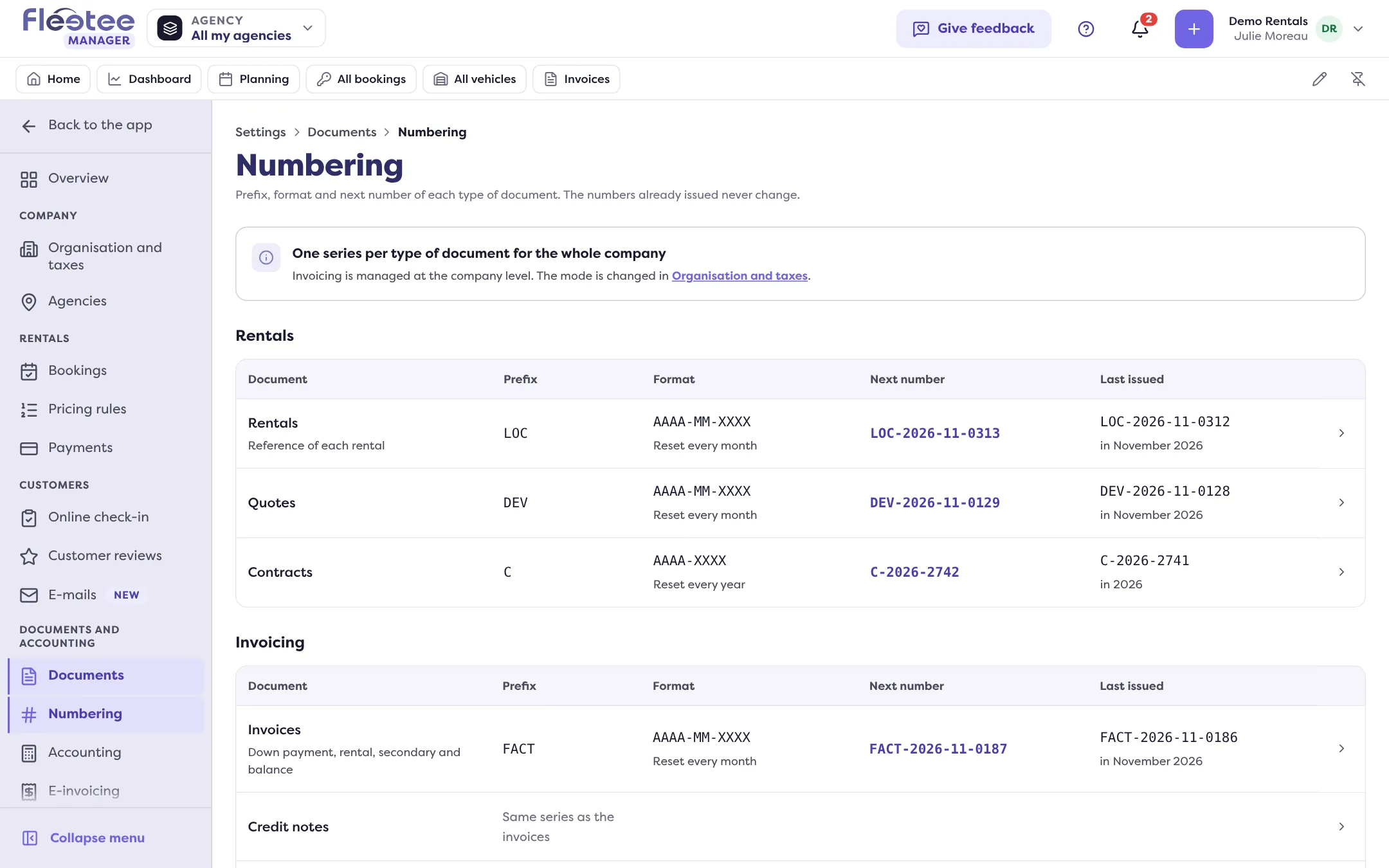
Numbering (Settings › Numbering) gives each document type its prefix, format and next number, for example FACT-2026-0148.
Key steps
Check the printed identity
Settings › Documents › “Identity and mentions” tab.
Attach your terms and conditions
“Terms and conditions” card › “Import” (PDF) or “Change” (text), then “Preview”.
Create a template
“Document types” › for example “Rental contract” › “Create a template”.
Only an administrator edits a template’s content, a template valid for every agency, and the terms and conditions. An agency manager can manage templates limited to their agencies.
Your turn
Preview your contract
In Settings › Documents › Document types, open “Rental contract”, “Templates” tab, and click “Preview” on the default template. To see it filled with a booking, make another test rental and use “Preview and sign”.
Further reading
Check what you learned
Answer every question correctly to complete the lesson.
Progress kept on this device. Soon with your Fleetee Account.