

How do I add my terms and conditions to quotes and contracts?
- Manager v3
- Administrator
In short. In Settings › Documents, “Terms and conditions” card, import a PDF or write the text. Fleetee attaches it to your quotes and contracts, and the customer can read it before signing. One setting covers both.
Only the administrator can change the terms and conditions; an agency manager can read them.
Your general terms of sale or rental (T&Cs) are attached to your quotes and your contracts. You enter them once.
Open Settings › Documents
In the “Documents and accounting” section of Settings. See Where are all the Fleetee settings?.
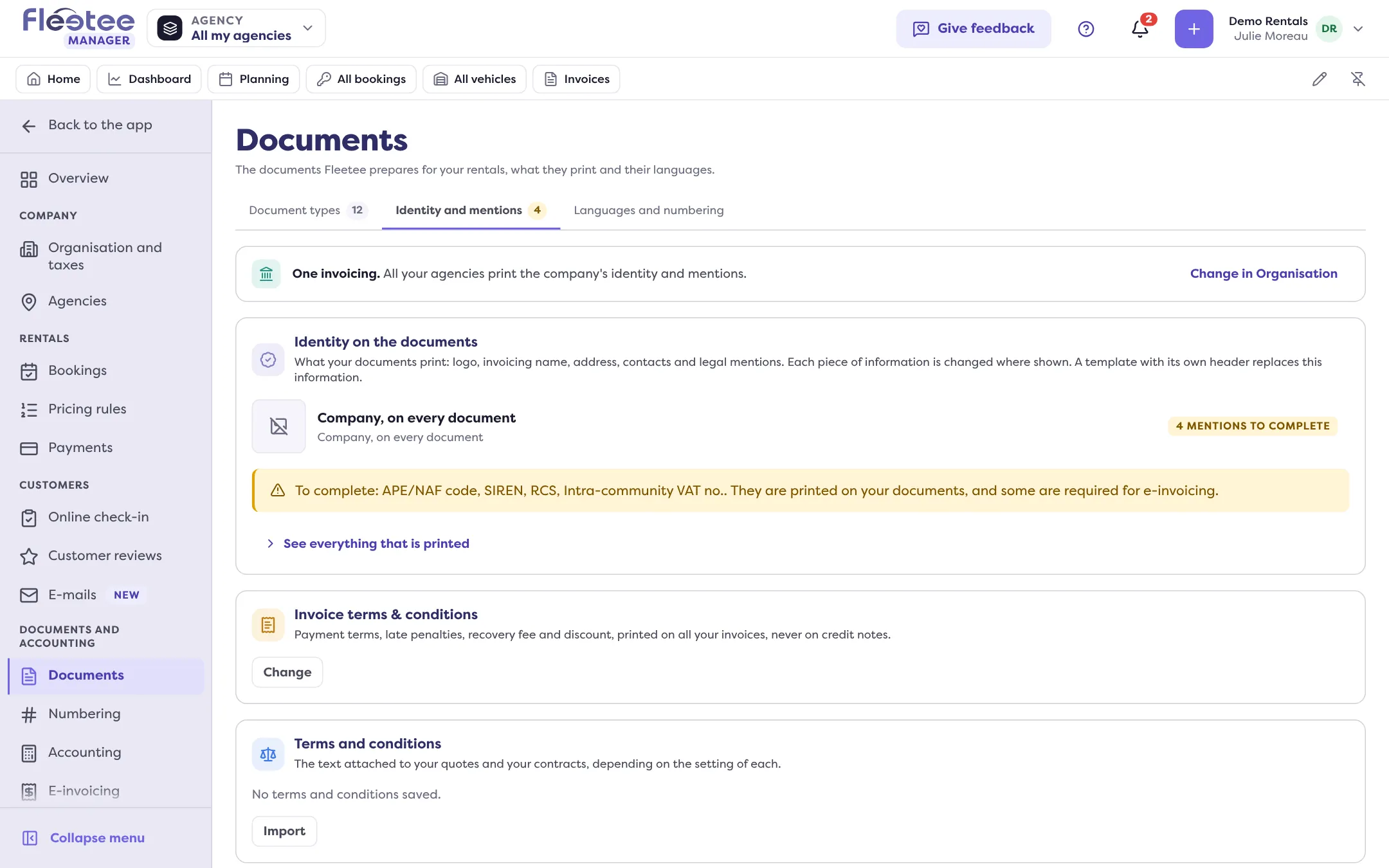
Find the “Terms and conditions” card
It is in the “Identity and mentions” tab and says: “The text attached to your quotes and your contracts, depending on the setting of each.” Three buttons: “Preview”, “Change” and “Import”. You also find them on the document type’s page, “General” tab: “Edit the terms and conditions”, “Import the terms and conditions”.
Choose the format
- “PDF document”: import your terms as they are, attached to the contract. Drop the file (PDF, 10 MB at most) or click to choose it. “Replace” changes the file.
- “Text”: write the text of your terms in the editor. This format allows Fleetee Check signatures. A word between braces, such as
{NAME}, is printed as it is: the terms accept neither variables nor conditional blocks.
Save
The button stays inactive while the PDF or the text is missing (“Import a PDF document to be able to save”).
Your choice deletes nothing: the PDF and the text are both kept; only the format used on the documents changes.
Where the customer sees them
- On a quote, the terms are attached “for the customer’s information before any validation”. On the signature page, a “Terms and conditions of …” link is offered under the signature frame: see What does my customer see when signing online?.
- On a contract, they are an annex. When sending the contract, the “Terms and conditions” box is one of the “Pages to include”.
Check before sending
“Preview” shows the terms PDF as it will be attached. “Format in use: text” or “Format in use: imported PDF” recalls what is active; “The chosen format has no content yet” or “No terms and conditions saved” flags an omission.
If the text is refused
Fleetee says where: “The text contains a variable, which the terms do not accept. Remove it”, “…a conditional block…”, or “The text is too long or too heavy to be saved. Shorten it”. An old text from the previous editor stays in use as it is until you change it.
Who can do it
This page is open to the administrator and the agency manager. If you have chosen an agency at the top of the screen, this setting, which applies to all agencies, stays visible but cannot be changed: choose “All my agencies”. To also brand your documents (logo, mentions, templates), see How do I brand my contracts, invoices and inspection reports?.
Where to find it: Settings › Documents › “Terms and conditions”
Where to find it: Settings › Documents › “Terms and conditions”