

How do I brand my contracts, invoices and inspection reports?
- Manager v3
- Administrator
In short. In Settings › Documents, check the printed identity (logo, address, mentions), then create a template for a document type: general, content, layout, template choice. A template only affects documents generated after it.
Every document Fleetee prepares (quote, confirmation, contract, amendment, inspection report, invoices, receipts, purchase order) has a default template. You can customise it without retyping anything on each booking.
Open Settings › Documents
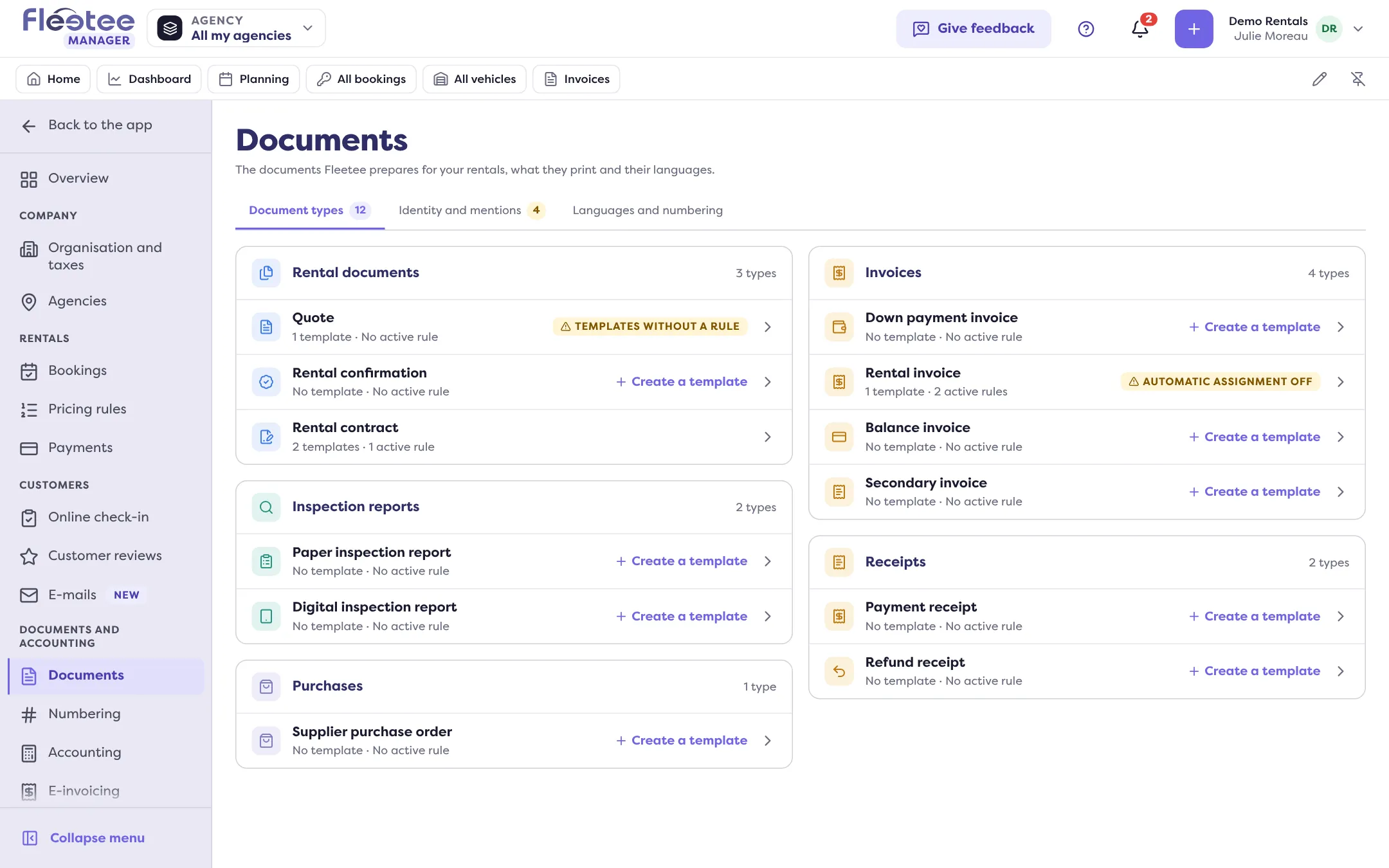
“Documents and accounting” section of Settings. The page has three tabs: “Document types”, “Identity and mentions” and “Languages and numbering”. The types are arranged by family: Rental documents, Inspection reports, Invoices, Receipts, Purchases. Each card shows the number of templates and active rules.
Check the printed identity
“Identity and mentions” tab: what your documents print (logo, company name, address, contacts, legal mentions: company number, VAT…). Each item is changed where indicated: the company’s identity in the Fleetee Account, an agency’s in its invoicing settings. Missing mentions are flagged “To complete”; some are required for e-invoicing.
Choose a document type
In “Document types”, click the card (for example “Rental contract”). The type’s page has four tabs: “General” (the shared settings), “Templates”, “Template choice” and “Annexes”.
Click “Create a template”
A four-step assistant opens. General: template name (“E.g. Professional contract”), vehicle type, agencies (empty: all agencies) and language. Content: turn on the blocks and fields to show. Layout: the order of the sections, the logo (“Show the logo”) and the colours; the preview updates with every change. Template choice: an optional rule that picks this template by itself.
Save
“Template created” confirms, and Fleetee asks “Define a rule for this template?” (“Define a rule” or “Later”).
What is printed, and where it comes from
The logo, name and address come from the company, or from the agency that has its own invoicing settings: a template does not change them (“Company information… Read-only: a template does not change them”). A template that has its own header replaces this information.
View, duplicate, delete
In the “Templates” tab, each row has “Preview”, “Edit” (or “View”), “Duplicate” and “Delete”. Duplicating creates an independent copy, and offers to copy the template’s rule. Deleting removes the template and its rules. Fleetee’s default template is read-only.
What does not change
A template applies to new documents. What is already issued (validated contract, validated invoice) keeps the rendering it was issued with, even if you edit, deactivate or delete the template later. A credit note takes the rendering of its invoice, and an amendment that of its contract: see Why isn’t my document template applied?.
Who can do what
Only a company administrator changes a template’s content (blocks, labels, texts, annexes), or a template that applies to all agencies. An agency manager can manage templates limited to their agencies.
Going further
- Attaching your terms and conditions: How do I add my terms and conditions to quotes and contracts?.
- The “Annexes” tab attaches PDF files (10 MB at most) that are added as extra pages at the end of the document, for all agencies or some.
- “Document languages” sets the languages your documents can be translated into.
Where to find it: Settings › Documents
Where to find it: Settings › Documents
Go further
Updated on 18 November 2026 with version 3.0