

How do I set booking lead times and rules?
- Manager v3
- Administrator
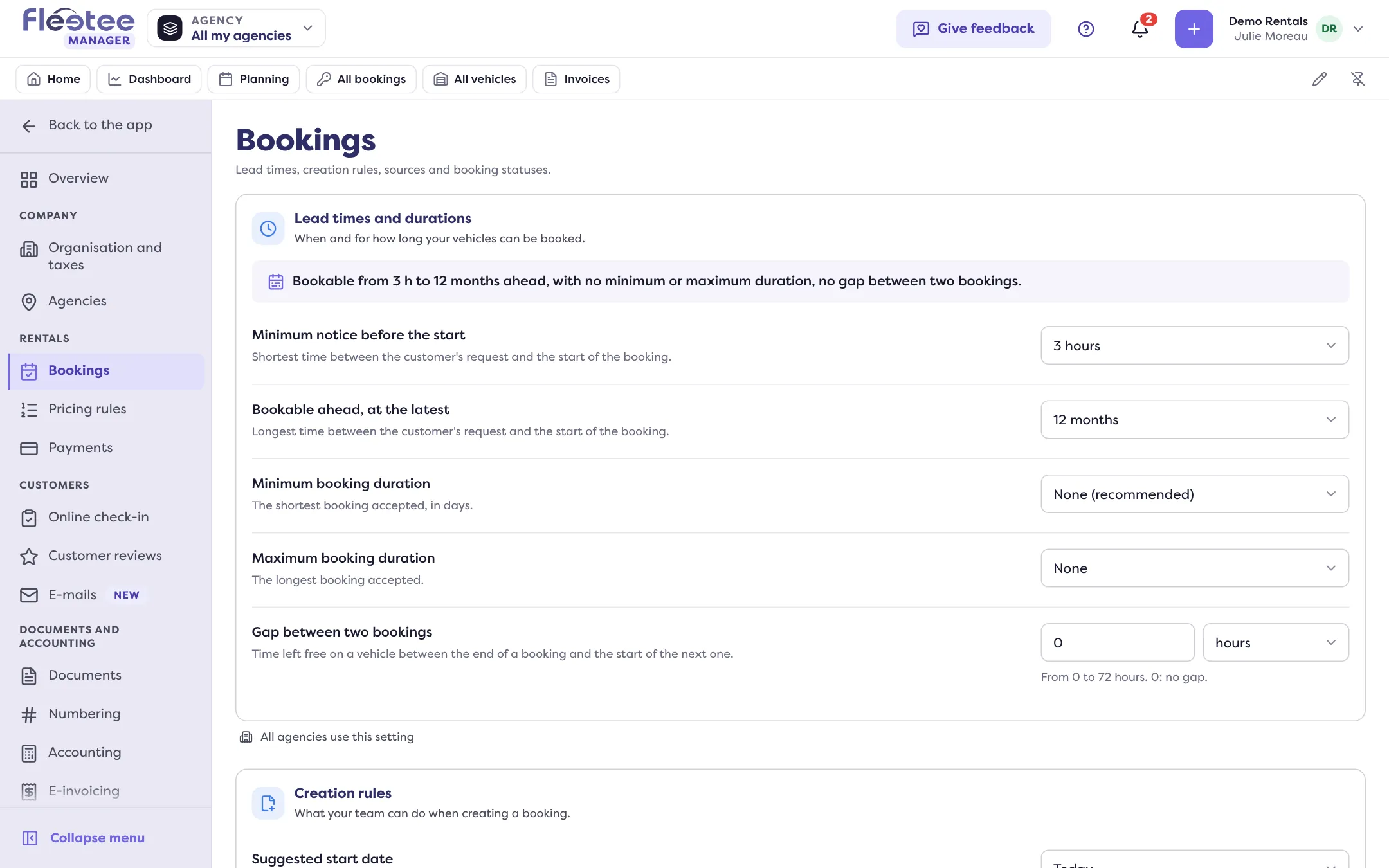
In short. Settings › Bookings gathers four cards: “Lead times and durations” (notice, minimum and maximum duration, gap between bookings), “Creation rules” (overbooking, editable price…), “Booking sources” and “Statuses and planning”.
This page decides when and for how long your vehicles can be booked, and what your team can do when creating a booking.
Open Settings › Bookings
In the Settings menu, under Rentals. The page has four cards.
Set “Lead times and durations”
A summary sentence recaps them, for example “Bookable from 3 h to 12 months ahead, for 1 to 30 days, 2 h between two bookings”. Lists save as soon as you choose; numbers (“Other duration”, maximum duration, gap between two bookings) save with “Save”.
Set the “Creation rules”
For each rule, choose Everyone, Administrators only or Nobody.
Add your “Booking sources” and set “Statuses and planning”
See below.
Lead times and durations
- Minimum notice before the start: shortest time between the customer’s request and the start of the booking. “No minimum notice” is possible.
- Bookable ahead, at the latest: longest time between the request and the start.
- Minimum booking duration: the shortest booking accepted, in days (“None”, or a number of days). With no minimum in days, and if you have the booking website, “Minimum duration of bookings under a day” sets a minimum in hours.
- Maximum booking duration: in days, or in hours (23 hours at most; unavailable with a minimum duration in days).
- Gap between two bookings: time left free on a vehicle between the end of a booking and the start of the next: from 0 to 999 minutes, 72 hours or 30 days. 0: no gap.
Fleetee refuses inconsistencies, for example “The minimum duration must be shorter than the maximum duration”.
Under the card, the scope block says which agencies have their own lead times: “… has lead times and durations of its own: the company’s do not apply to its bookings”. Each agency sets them on its own page (“Bookings” tab). See How do I create an agency and set its opening hours and closures.
A “Different during … season(s)” line flags that the season calendar changes a setting for some periods: “See the season calendar”.
Creation rules
- Overbooking: create a booking when no vehicle is available on these dates. See Why does Fleetee warn me about an overbooking?.
- Booking outside the criteria: create a booking despite a warning (vehicle of another agency, price not calculated…).
- Price editable by hand: change the calculated price of a booking.
- Creation in the past: create a booking whose start has already passed.
- Suggested start date (Today, Tomorrow, The day after tomorrow, In 3 days, In a week), Suggested departure time and Suggested return time: prefilled at creation. “Following the agency’s hours” takes the agency’s first departure slot, otherwise 9 am.
- Reference generated automatically: when off, the reference is typed when each booking is created.
Booking sources
Where your bookings come from: the source is chosen at creation. Fleetee provides a few (“Source provided by Fleetee”); add your own with “New source” (for example “Trade fair” or “Partner”), then “Add”. Deleting a source no longer offers it at creation.
Statuses and planning
- Automatic status update: when on, a booking becomes “Ongoing” on its start date and “Completed” on its return date. When off, its status changes once the departure, then the return, are done. “Update the statuses now” applies the changes that are due right away. These two lines do not appear for a company that uses Fleetee Check.
- Availability after a check-in/out report: “Change the availability of the vehicle” (from the dates and times of the report) or “Do not change the calendar of the vehicle”.
- Main date of the planning: “Booking dates” or “Check-in/out report dates”.
This page is reserved for the company administrator.
Where to find it: Settings › Rentals › Bookings
Where to find it: Settings › Rentals › Bookings
Go further
Updated on 18 November 2026 with version 3.0