

How do I create a claim from an inspection report?
- Manager v3
- Administrator
- Agency manager
- Rental agent
In short. Open the report in Fleet › Inspection reports, “Claims” block, “Create a claim”: the date, mileage, fuel, reported damage and damage photos carry over into the form, which you adjust before saving.
When the return inspection reveals damage, create the claim from the inspection report: you avoid retyping everything.
Open the inspection report
In Fleet › Inspection reports, click the row (Where can I find an inspection report and its PDF?).
Find the “Claims” block
It lists the claims already linked to the booking, for “This vehicle” and for “Other vehicles of the booking” (“No claim is linked to this booking yet”).
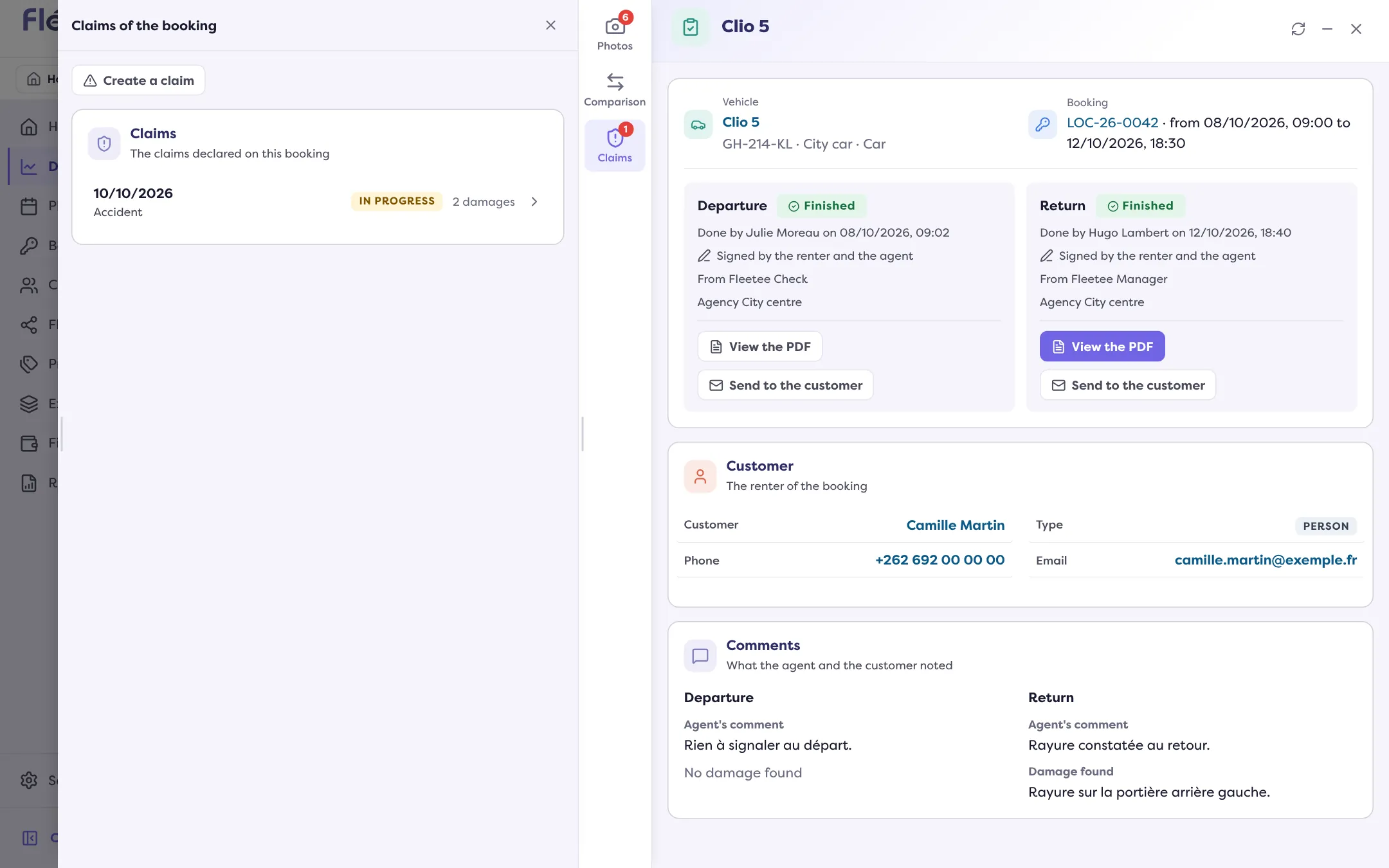
Click “Create a claim”
The “Report a claim” form opens with the report’s values: the date, the mileage, the fuel level, the reported damage (in the description) and the damage photos. The title says which report they come from (departure or return).
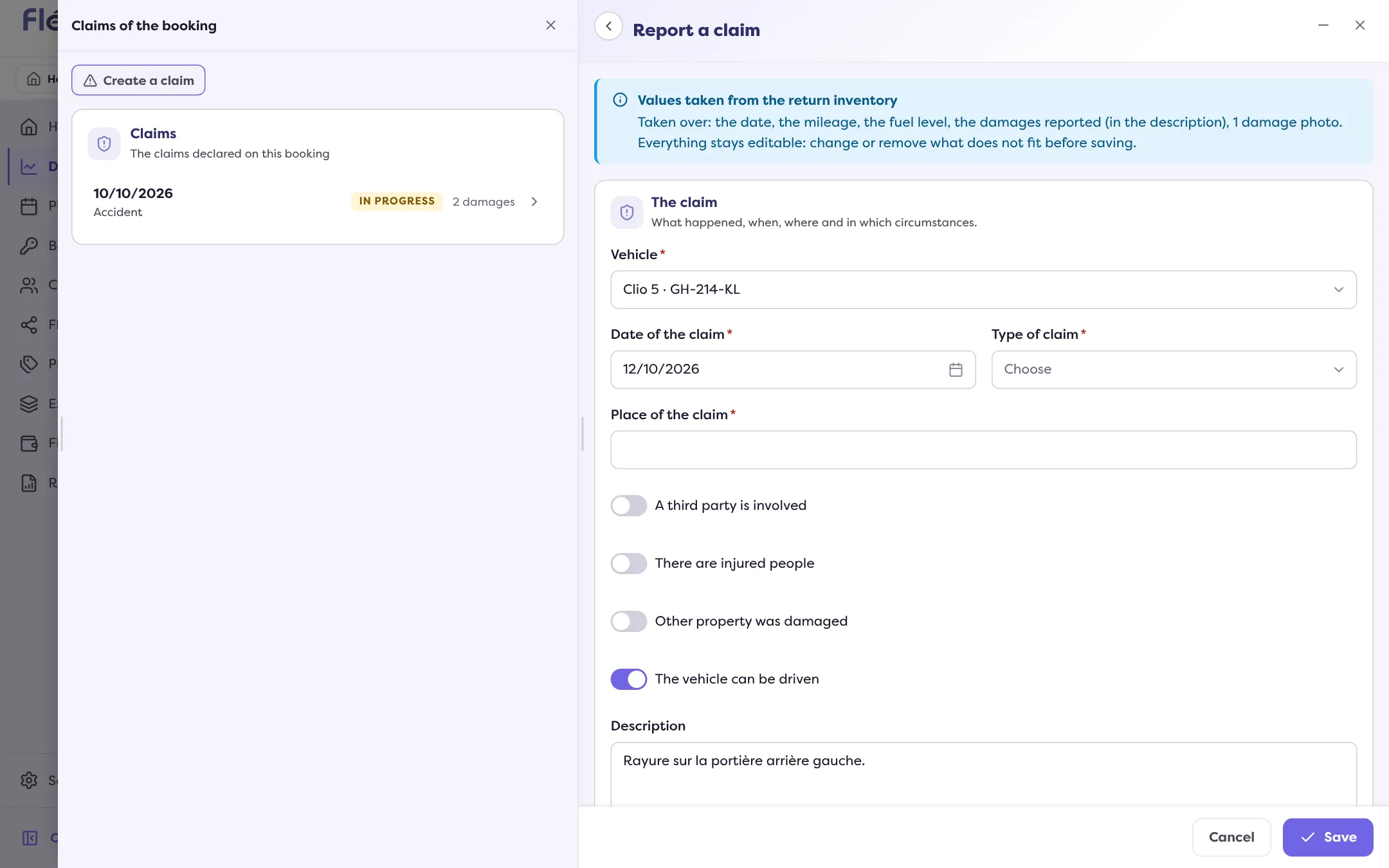
Check and save
Everything stays editable: change or remove what does not fit. “Claim reported.”
Special cases
- Report not finished: only the vehicle and the booking are carried over.
- Many photos: “N photos taken over out of M”; add the others from the report if needed.
- Vehicle not in the booking: “The inventory’s vehicle is not in this rental: check the vehicle and the photos taken over.”
- No vehicle assigned to the booking: the claim cannot be reported.
- The button is greyed out, with the reason below, when your role does not allow creating a claim.
Next: How do I complete a claim file?. Another starting point: How do I report a claim?.
Where to find it: Fleet › Inspection reports › a report › “Create a claim”
Where to find it: Fleet › Inspection reports › a report › “Create a claim”
Go further
Updated on 18 November 2026 with version 3.0