

How do I record a traffic ticket?
- Manager v3
- Administrator
- Agency manager
- Rental agent
In short. In Bookings › Traffic tickets, “Add a traffic ticket”: enter the registration and the date of the offence to find the rental, choose the driver, the type, the amount and attach the notice. Fleetee keeps the record to re-invoice or dispute it.
You received a traffic ticket notice for one of your vehicles? Record it: with the registration and the date, Fleetee finds the rental and the driver to name.
Open Bookings › Traffic tickets
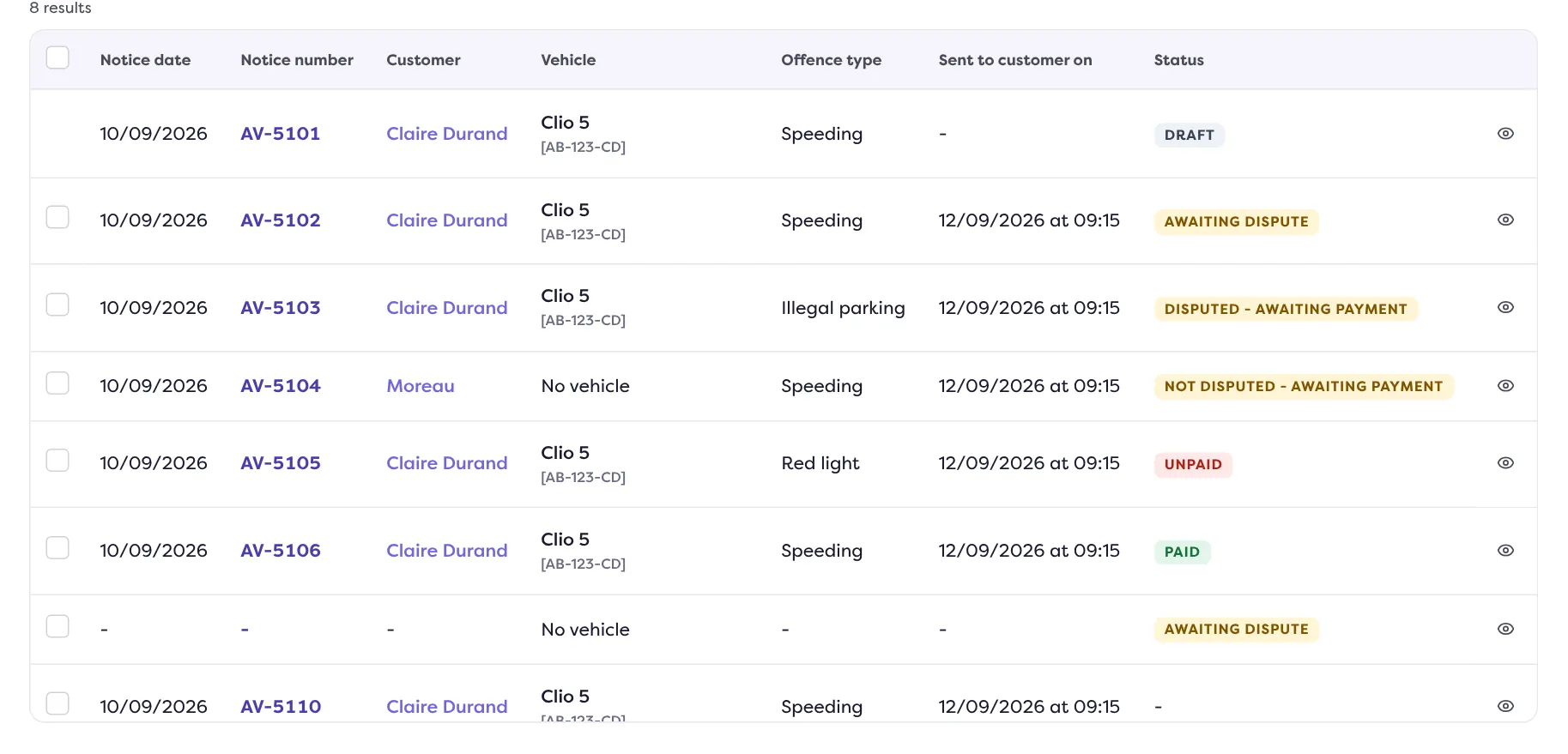
The list gives the Notice date, the Notice number, the Customer, the vehicle, the Type of traffic ticket, the Sent to customer on and the Status. Tabs filter by status (for example “Awaiting dispute” or “Unpaid”).
Click “Add a traffic ticket”
You can also use the “+” button in the top bar, then Traffic ticket. The panel opens.
Find the rental
Enter the vehicle’s registration and the Date and time of the offence, then click “Search for the rental”. If a rental matches, check it and select it; if several do, choose the one of the offence. With no rental on that date, the traffic ticket cannot be saved: “Check the registration and the date of the offence”.
Choose the driver
The Driver is the person on the rental who was driving. Default: the first one with a licence on file, otherwise the customer.
Fill in the traffic ticket
Choose the Type of traffic ticket: it fills in the Amount, which you can change (a later change of type will no longer replace it). Add the Additional fees if any, the Notice no. and a Comment.
Attach the documents
The Copy of the notice and, later, the Contest receipt (PDF, PNG or JPEG, under 10 MB).
Click “Save”
Message: “Traffic ticket created.” If the date of the offence is not within the rental’s period, Manager asks “Save anyway?”.
Next
On the traffic ticket’s page:
- “Dispute” opens the dispute website of the ticket type, when there is one; then attach the receipt.
- “Change status”: Draft, Awaiting dispute, Disputed - awaiting payment, Not disputed - awaiting payment, Unpaid, Paid. The status is changed by hand: neither an invoice nor a payment changes it.
- The Billing tab is for re-invoicing the customer: read Re-invoice a traffic ticket.
- “Edit”: the amount and fees can no longer be changed once an active invoice is attached.
- “Delete”: refused if the traffic ticket is invoiced or paid.
Where to find it: Bookings › Traffic tickets › “Add a traffic ticket”
Where to find it: Bookings › Traffic tickets › “Add a traffic ticket”
Go further
Updated on 18 November 2026 with version 3.0