

How do I report a claim?
- Manager v3
- Administrator
- Agency manager
- Rental agent
In short. In the rental page, Disputes panel, “Report a claim”: date, type, place, circumstances, insurance file, vehicle condition, damages and attachments. You can also create it from the inspection. The claim is followed in Bookings › Claims.
An accident, a theft, a breakdown, broken glass? Report the claim on the rental concerned: you keep together the circumstances, the insurance file, the priced damages, the photos and, afterwards, the invoicing.
Open the rental page, Disputes panel
The panel lists the rental’s Claims and Traffic tickets. A claim can only be reported if a vehicle is assigned to the rental: “No vehicle is assigned to this rental: the claim cannot be reported.”
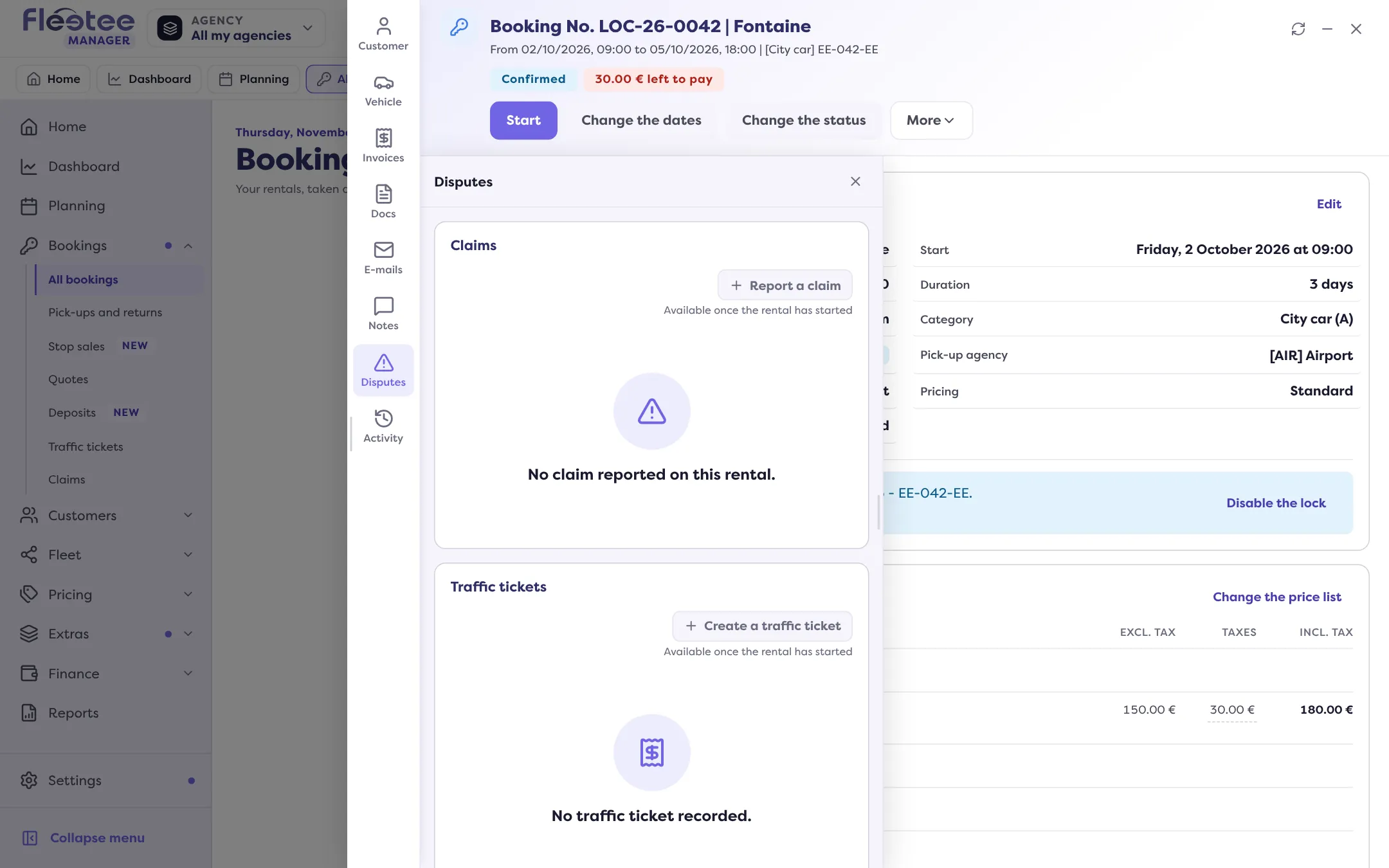
Click “Report a claim”
The “Report a claim” panel opens. If you start from an inspection, some values are taken from it (date, mileage, fuel, reported damage, photos): “Everything stays editable”.
Describe the claim
Date of the claim, Type of claim (Incident, Accident, Theft, Breakdown, Broken glass or Other, to specify), Place of the claim, Description. Tick as needed “A third party is involved”, “There are injured people”, “Other property was damaged” and “The vehicle can be driven”.
Fill in the insurance
The File number, the File status (In progress, Waiting for the customer, Waiting for the repair, Waiting for the expert report, Closed) and a Comment.
Record the vehicle condition
The Mileage, the Fuel level and the Other information at the time of the claim.
Add the damages
“Add a damage”: Location (front, front left side…), Type of damage (scratch, dent, break, chip, missing part…) and Amount. The amount is optional: a damage without an amount stays “awaiting pricing”.
Attach documents and photos, then “Save”
PDF, PNG or JPEG under 10 MB. Message: “Claim reported.”
Follow and edit the claim
All claims are in Bookings › Claims (Date, Type, Rental, vehicle, Customer, Status, Damage…). The claim’s page offers “Edit”, “Close” (the claim becomes read only; “Reopen” makes it editable again) and “Delete”. Its tabs: Claim, Work orders (linked repairs and expert reports), Documents, Billing, E-mails and Activity.
As soon as an active invoice is attached to the claim, the pricing is frozen: the damages can no longer be changed and the claim can no longer be deleted until the invoice is cancelled or deleted. Price the damages before invoicing.
To bill the customer: Bill a claim.
Where to find it: Rental page › Disputes › “Report a claim”
Where to find it: Rental page › Disputes › “Report a claim”
Go further
Updated on 18 November 2026 with version 3.0