

Reports and notifications
Draw a custom file from your data, from Reports or from a list; and set the bell to hear about what matters, without being disturbed in the evening.
Objective
By the end of this lesson, you will know how to request a report and get it, and set your notifications to keep only what is useful.
The essentials
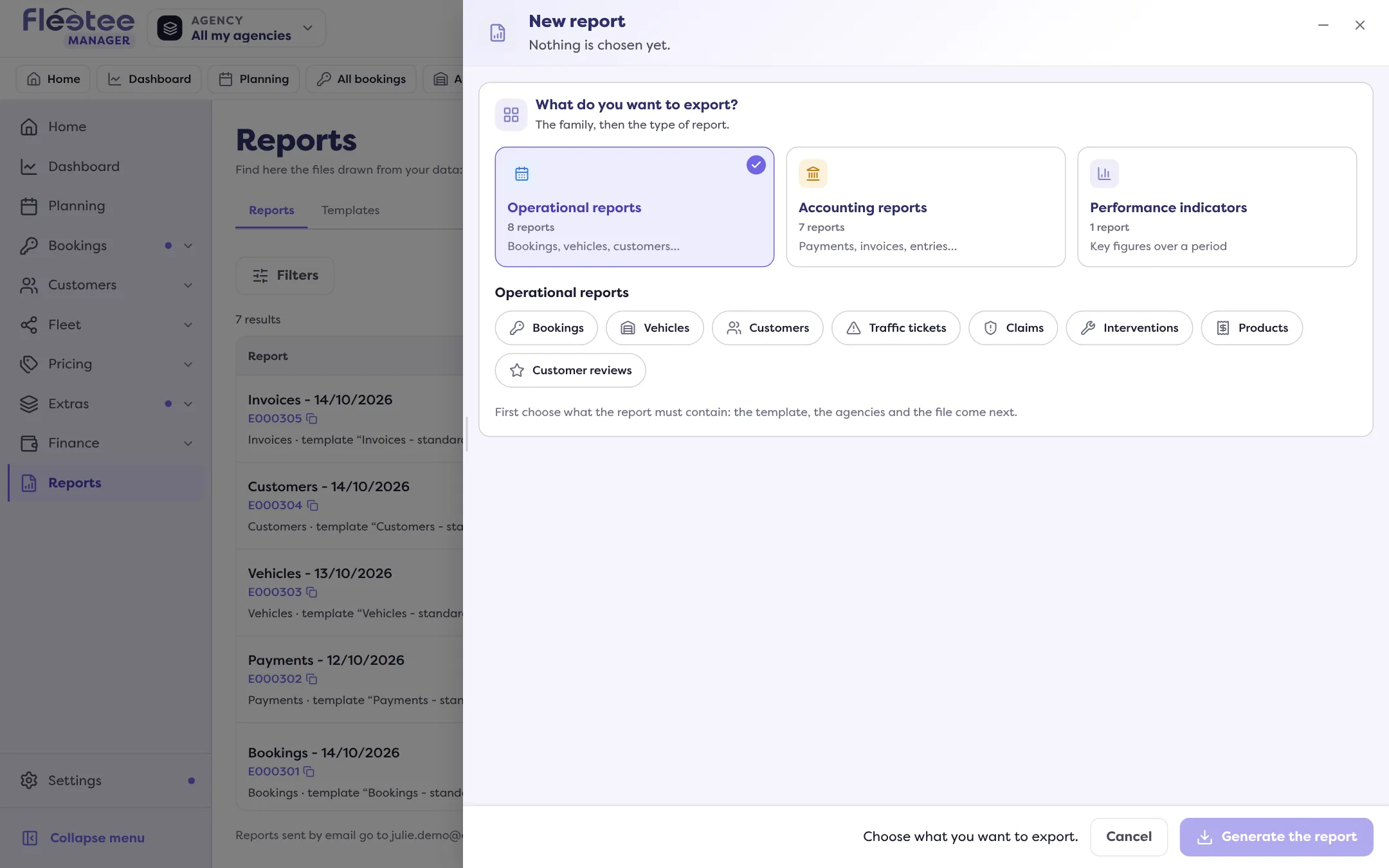
A report is a file drawn from your data: bookings, customers, invoices, accounting entries, indicators. It replaces the old exports. Julie requests one in two ways: from Reports › “New report”, where she chooses the family (operational reports, accounting reports, performance indicators), the type, the template that sets the columns, the agencies and filters; or from a filtered list, with “Export”, which takes exactly what she sees.
The report is prepared while she keeps working. The Reports list gives its status (Pending, In progress, Ready, Failed); a message tells her when it is ready, and “Download” or “Email me this report” gets it.
The bell, at the top right, is everyone’s news feed: what needs an action (a request to answer, a document to validate) and what happened. “To handle” notifications stay until someone deals with them. In Preferences, Julie chooses, type by type, what she receives in Fleetee and on her phone, and turns on quiet hours to silence browser and phone in the evening and at weekends: everything stays in the panel.
Key steps
Request a report
Reports › “New report”: family, type, template, agencies, filters, format, then “Generate the report”.
Get it
In Reports, once “Ready”: “Download”.
Set your notifications
The bell › “Notification preferences”: an “In Fleetee” switch and a “Phone” switch per type; “Turn on quiet hours”.
Reports are reserved to the administrator and agency managers; only an administrator creates or edits report templates. Everyone, whatever their role, sets their own notifications.
Your turn
Calm your evenings
Open the bell, then “Notification preferences”. Turn on quiet hours, for example from 8 pm to 8 am, and all weekend if you wish. The change only applies to you.
Further reading
Check what you learned
Answer every question correctly to complete the lesson.
Progress kept on this device. Soon with your Fleetee Account.