

How do I build a custom report?
- Manager v3
- Administrator
- Agency manager
- 0:58
In short. Reports › “New report”: choose the family and type of report, a template, the agencies, filters, the period and the file format, then “Generate the report”. It is prepared while you work, then downloaded.
Reports are open to the administrator and the agency managers. With another role, ask one of them to generate it.
A report is a file drawn from your data: bookings, customers, invoices, accounting entries, indicators. You choose the columns (through a template), the filters and the format. It replaces the former exports.
Click “New report”
In Reports. The “New report” panel opens. From a list (customers, bookings, invoices…), “Export” produces a report from the list: the whole filtered list, or only the ticked rows. If the file will hold more rows than the list (a list filter does not apply to it), Fleetee says so: “Export anyway”. The “Report requested” message leads to “See in Reports”.
Choose what the report contains
“What do you want to export?”: a family (Operational reports: bookings, vehicles, customers…; Accounting reports: payments, invoices, entries…; Performance indicators: key figures over a period), then a report type.
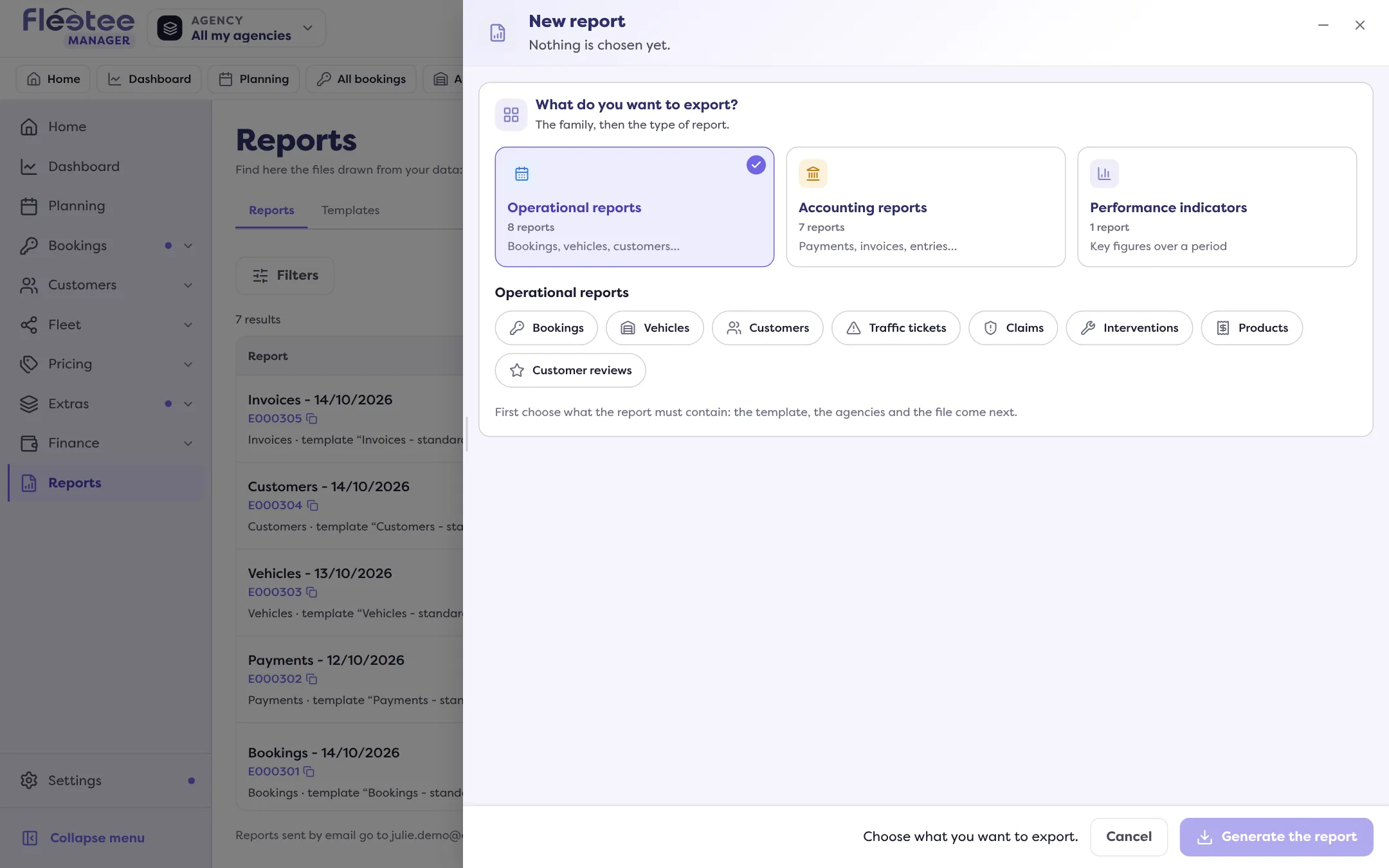
Choose the template
The template sets the columns. The default template is offered. Templates are managed in the Templates tab of Reports; only an administrator creates or changes them.
Choose the agencies
The agencies the report takes its data from (All your agencies, or a selection; at least one).
Add filters (optional)
“Add a condition”: choose an item (booking, customer, vehicle, invoice, payment…), a condition (is equal to, contains, is greater than, is empty…) and a value. Keep the rows that meet every condition or at least one. With no condition, the report contains every row of the agencies you chose.
Set the period (depending on the type)
For a cash or ledger report: a period (Today, The last 7 days, Last month, Custom…). For profitability: whole months, one row per vehicle and currency. For an indicator: the start and end periods, the date it is based on, how to split the result and whether to include deleted items.
Name the file and choose its format
The report name, the file format (for accounting software, .csv is recommended), the content of empty cells (empty, dash, N/A or zero) and whether to put the column names on the first row. These settings come from the template; you can change them here.
Click “Generate the report”
The report is prepared while you keep working. You find it in Reports.
Follow and get a report
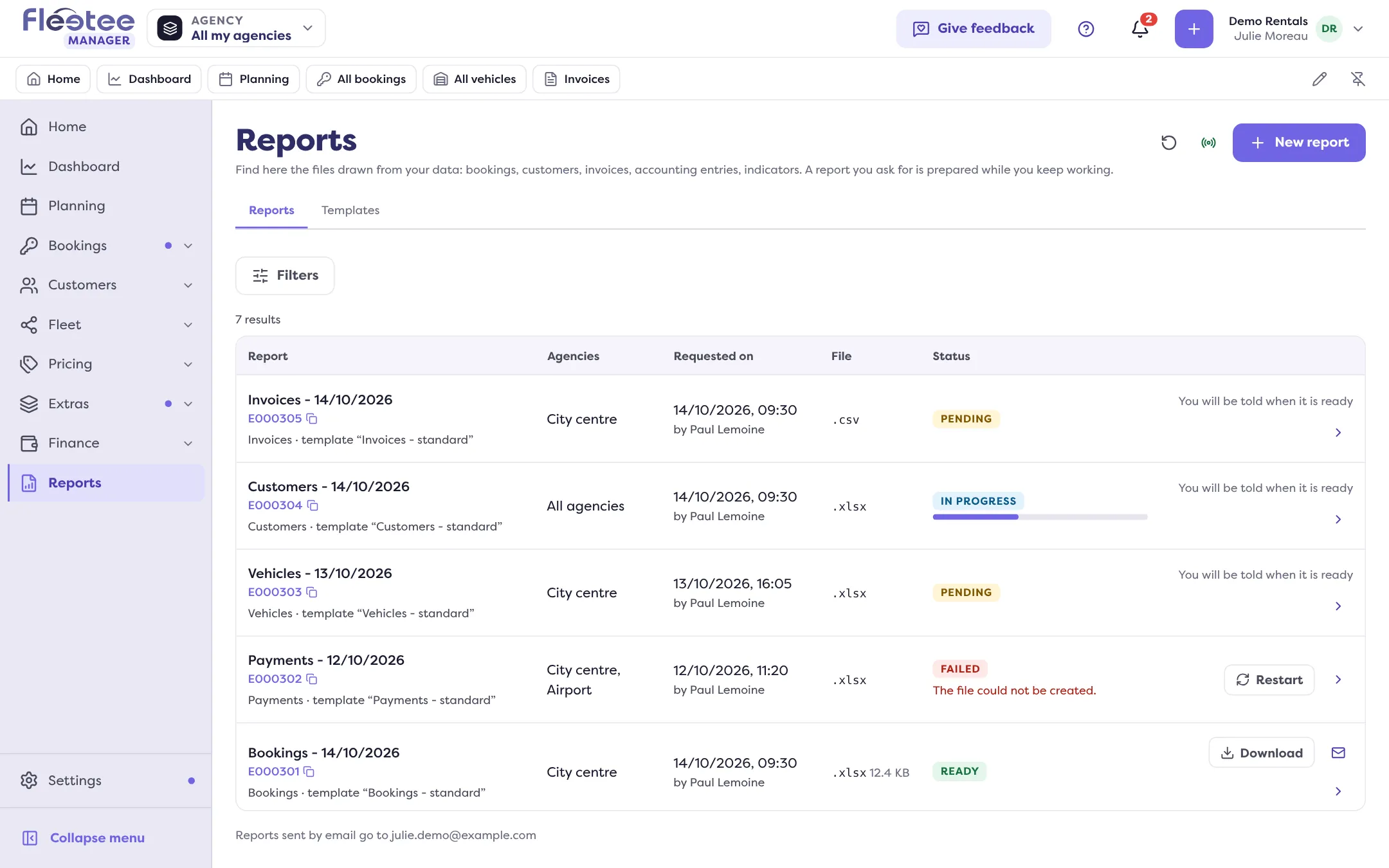
The Reports list shows each report with its status: Pending, In progress, Ready or Failed. It updates itself while a report is being prepared, and a message “The report “…” is ready” shows at the end.
- “Download” gets the file.
- “Email me this report” sends it to your address.
- “Restart” restarts a failed or interrupted report. Fleetee gives the cause of a failure: for example “No row matched your request”, or “The template or filters you chose can no longer be used”.
Manage your templates
The Templates tab lists report templates. An administrator can create a “New template” (steps Columns, then Order, name and formatting), Change, Duplicate, Make default or Delete one.
Where to find it: Reports › “New report”
Where to find it: Reports › “New report”
Go further
Updated on 18 November 2026 with version 3.0