

What is the notification bell for?
- Manager v3
- Administrator
- Agency manager
- Rental agent
- Accountant
In short. The bell at the top right gathers what needs an action (requests to answer, documents to check) and what happened. Everyone sets what they receive, in Fleetee, on their browser or phone, and their quiet hours.
The bell at the top right of Fleetee Manager is your news feed: what needs an action and what happened, for the company and agencies you can see. A counter shows the unread notifications and those to handle.
The panel
Click the bell. The panel lists notifications by day (Today, Yesterday, Earlier):
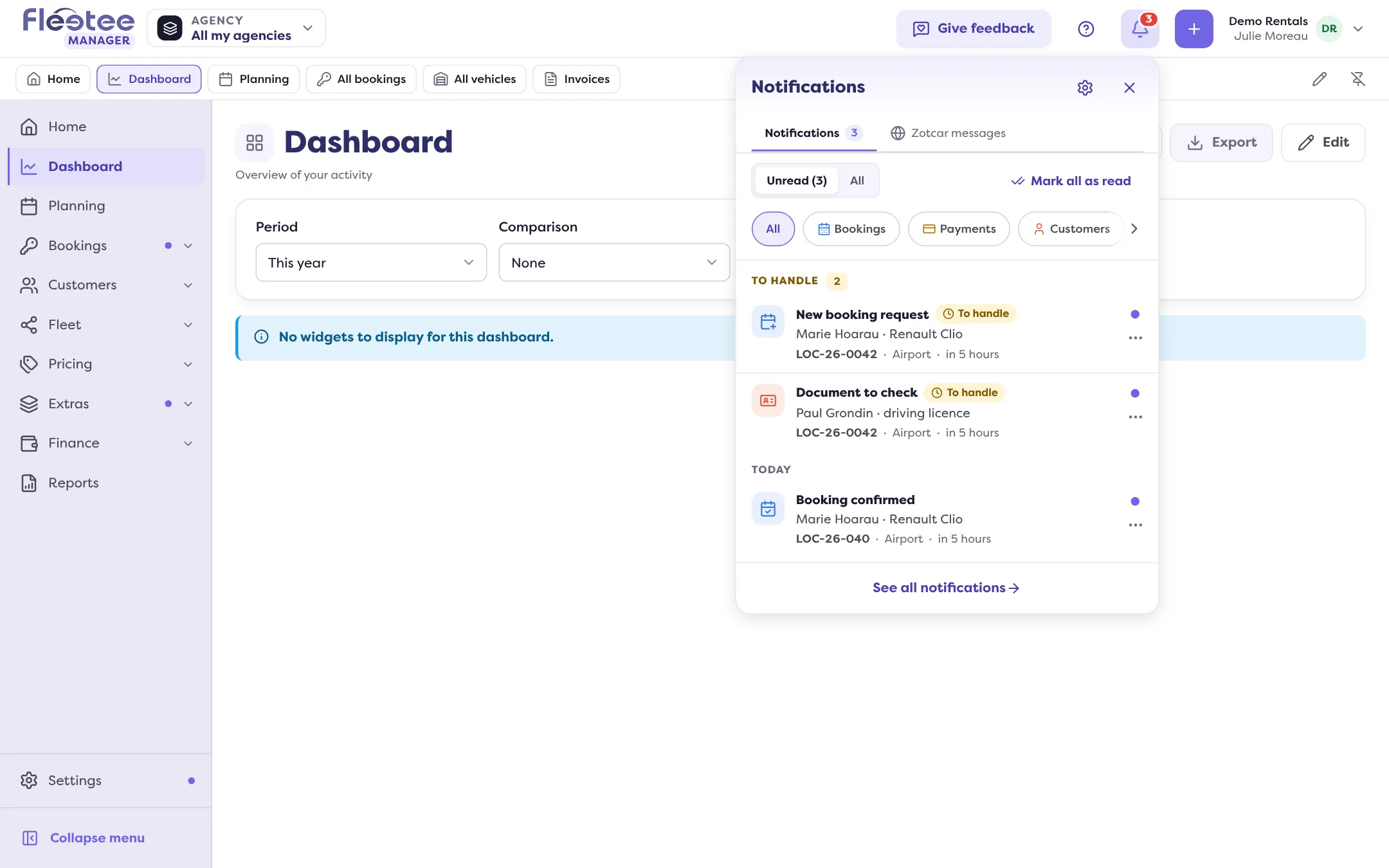
- Unread / All: show only what you have not read.
- Families: filter by family.
- To handle: notifications waiting for an action, like a request to answer, a document to check (see How do I approve or reject a document sent by the customer?), a vehicle to assign. They stay shown until someone handles them, and the notification says who did and when.
- “Mark all as read”, “Show more”, “See all notifications” and “Notification preferences”.
The Notifications page
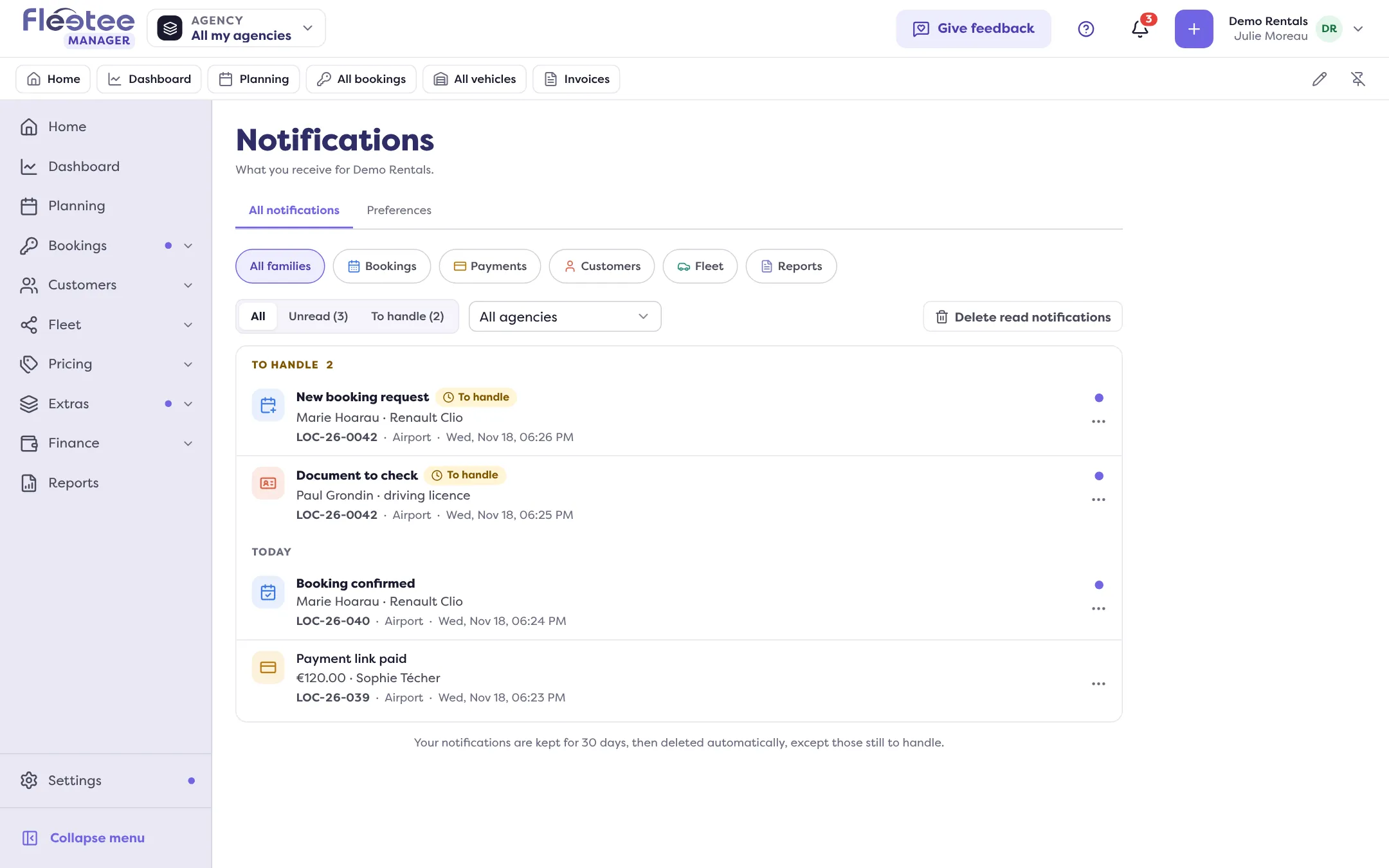
“See all notifications” (or My notifications in your account menu) opens the page, with two tabs: All notifications (filters by status, family and agency) and Preferences. “Delete read notifications” removes them for you only: your colleagues keep them. Your notifications are kept for 30 days, then deleted automatically, except those still to handle.
Set what you receive
In Preferences, each type of notification has two switches:
- In Fleetee: in the bell and on your browser. Turning a type off stops it everywhere.
- Phone: notifications from the Fleetee Check app, on the phones where you are signed in.
Types are sorted into families: for example Requests, confirmations, quotes, signed contracts (bookings), Payments received and deposits (payments), Documents to check, reviews, contacts received through your website (customers), Self-service inspections, vehicles returned to another agency (fleet), Your reports and exports ready to download. Fleetee suggests starting settings; “Restore suggested settings” goes back to them.
Quiet hours: “Turn on quiet hours” stops browser and phone notifications in the evening (From … to …) and/or all weekend; everything stays in the panel. A language is set for notifications received outside Fleetee.
On your browser or phone
In On this device, “Turn on in this browser” sends notifications even when Fleetee is in another tab; “Send me a test” tests. If your browser blocks them, Fleetee explains how to allow them. On iPhone and iPad, first add Fleetee Manager to your Home Screen.
Where to find it: The bell at the top right; account menu › My notifications
Where to find it: The bell at the top right; account menu › My notifications
Go further
Updated on 18 November 2026 with version 3.0