

How do I make my accounting export?
- Manager v3
- Administrator
- Agency manager
In short. From Finance › Invoices or Payments, “Export” › “Accounting entries”; or Reports › “New report” › Accounting reports. Choose the standard (default, Sage, EBP, Cegid) and the .csv format, then get the file in Reports.
The accounting export is a report: a file drawn from your invoices, payments and purchases, that you give to your accounting software or your accountant. It is prepared while you keep working.
Only the administrator and the agency manager can ask for a report. Another role sees the message “Reports are reserved for the administrator and the agency manager”.
From a list
Open the list, with the filters you want
Finance › Invoices for the entries of invoices and credit notes, Finance › Payments for those of payments and purchases. The export takes the filtered list, or the rows you tick (“Export the selection”).
Click “Export”
The “Export the invoices” (or “Export payments”) panel offers cards. Choose “Accounting entries”. For payments, it is “Accounting entries (payments and purchases)”: both in the same file.
Choose the standard and the file
The “Accounting standard” offers Default, Sage, EBP or Cegid. For accounting software, the recommended format is .csv.
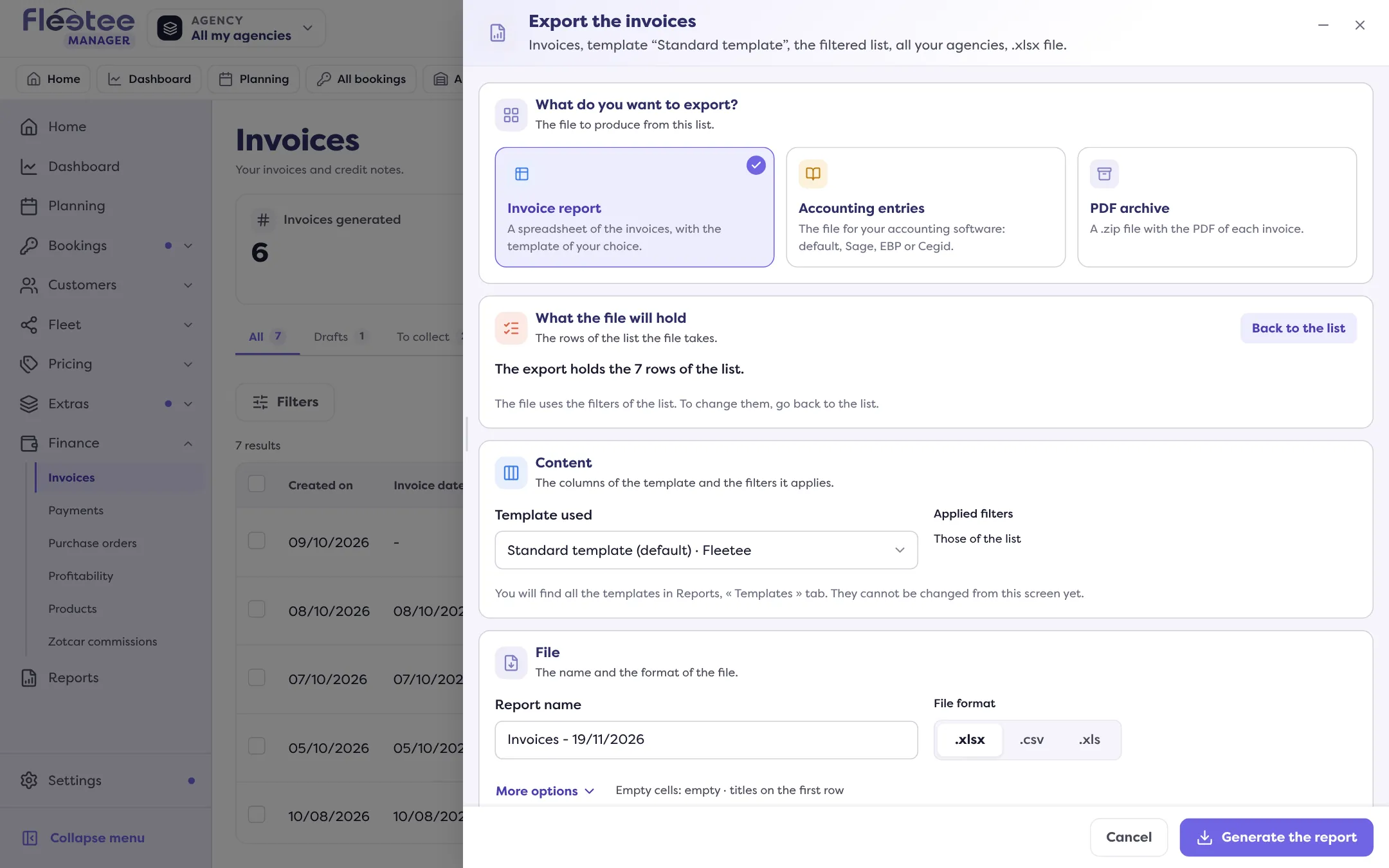
Click “Generate the report”
The report is prepared: you find it in Reports.
The accounting entries of invoices do not hold the drafts. A draft has no entry. Deposits are never exported.
From Reports
Open Reports, then “New report”
Choose the family Accounting reports (“Payments, invoices, entries…”), then the report type. For accounting entries, specify: Invoices, or Payments and purchases.
Choose the template or the standard
A template decides the report’s columns. The templates provided by Fleetee cannot be changed: duplicate one to adapt it (Templates tab of Reports).
Choose the agencies, the period and the filters
The agencies the report takes its data from; the period, when the type asks for one; optional filters. With no filter, the report contains every row of the agencies you chose.
Set the file
Report name, file format, content of empty cells, column names on the first row. These settings come from the template; you can change them here.
Click “Generate the report”
The report appears in the list with the status Pending, then In progress, then Ready.
Get the file
In Reports, when the status is Ready (a toast “The report … is ready” says so), click “Download”, or “Email me this report”. If it shows Failed, the list gives the reason; “Restart” prepares the report again. A report with no row fails with “No row matched your request”.
The cash journal
From Finance › Payments, the “Cash journal” card covers the period and the agencies chosen in the panel: it follows neither the filters nor the selection of the list. As a PDF, it is only available with the default template.
Where to find it: Reports › “New report”; or Finance › Invoices › “Export”
Where to find it: Reports › “New report”; or Finance › Invoices › “Export”
Go further
Updated on 18 November 2026 with version 3.0