

How do I create a customer?
- Manager v3
- Administrator
- Agency manager
- Rental agent
In short. Customers › All customers › “Add a customer”: choose Person or Company, enter at least the name (and the company name for a company), then “Create customer”. Fleetee shows you an existing customer before creating a duplicate.
Open Customers › All customers
The page is called “Customers” and gathers people and companies, in two tabs.
Click “Add a customer”
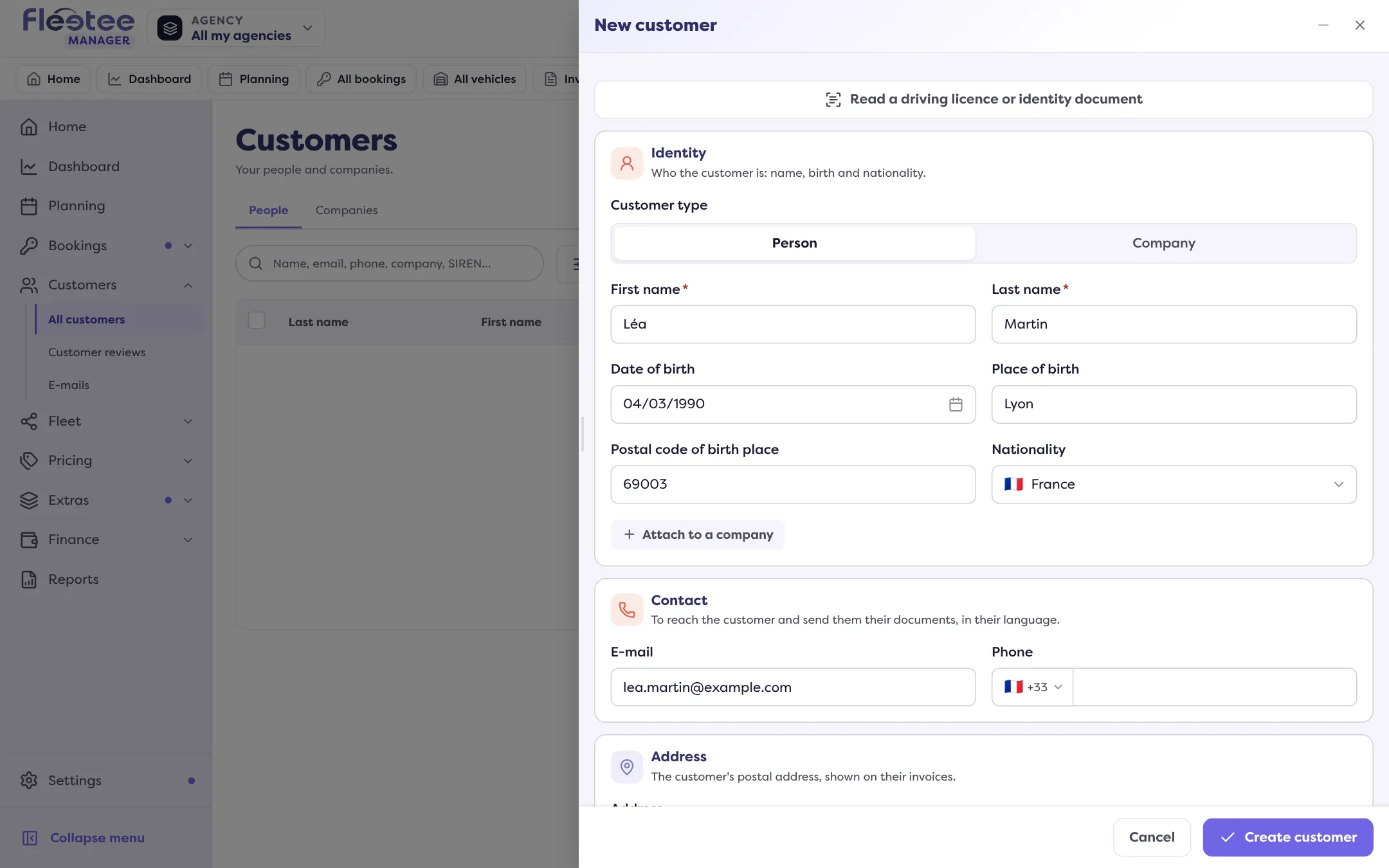
The “New customer” panel opens. To import several customers at once, use “Import customers” next to it.
Choose the Customer type
Person or Company. If you switch type, what you already typed (e-mail, phone, address) is kept.
Fill in the essentials
- Person: the First name and the Last name are required (“Enter the first name.”, “Enter the last name.”). Add the E-mail (Fleetee checks its format) and the Phone.
- Company: first choose the Country of establishment (prefilled with your company’s country), then the Company name. For a French company, type its SIREN or its name in “SIREN or company name” and pick it: Fleetee fills in the name, legal form, SIREN, VAT number and address.
Complete if needed in “More details”
This foldable part gathers Identity (birth, nationality), Contact (including the Language), Address, Management and Driving licence. All of this can also be completed later from the customer’s page. Under Management, the Customer code is assigned when saved if left empty; the Price list only appears if there are several; the Agencies are prefilled with yours.
Click “Create customer”
The “Customer created” screen offers to open the page or to “Create a rental for this customer”.
Photograph the licence to fill in the file
For a person, “Read a driving licence or identity document” fills in the fields from a photo. See Fill in a customer file by photographing their licence.
If the customer already exists
While you type, a “This customer already exists” card appears when the e-mail, phone or SIREN matches a saved customer. It gives the reason (“same e-mail”, “same phone”, “same SIREN”) and offers:
- “Open the file” of the existing customer;
- “That’s not them, create anyway”;
- “Use this customer”, when you create the customer from a rental.
If the customer exists in another agency than yours, Fleetee shows nothing of their information: it only says “A customer with these details already exists in another agency”. On creation, they are not duplicated: they are attached to your agency.
Create a customer during a rental
In Create a booking, “+ Create a customer” opens the same form, in a short version, above the rental. Once created, the customer is selected and what you typed is intact.
E-invoicing information
For a company, if information is missing for e-invoicing, a banner says so (“E-invoicing: N pieces of information are missing”) and the button becomes “Create (N items missing)”. This gap never blocks the creation.
Add a driver to a company
On a customer company’s page, in the “Drivers” card, “Add a driver” opens the form in Person mode, with the company already chosen.
Where to find it: Customers › All customers › “Add a customer”
Where to find it: Customers › All customers › “Add a customer”
Go further
Updated on 18 November 2026 with version 3.0