

How do I fill in a customer file by photographing their licence?
- Manager v3
- Administrator
- Agency manager
- Rental agent
- 1:00
In short. In “Add a customer”, click “Read a driving licence or identity document”, choose a photo or a PDF, then tick what you keep. The form is filled in; nothing is created until you click “Create customer”.
Instead of retyping a licence or an identity card, let Fleetee read the document: it prefills the form, you check. It works on a computer, and on a phone with the camera.
Open the form of a new customer
In Customers › All customers, click “Add a customer”, type Person. The same button exists when you create a customer while creating a rental. It does not exist for a Company.
Click “Read a driving licence or identity document”
A window opens. It reminds you: “Check the extracted information before using it. The document will not be attached to the customer.”
Choose the document
“Choose a document” accepts a JPEG, PNG, WebP or PDF file (up to 20 MB and five pages), one at a time. On a phone, “Take a photo” opens the camera.
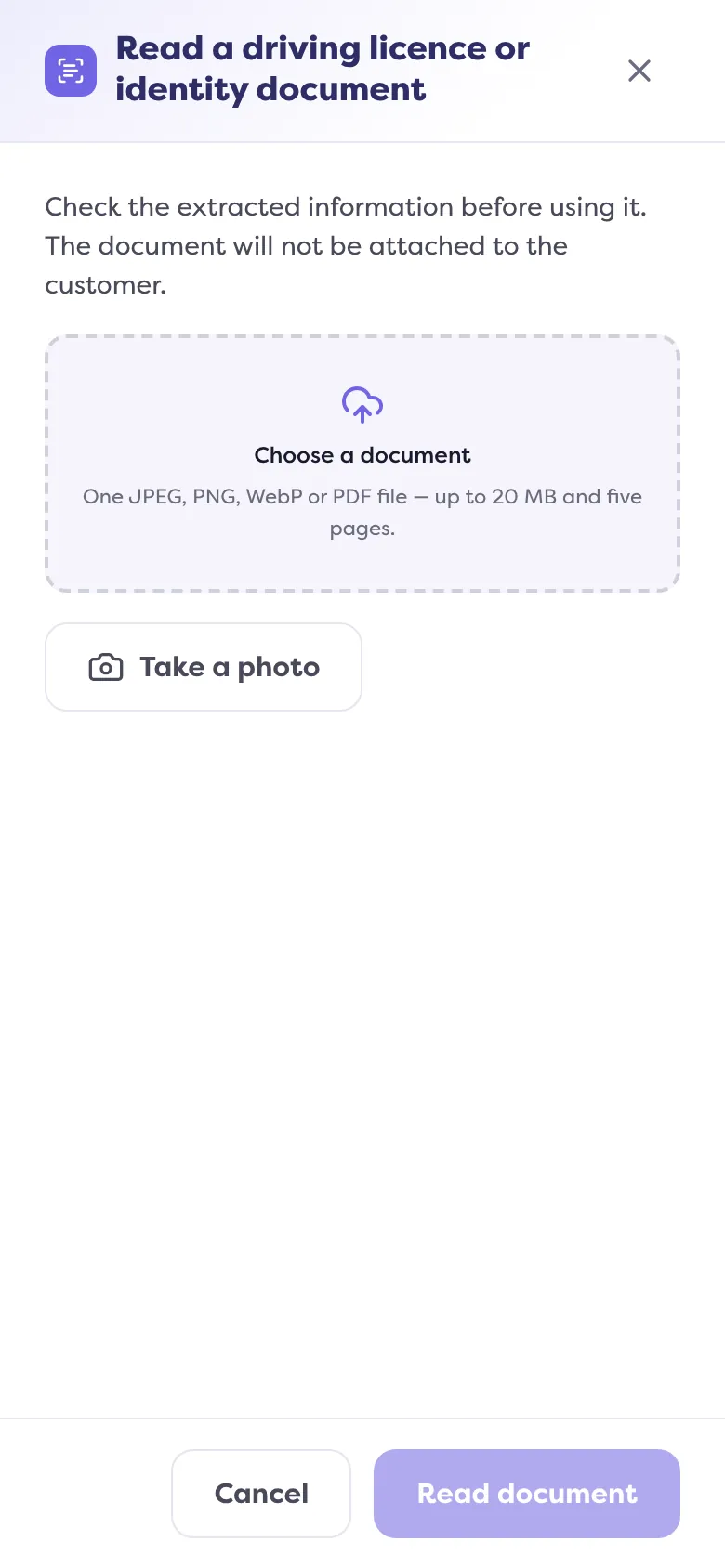
Click “Read document”
Fleetee reads the document (“Reading document…”).
Tick what you keep
The “Extracted information to check” list shows each piece of information read. Tick the ones to use. Values you had already typed are kept by default (“Current value kept: …”); tick “Replace …” to overwrite them. A value that was read with some doubt carries “Check this field”; information absent from the document stays empty: nothing is invented.
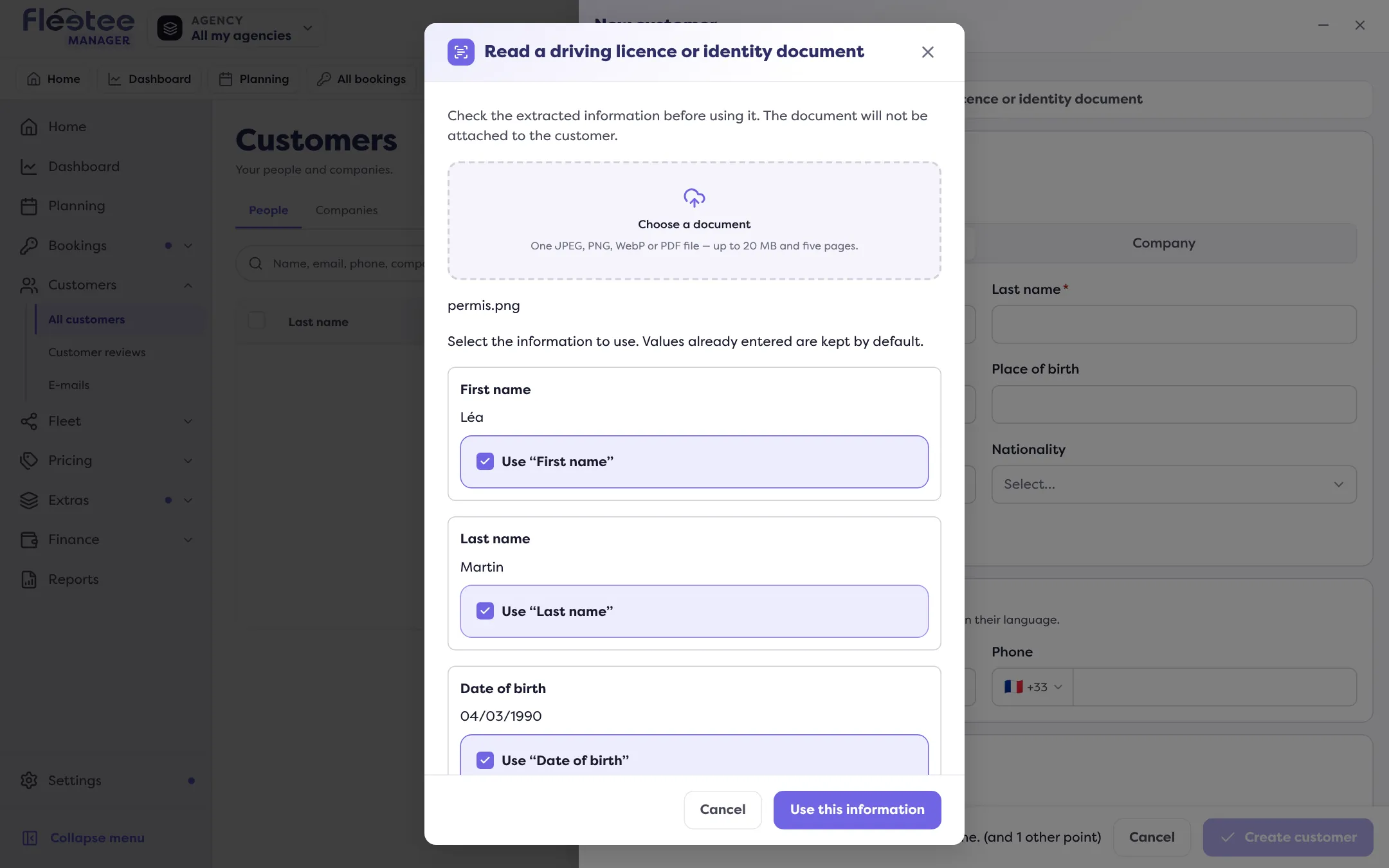
Click “Use this information”
The form fields are filled in. Read them over, complete them, then click “Create customer”.
Nothing is created before “Create customer”, and the document itself is not attached to the file. To keep it, add it afterwards from the Documents panel of the customer’s page.
What it costs
Each document reading uses AI credits, included in your plan every month; it is free during the free trial. See What are AI credits and how do I buy more?. When the credits are used up: “You do not have enough credits for this reading. You can complete the form manually.”
If the reading does not work
- “The reading could not identify a single person on a driving licence or identity document”: choose a more legible document, or a better framed photo;
- “This file cannot be read”: try a clearer photo or another file;
- “Choose a PDF with no more than five pages” or “Choose a JPEG, PNG or WebP photo, or a PDF”: the file is not accepted;
- “Document reading is temporarily unavailable” or “Reconnect to read the document”: your entries are kept, you can complete the form by hand.
Where to find it: Customers › All customers › “Add a customer” › “Read a driving licence or identity document”
Where to find it: Customers › All customers › “Add a customer” › “Read a driving licence or identity document”
Go further
Updated on 18 November 2026 with version 3.0