

How do I customise an e-mail sent by Fleetee?
- Manager v3
- Administrator
- Agency manager
- 1:02
In short. Settings › E-mails › Templates: open the e-mail, edit the subject and message, then save. The text applies to the account, an agency or a vehicle type, and per language. “Preview” and “Send me a test” check it.
E-mail templates are edited in Settings, reserved to the administrator and the agency managers. A rental agent sends e-mails but cannot change their texts.
Fleetee’s e-mails (booking confirmation, payment link, online check-in reminder…) and your own are in the same place: Settings › E-mails › Templates. You change the text of an e-mail there without touching what triggers it.
Open Settings › E-mails › Templates
The list filters by State (Active, Off, Customized, Locked), Category (Booking, Payment, Online check-in, Quotes and invoices, After the rental, Team notifications…) and Agency. Each row says who the e-mail goes to, whether it goes out by itself, and whether its text is Fleetee’s or yours.
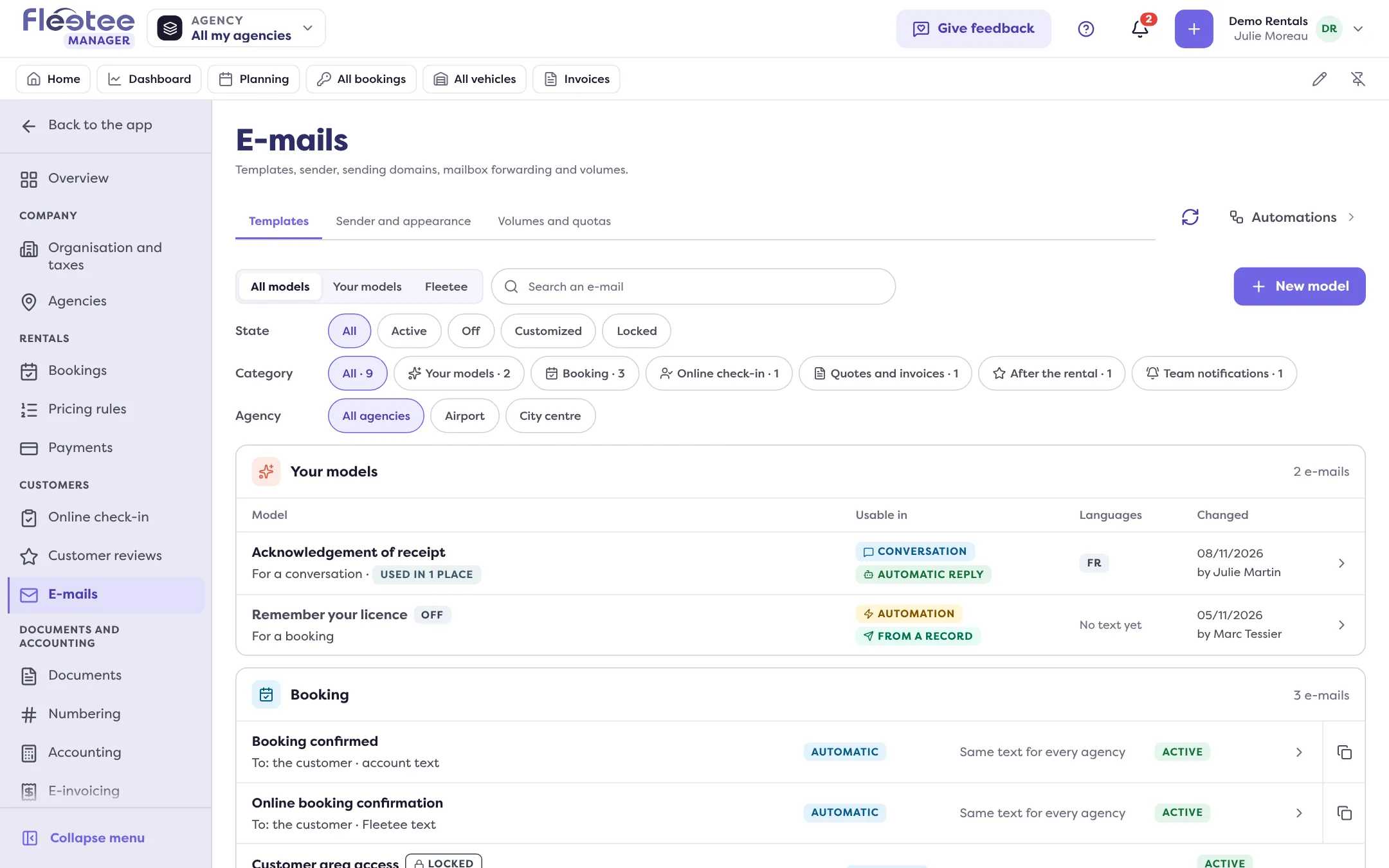
Click the e-mail to change
The sheet has three panels: Details, Versions and Used by.
Choose the level of the text
Account: one text for every agency. For an agency to have its own, open the Versions panel and click “Create” next to the agency (or a vehicle type). With no version of its own, an agency sends the account text. “Back to the account text” removes an agency’s version.
Choose the language of the text
“Language of the text”: one text per language offered. A customer receives the language of their record; with no text in their language, they receive the one of the default language. Languages are set in Sender and appearance › Languages.
Edit the subject and the message
The “Variable” button inserts a detail of the booking, customer, quote or invoice (name, reference, dates…): it is filled in when sent.
Check, then save
“Preview” shows the e-mail as the customer of the last booking of this level would receive it, in Computer or Phone format: nothing is saved or sent. “Send me a test” sends the e-mail to your address. Click “Save”: “Text saved: it goes out from the next send.”
Restore Fleetee’s text
“Restore Fleetee's text” replaces the account text with Fleetee’s. Agency versions do not change.
Texts you cannot change
An e-mail that carries a sign-in or access link is Locked: Fleetee keeps its text for the safety of your customers. Your branding (logo, colour, signature) still applies. The text of the review request is set in Settings › Customer reviews (see How do I turn on customer review collection?).
Create your own template
“New model” (or “Create a model from this one”): give it a name (your customers do not see it), choose what it is about (a booking, a customer, a quote, an invoice, a conversation: this decides the variables available) and where to use it (reply in a conversation, automatic reply, automation, send from a record, bulk send). Then write its text in the model’s sheet. A model never goes out by itself: it is offered in the places you ticked.
Who can edit
An administrator edits every text. An agency manager edits those of their agencies; the account texts and the e-mails to the team stay read-only for them. Other roles can only read.
Where to find it: Settings › E-mails › Templates
Where to find it: Settings › E-mails › Templates