

How do I create a customer segment?
- Manager v3
- Administrator
- Agency manager
- Rental agent
In short. Customers › Segments › “New segment”: name it, add criteria (status, agency, tags, number of rentals, last rental, invoiced…), choose personal or shared. It updates itself.
A segment is a group of customers defined by criteria (“customers who rented at least twice and were invoiced over €1,000”). It keeps no list: each customer enters and leaves by themselves when their history changes. A segment filters and counts; it sends nothing.
Segments are not open for every company. If not, the page says “Segments are not open”. A role that can only view customers reads the segments without creating any.
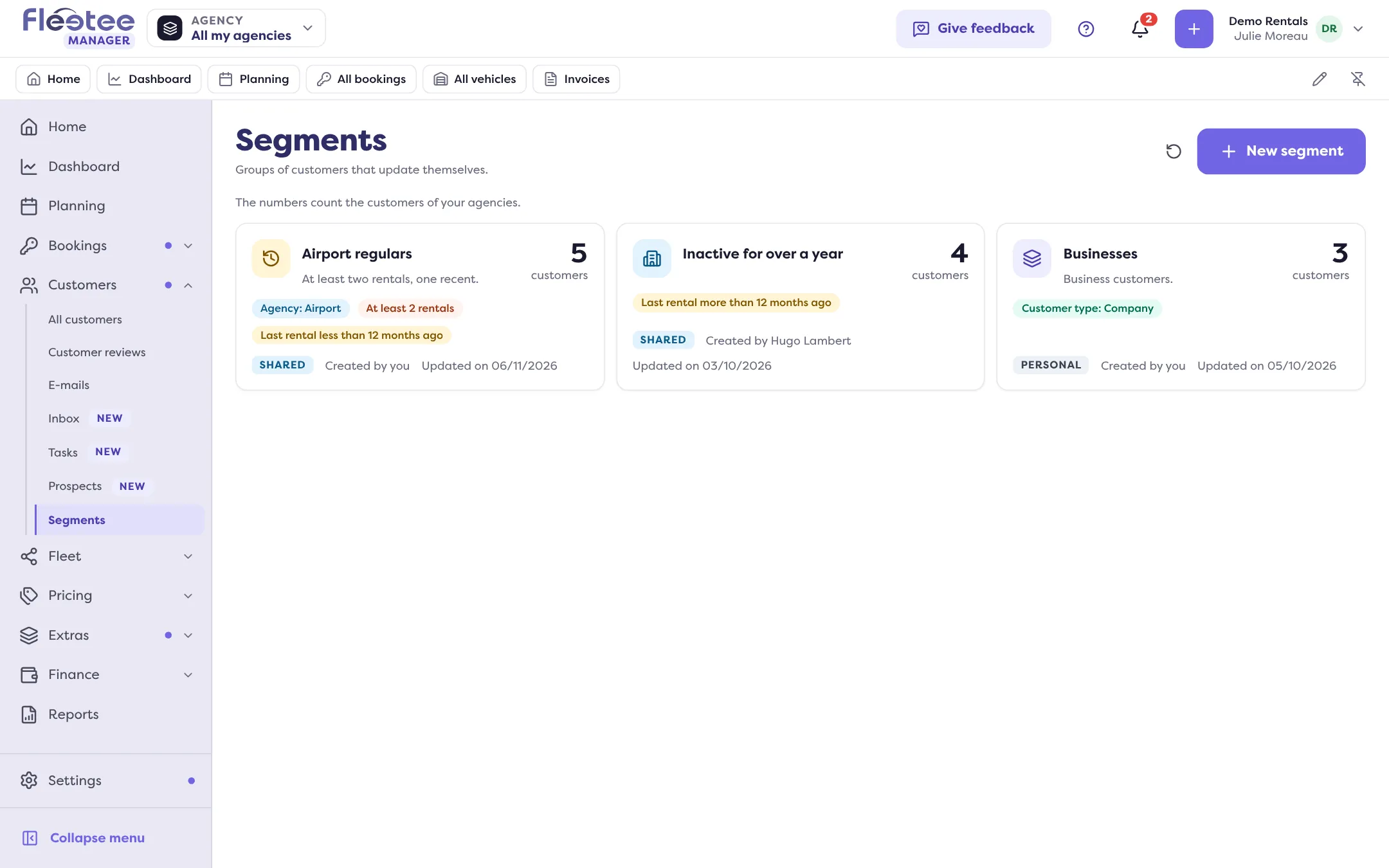
Open Customers › Segments
The page lists your segments, with each one’s number of customers (counted over your agencies) and the Shared or Personal tag. Click “New segment”.
Name the segment
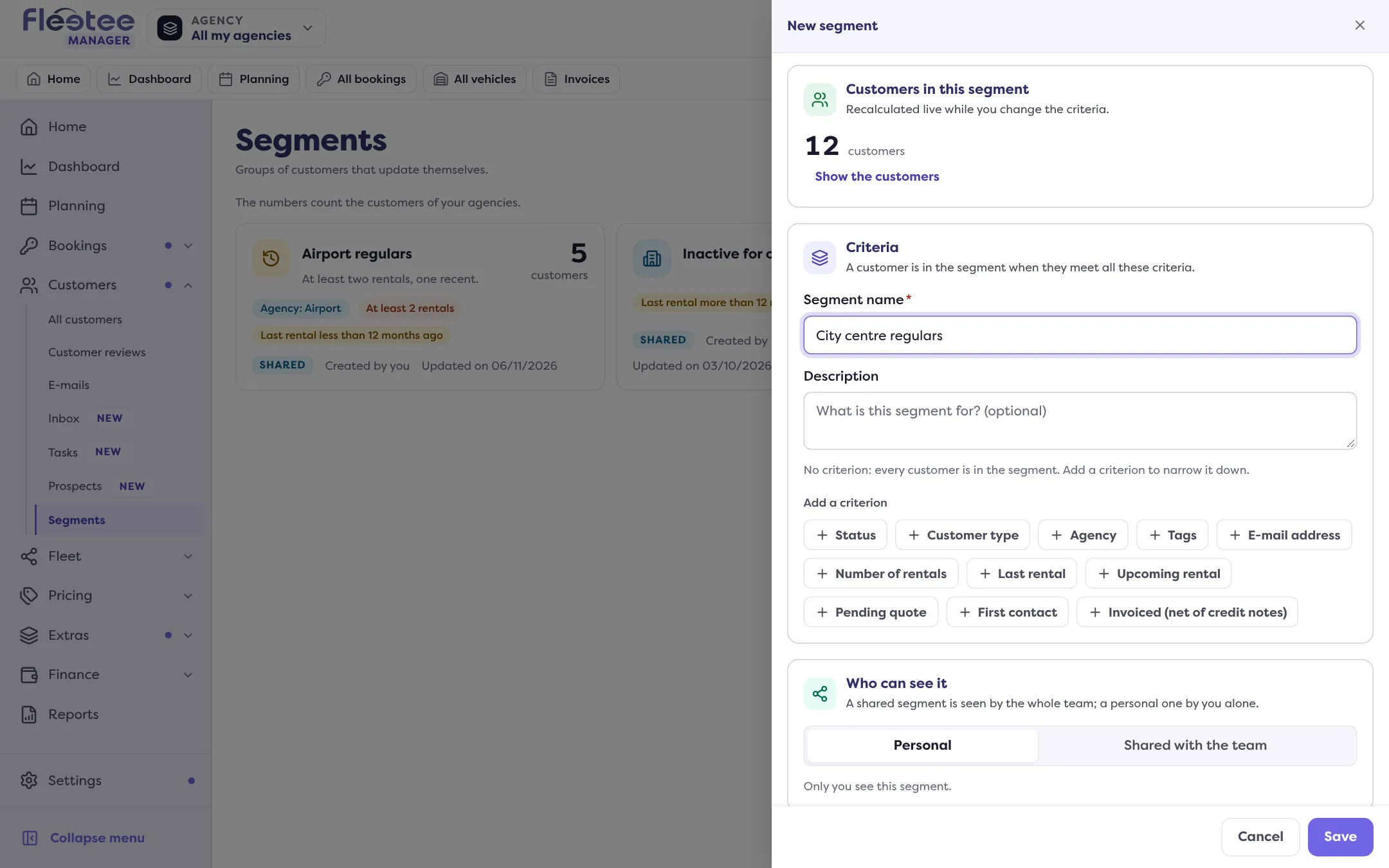
Fill in “Segment name” (for example “Airport regulars”) and, if you like, a description.
Add criteria
Click “Add a criterion”, then pick the information, the comparison and the value. A customer is in the segment when they meet all the criteria; several values of the same criterion add up (status “Prospect” or “Quote sent”). The available information:
- Customer: Status, Customer type (person or company), Agency, Tags (has all the tags, at least one, none), E-mail address (filled in or not);
- Activity: Number of rentals (at least, at most, between), Last rental (more or less than N months ago, or between two dates), Upcoming rental, Pending quote, First contact;
- Figures: Invoiced (net of credit notes).
With no criterion, every customer is in the segment. The number of customers recalculates live as you change the criteria, with a preview of the first customers. A criterion to complete or correct is flagged and left out of the count.
Choose who sees it
“Who can see it”: Personal (only you) or Shared with the team. A shared segment can be changed by its author or an administrator; only the author can make it personal again.
Click “Save”
The message “Segment ‘…’ saved” confirms. Open it afterwards to “Show the customers”: name, status, rentals, last rental, invoiced and tags.
Good to know
- The figures (rentals, invoiced…) are recalculated every night, and each time a rental, a quote or an invoice changes.
- Limits: 30 shared segments per company and 20 personal segments per person.
- “Edit” and “Delete” are inside the segment; deleting a segment does not touch the customers. Only the author or an administrator deletes a shared segment.
- If a tag used by a criterion is deleted, the segment says so: edit it to remove the criterion.
- On the customer list, clicking a status (for example “12 prospects”) opens an unsaved preview; “Save as a segment” keeps it.
Where to find it: Customers › Segments › “New segment”
Where to find it: Customers › Segments › “New segment”
Go further
Updated on 18 November 2026 with version 3.0