

How do I create an automation, step by step?
- Manager v3
- Administrator
- Agency manager
- 3:10
In short. What an automation does, what it is for, then a complete example: two days before each pick-up, a reminder e-mail to the customer and a task for the agency to prepare the vehicle. Settings › Automations: When, If, Then, then test, switch on and follow up.
An automation tells your customers or your team things for you, at the right moment, without you having to think about it. Each one reads like a sentence: when something happens (an event, or a date coming up), if a condition is met, then Fleetee acts: it sends an e-mail, creates a task, notifies the team or changes a property.
Automations are for administrators and agency managers (who only see those of their agencies).
What they are for
A few rules you can write:
- Thank a customer three days after the return.
- Invite a customer back two months after the rental, for example with a promo code created in Pricing › Discount codes (see How do I create a discount code?) and written in the e-mail.
- Remind a customer of a quote five days before it expires.
- Mark a rental paid in full as soon as it is.
- Notify the team of a cancellation in their agency.
- Remind a customer of their pick-up and create a task for the agency to prepare the vehicle: the example below.
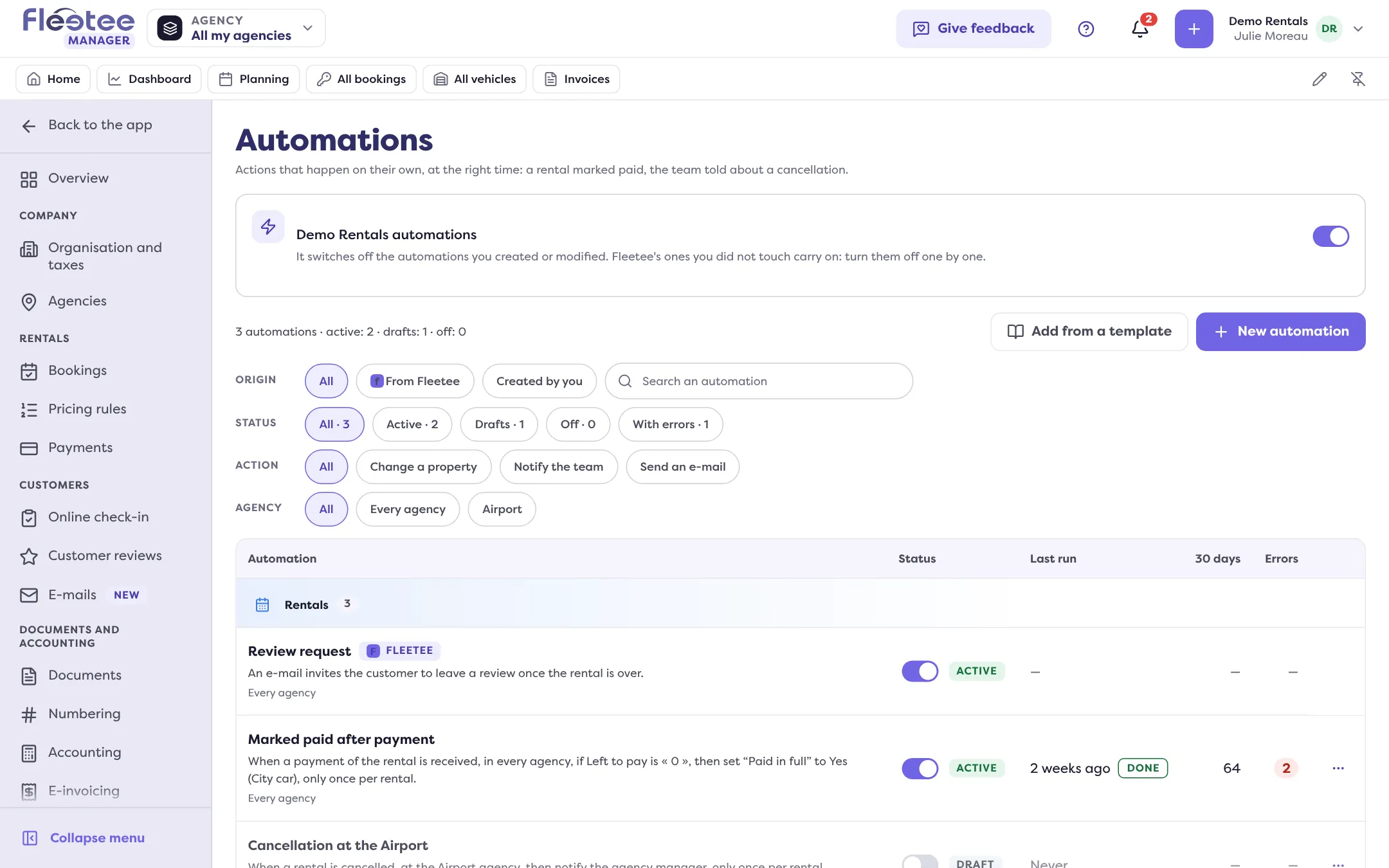
The Settings › Automations list shows each one with its sentence, its status (Active, Draft, Off), its last run and its runs over 30 days. A switch turns it off without deleting it.
A complete example: a reminder before pick-up
The rule: two days before the start of each confirmed rental, at 9 am, send a reminder e-mail to the customer and create a task for the team of the agency, due the day before pick-up at 9 am.
Open Settings › Automations, then “New automation”
The creation panel opens. At the top, In plain words writes the rule as one sentence, updated with every setting.
What is it about? Rental
The subject sets the triggers, conditions and actions on offer. Keep Rental.
When: “At a date”, the start of the rental
Choose At a date (not “When something happens”), then Date of the rental: The start of the rental.
When: 2 days before, at 9 am
How much: 2. Unit: days (minutes, hours or days). Before or after: before. At what time?: At a set time, Time: 09:00, in the time of the rental’s agency. If the rental changes dates, the reminder follows the new date; if it is cancelled, it is removed.
For: the agencies
No agency chosen means every agency. Choose some to limit the rule to their rentals.
If: the rental is confirmed
Add a condition, then three lists: Rental status, is, Confirmed. So a request that is not confirmed yet gets no reminder. The conditions are read again when it is time to act: if they are no longer true, the action is skipped and the run says why.
Then, first action: “Send an e-mail”
To: The customer of the rental is already ticked. You can add the drivers, the billing customer, fixed addresses or a copy to the agency. Text of the e-mail: keep Written here (or An e-mail template, see How do I customise an e-mail sent by Fleetee?). Subject: “Your rental is coming up”. Message: “Hello”, then a curly brace { (or the + button) and Customer first name, then “Your rental starts in two days. Remember your driving licence and your ID.” Never at night keeps e-mails to customers between 08:00 and 21:00; here the rule sets 9 am.
Second action: “Create a task”
Title of the task: “Prepare the vehicle”, then a curly brace { (or the + button) and Rental reference: the reference is filled in for each rental. Description: optional. To whom: The team of the agency (the rental’s agency; its people are notified) or A person. Due time: In how many days: 1, At what time: 09:00: it counts from the moment the rule acts, so the day before pick-up at 9 am.
How many times, then the name
How many times: only once per rental (if the date changes, the action is moved, never doubled). Automation name: “Reminder before pick-up”; it signs what the rule does in the rental’s Activity.
Click “Save as draft”
Message: “Automation saved as a draft.” Nothing goes out until it is switched on; its sheet opens.
Test, switch on, follow up
Test on… a rental
In the sheet, Test on…, type the reference of a confirmed rental, then Test. Fleetee shows each step: the planned date, the agencies, the condition, then the e-mail as the customer will receive it and the task as it will be created. Nothing is written, nothing is sent.
Switch on
Click Switch on. Fleetee first asks: “Switch this automation on? Over the last 30 days, this rule would have sent N e-mails for N rentals.” Confirm with Switch on: message “Automation switched on.” Save and switch on does both at once.
Upcoming
Upcoming lists the next reminders, rental by rental, with their date and time.
Runs
Runs gives each pass of the rule: Done, Skipped with the reason (for example “The conditions were not met.”) or Failed. The details of a run say what was done: “1 e-mail sent”, “Task created: “Prepare the vehicle …””.
The task, in Customers › Tasks
The task waits for the agency in Customers › Tasks, Team tab, with its due date.
Start with a simple rule: you can change it or pause it at any time.
The other settings
- When something happens: instead of a date, an event (a rental is created, confirmed, starts, ends, is cancelled, a payment is received, a quote is signed, an invoice is paid…), with an optional delay in Wait.
- Then: up to 5 actions done in order, among Send an e-mail, Create a task, Notify the team, Change a property and Call another tool (webhook). The Report subject sends a report at a fixed time, every day, week or month.
- Add from a template starts from a ready-made automation, added switched off: see The automation library.
Switch an automation off
The “Switch off” button in the sheet stops it without deleting it; “Switch on” starts it again. At the top of the list, “Company automations” switches off every one you created or modified (administrator only): what happens during the pause is skipped, not caught up. The Fleetee automations you did not touch carry on; turn them off one by one. An automation can also be Switched off by Fleetee (for example after repeated errors) or Switched off by support.
Where to find it: Settings › Automations; the tasks: Customers › Tasks
Where to find it: Settings › Automations
Go further
Updated on 19 November 2026 with version 3.0