

Adding your vehicles
A number plate is enough: Fleetee recognises the vehicle and files it in its category. For a whole fleet, photos or the import.
Objective
By the end of this lesson, you will know how to add a vehicle by typing its plate, add several from photos, and choose the import when you have many.
The essentials
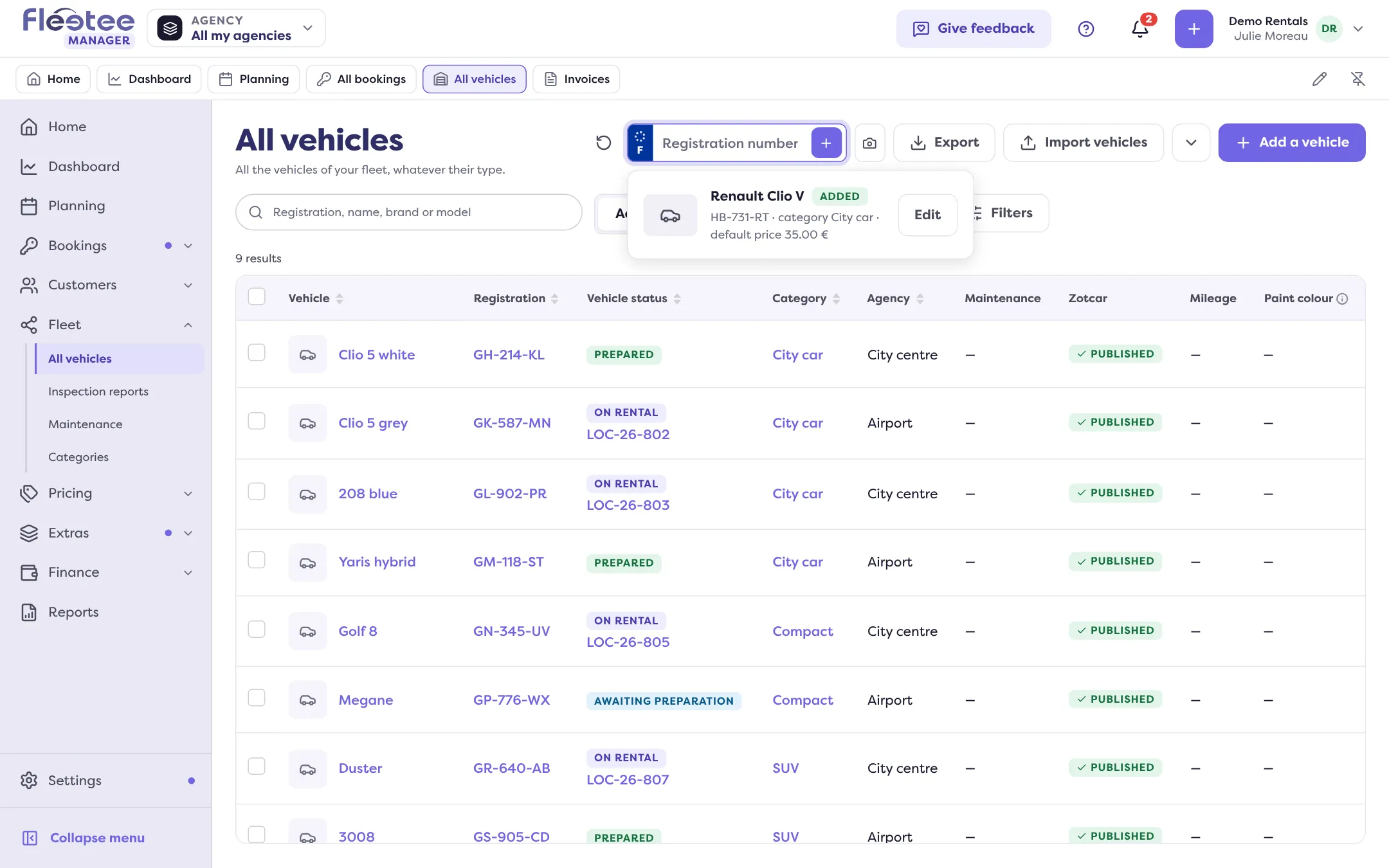
Adding a vehicle takes one piece of information: its number plate. Fleetee looks the vehicle up, suggests its category and default price, and creates it. Julie types “HB731RT”: the Clio shows up, filed as “City car”. She completes the record later, with “Edit”.
There are three ways in, depending on how many vehicles you have:
- one by one, by plate: the simplest for a few vehicles;
- from photos: in the car park, Julie photographs her cars with her phone; Fleetee reads the plates and prepares one line per vehicle, which she checks before creating;
- by import: for a whole fleet coming from other software or a spreadsheet, “Import everything at once” brings over vehicles, customers and bookings, in that order, so that each booking finds its vehicle and its customer.
Fleetee never creates a duplicate: a vehicle already in your fleet is flagged and its record opens.
Key steps
Open Fleet › All vehicles
At the top of the list, the “Registration number” field (the same exists on Home, “Add a vehicle” card).
Type the plate, then “Add”
The vehicle shows with “Added”, its category and default price. If Fleetee does not recognise it, enter the make and model.
For several vehicles, photograph them
Camera button “Photograph your vehicles”: check the “Vehicles found”, then create them. A plate marked “Check the plate” is not ticked by default.
For a whole fleet, import
Bookings › All bookings › “More actions” › “Import everything at once”, on a computer. Nothing is saved before you confirm.
Adding a vehicle and the bulk import are reserved to the administrator and agency managers. A rental agent can only import customers.
Your turn
Add your first vehicle
In Fleet › All vehicles, type the number plate of one of your vehicles and click “Add”. Check the suggested category and change it if needed.
Further reading
Check what you learned
Answer every question correctly to complete the lesson.
Progress kept on this device. Soon with your Fleetee Account.