

How do I import my vehicles, customers and bookings in one go?
- Manager v3
- Administrator
- Agency manager
- 0:56
In short. In Bookings › All bookings, open “More actions” then “Import everything at once”. Drop your files: Fleetee recognises them and imports them in this order: vehicles, customers, then rentals.
The combined import is open to the administrator and the agency managers. A rental agent can only import customers: see How do I import my customers?.
Are you leaving another software or a spreadsheet? Drop your files in one go: your vehicles, customers, rentals and even your price grid. You retype nothing.
Importing is done on a computer or a tablet. On a phone, Fleetee shows “Import not available on a phone”.
Open “Import everything at once”
In Bookings › All bookings, click “More actions” (the three-dot button), then “Import everything at once”. The same entry is in the small menu next to “Import vehicles” (Fleet › All vehicles) and next to “Import customers”. The “Import your data” drawer opens.
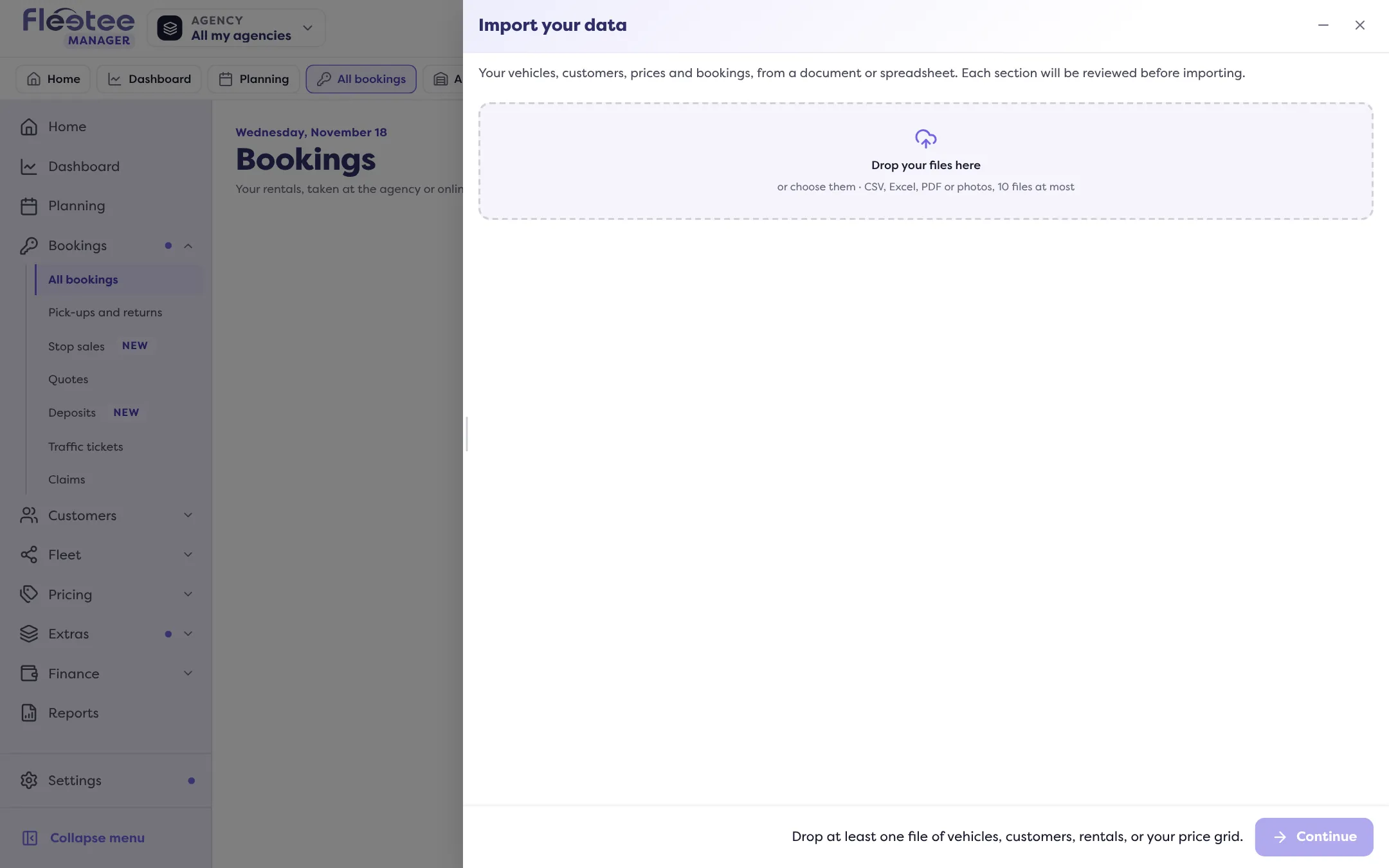
Drop your files
Drag them into “Drop your files here”, or choose them. You can drop 10 at most. Accepted formats: CSV, Excel, PDF or photos. The safest choice is a CSV or Excel export from your former software.
Let Fleetee recognise each file
Each file gets a label: vehicles, customers, rentals or price grid. If Fleetee is unsure, it asks “What does this file hold?”. “Change” fixes a wrong recognition, and the remove button takes a file out of the list.
Click “Continue” and go through the files one by one
Each file opens the same assistant: File, Columns, Check, Sending, Report. You match the columns of your file to Fleetee’s information, check the rows, then start the sending. Nothing is saved before you confirm. “Skip to the next file” skips a file.
In which order Fleetee imports
Fleetee always follows this order: vehicles, customers, then rentals. Your rentals then find their vehicles and customers. A price grid comes last, in the “Your prices” assistant: you check every price before it is saved (see How do I set up my prices in five steps?).
What to know about each type of file
- Vehicles. The import creates vehicles; it never changes an existing one. An identifier (registration or internal number) already used, in the file or in your fleet, makes the row one to fix.
- Customers. A CSV or Excel file, one row per customer.
- Rentals. Past rentals are imported as finished, running ones as started, upcoming ones as confirmed. Customers are found in Fleetee or created with the rental. A registration number unknown in your fleet gives a rental without a vehicle, linked as soon as the vehicle exists. Nothing is sent to your customers, and a file imported twice creates no duplicate.
What it costs
A CSV or Excel file is imported with no credit. Reading a PDF or a photo uses AI credits (see What are AI credits and how do I buy more?), but it is free during the free trial and for your very first migration. When your credits are used up, Fleetee says “You have no document-reading credits left. A CSV or Excel file can be imported without assisted reading.” The number of vehicles imported is still limited by your plan: see I can’t add a vehicle: my subscription limit is reached.
If a file is refused
- Too large: 10 MB at most for a spreadsheet, 20 MB for a PDF or a photo.
- Too many rows: split it into several files.
- Unreadable file: save it again from your software or spreadsheet (CSV or Excel), then drop it again.
- Password-protected PDF: save it without protection.
- Photo or PDF not read: reading a document is not always available. Fleetee says so and suggests a CSV or Excel export, which imports without limit.
- You are not allowed to import this type of data: ask an administrator.
If you close the drawer before the end, Fleetee warns you: what was already imported stays in Fleetee, and the remaining files are removed from the list.
Where to find it: Bookings › All bookings › “More actions” › “Import everything at once”
Go further
Updated on 18 November 2026 with version 3.0