

Your prices in five steps
The “Your prices” assistant builds your prices from a few answers; the price list, durations and seasons then explain the price of every booking.
Objective
By the end of this lesson, you will know how to set your first prices with the assistant, understand what a price list is, and adjust a price in Pricing › Prices.
The essentials
Julie does not start from a blank page: the “Your prices” assistant asks her a few simple questions and builds her prices. The price of one day per category, a scale “cheaper for longer rentals?”, then “Do your prices change with the time of year?”. Nothing is saved before the last step, and Fleetee shows what changes before writing.
Behind the assistant, everything starts from the price list: a complete set of prices (prices per category, seasons, rate packages, options, mileage, deductibles and deposits). The price list also says the unit of its prices (per hour, per day or per month) and whether they include tax. One list, “Main”, is enough to begin; Julie may create one for her business customers later.
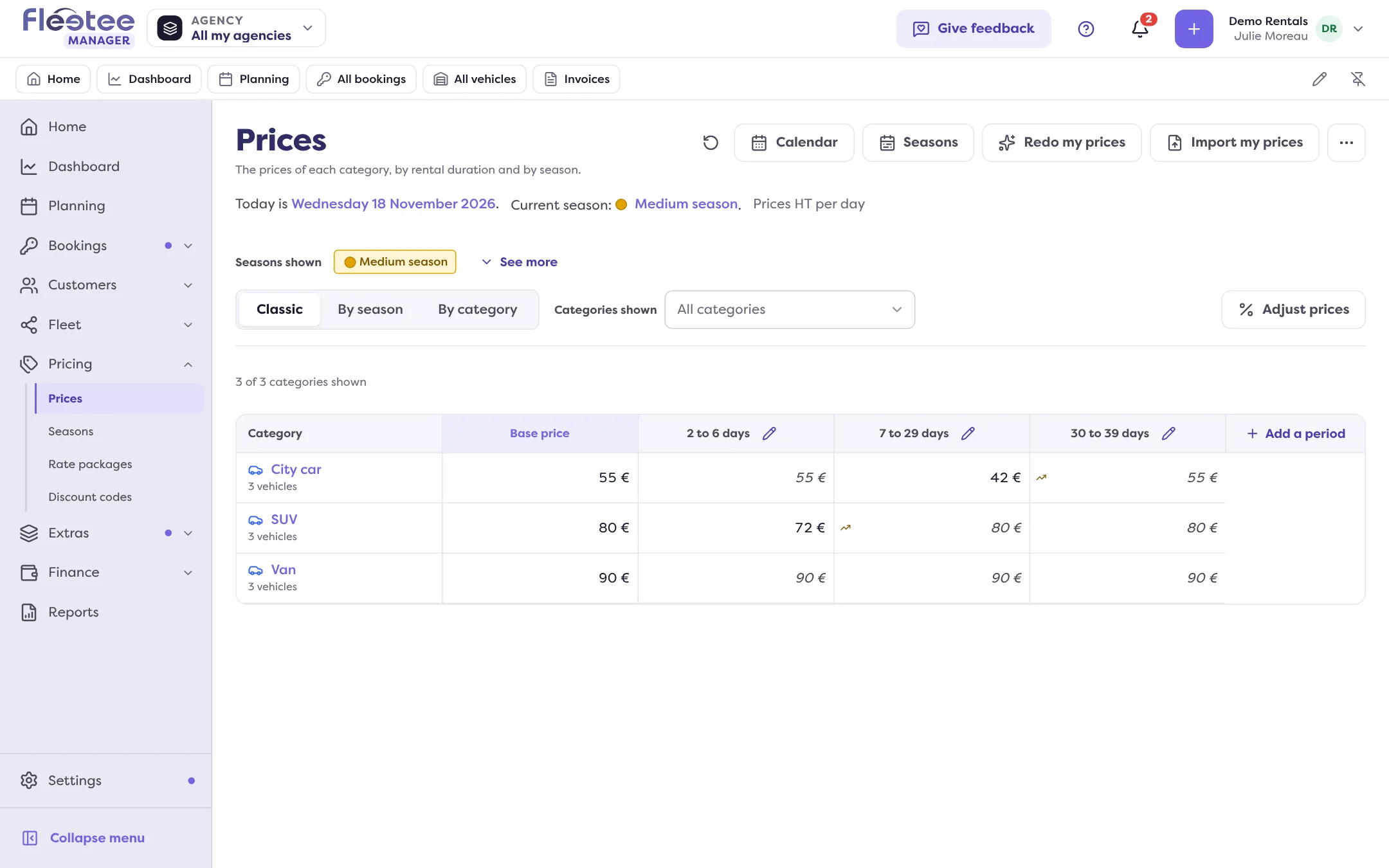
In the price list, a category’s price reads in three layers: the base price, prices by duration (for example “3 to 6 days”, cheaper) and prices by season (low, medium, high). A period cell left empty takes the base price. Season dates are set in Pricing › Seasons.
Key steps
Start the assistant
Pricing › Prices › “Set up my prices” (or “Redo my prices” if prices exist), or the “Set your prices” step on Home.
Choose your starting point
“Start from an example”, or “I already have a price list” to drop your file (Excel, CSV, PDF or photo).
Answer the questions, then “Save my prices”
Price of a day, duration, seasons: Fleetee shows “Your prices are in place”.
Adjust a price in Pricing › Prices
Click a cell, type the amount, then “Save”: a summary shows each price before you confirm.
Pricing pages are reserved to the administrator and agency managers. A rental agent sees a booking’s price but cannot change prices.
Your turn
Run the assistant
Open Pricing › Prices and start the assistant with “Start from an example”. Adjust the price of one day for each category. You can leave before the last step: nothing is saved until you confirm.
Further reading
Check what you learned
Answer every question correctly to complete the lesson.
Progress kept on this device. Soon with your Fleetee Account.