

How do I create a booking?
- Manager v3
- Administrator
- Agency manager
- Rental agent
- 1:12
In short. Click “Create a rental” (All bookings, Planning or a customer page), fill in the dates, vehicle, customer, pricing and payment, then click “Create the rental”. The rental page opens right away.
A rental is created in one window: the summary of the amounts stays visible while you fill in the rest.
Click “Create a rental”
The button is in Bookings › All bookings, in the Planning (select a range on a vehicle’s row and the dates, category and vehicle are prefilled) and on a customer’s page (the customer is prefilled). Would you rather paste the customer’s message? See Create a rental by pasting the customer’s request.
Rental details: dates and agencies
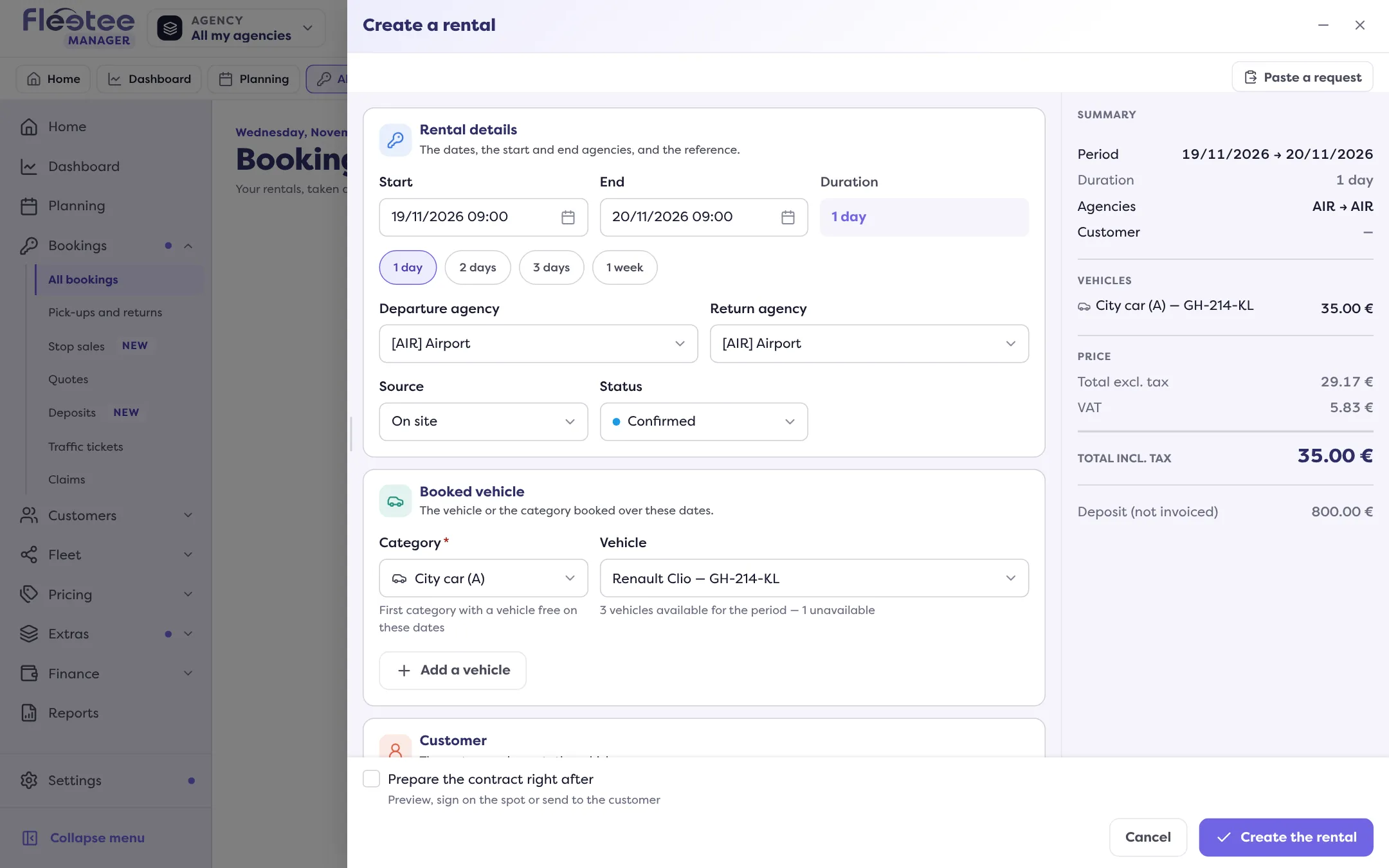
Enter the Start and End (in 15-minute steps), the Departure agency and the Return agency. The Duration is calculated for you. Choose the Source (On site, Phone, Online, Other) and, if needed, the Status.
Booked vehicle: category, then vehicle
Pick the Category first, then the vehicle among those free over the period. Vehicles are grouped by agency, the departure agency first, then the unavailable ones. If no vehicle is free, see Why is no vehicle offered for my dates?
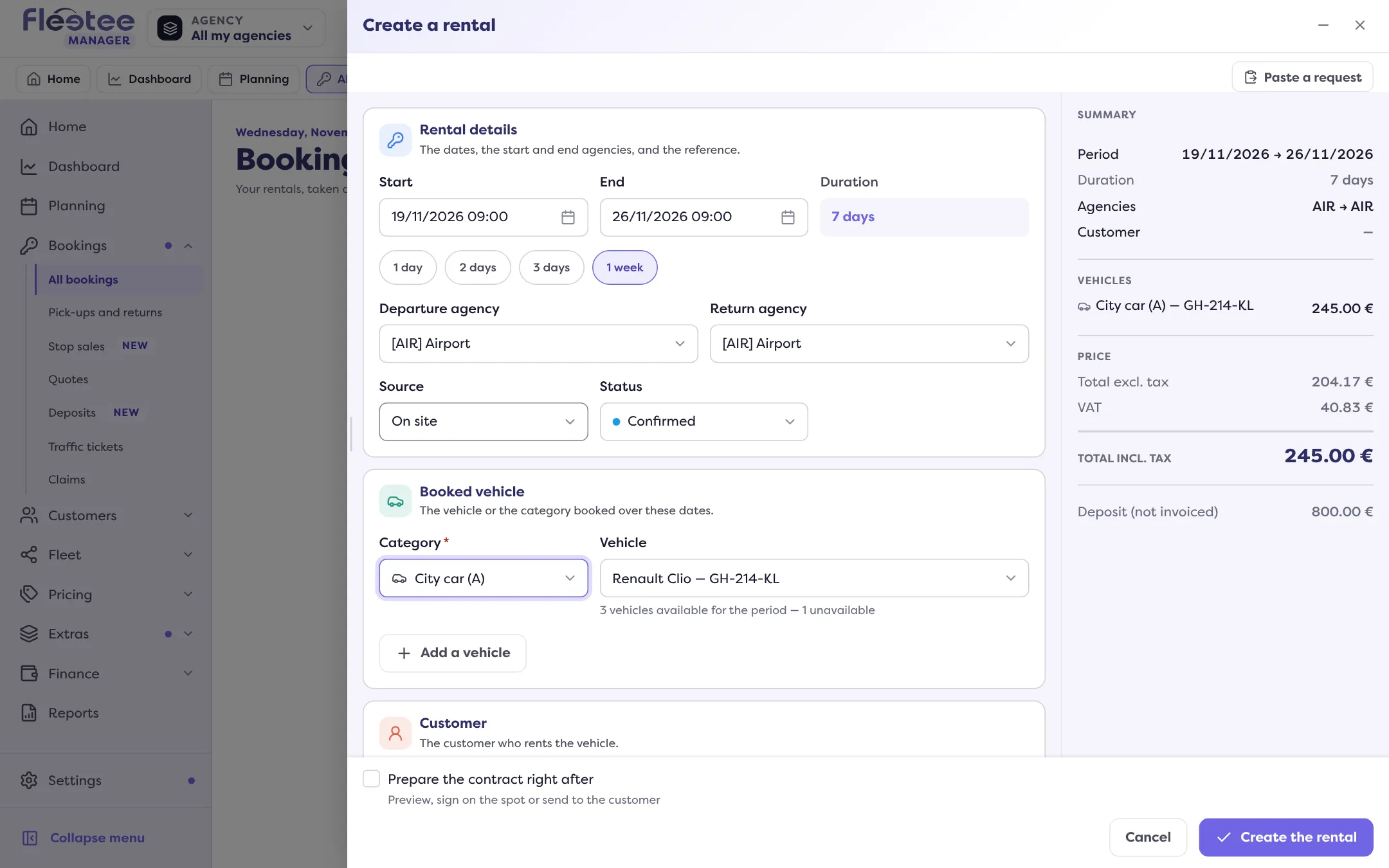
Customer
Search by name, e-mail or company (“Search for a customer”). They do not exist yet? Click “+ Create a customer”: the form opens above the rental without losing what you typed, and the new customer comes back selected. See Create a customer.
Pricing
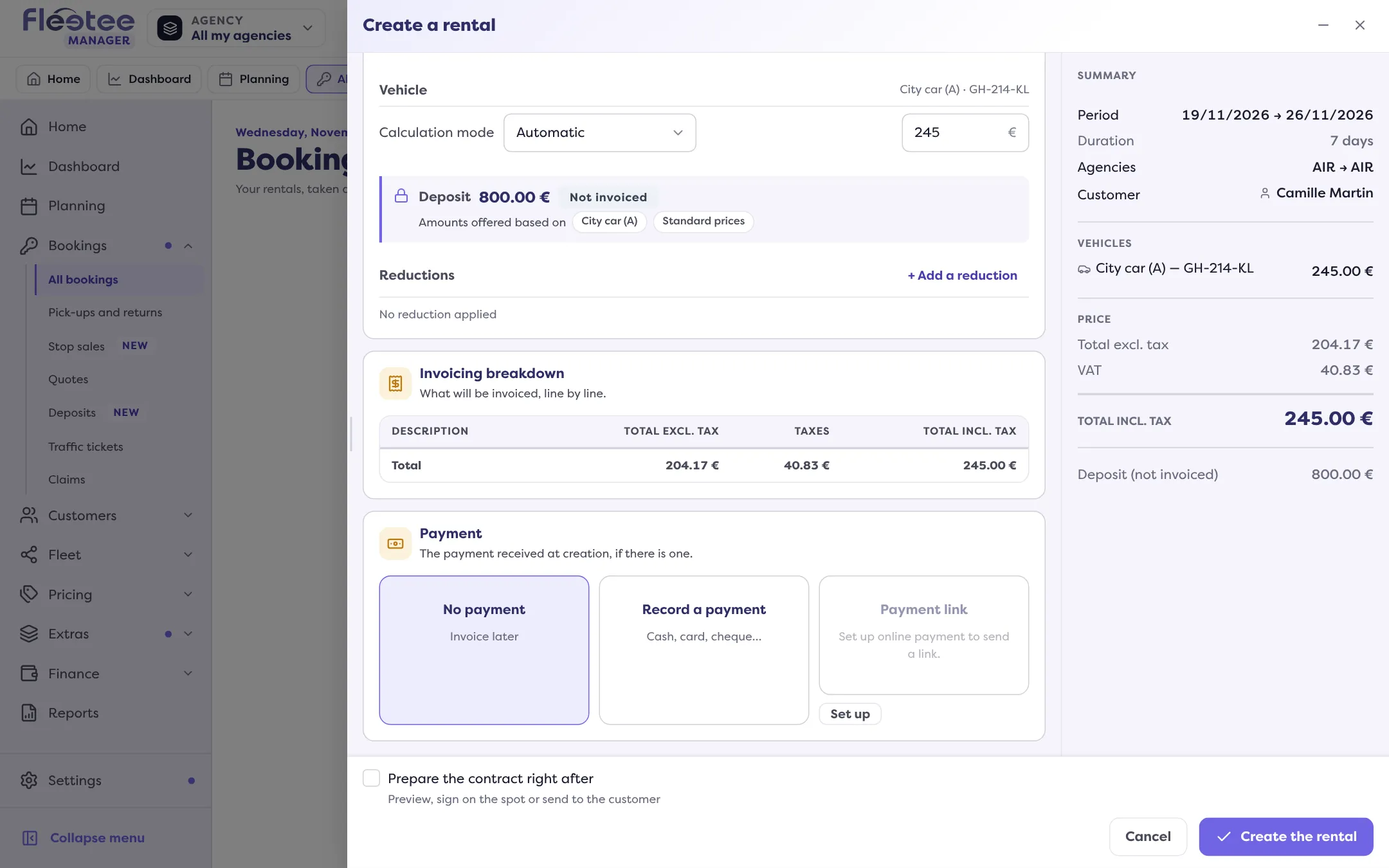
Check the Price list and the price. Add the mileage, the franchises, the Options and the Reductions (“+ Add a reduction”). The suggested deposit is set here too. The price can be edited by hand if your company setting allows it (“Forced price”).
Payment
Choose No payment (invoice later), Record a payment (cash, card, cheque…), Payment link (sent to the customer by e-mail) or Wallet (if the customer has a balance).
Click “Create the rental”
The message “Rental LOC-… created.” confirms it, and the rental page opens. The rental shows up right away in the list and on the planning.
Warnings and blocks
Fleetee warns you before creating. A warning (vehicle of another agency, stop sales, agency closed, option stock too low, date already passed…) shows in a banner; the button then asks “Create despite the warnings?” and you can choose “Create anyway”.
Some cases are blocks, decided by your company settings: creation in the past turned off, no vehicle available with overbooking turned off, option stock exceeded without overbooking, creation outside the criteria turned off. These rules are set in Settings › Rentals › Bookings, “Creation rules” card (Overbooking, Booking outside the criteria, Creation in the past, Price editable by hand).
Prepare the contract right away
For a confirmed rental, the “Prepare the contract right after” box opens the contract as soon as the rental is created, so you can have it signed on the spot or send it to the customer. See Generate the contract and get it signed.
An interrupted entry
If you minimize the window, what you typed is kept as a draft; the payment is not kept and must be entered again. “Discard” deletes the draft.
Depending on your company, the creation can appear in four steps (Frame, Vehicles, Pricing, Payment and confirmation) with “Continue” and “Back”. The information asked is the same.
Where to find it: “Create a rental” (Bookings › All bookings, Planning, customer page)
Where to find it: “Create a rental” (Bookings › All bookings, Planning, customer page)
Go further
Updated on 18 November 2026 with version 3.0