

My export failed: what should I do?
- Manager v3
- Administrator
- Agency manager
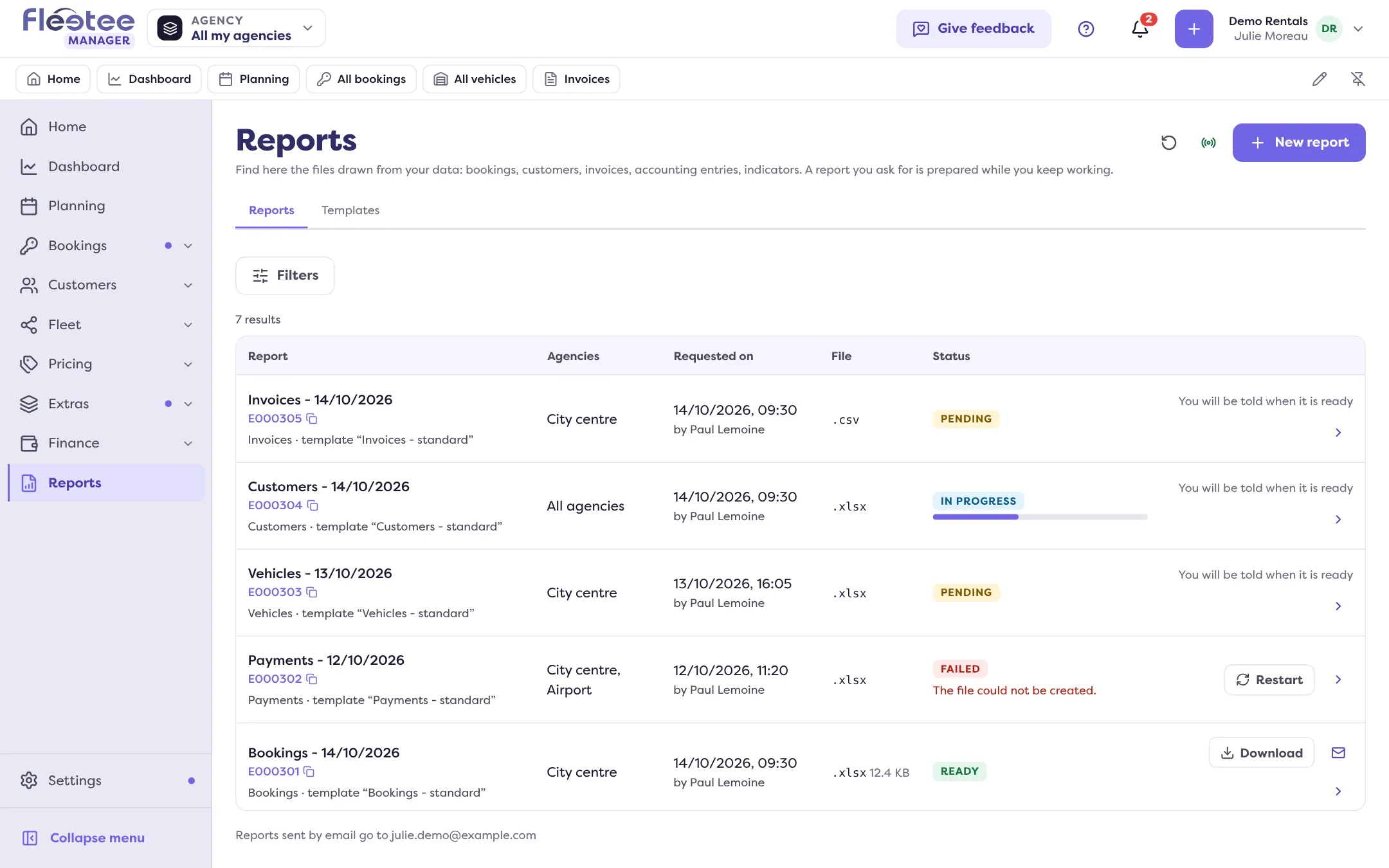
In short. In Reports, a report marked “Failed” says why. No matching row, template or filters no longer usable, file not created, preparation interrupted: fix the cause, then “Restart” or ask for a new report.
A report is prepared in the background. If it fails, its status becomes Failed in Reports, a message “The report ‘…’ failed” shows, and Fleetee gives the cause. Open the report to read it, then follow the matching case.
Cause 1: “No row matched your request”
There was nothing to put in the file. Widen the period, remove a filter or add agencies, then ask for a new report.
Cause 2: “The template or filters you chose can no longer be used”
The template was deleted or changed since, or a filter no longer applies. Ask for a new report with an existing template (see Save a report template): restarting the old one would not help.
Cause 3: “The file could not be created”
An incident prevented the file from being produced. Click “Restart”.
Cause 4: “The report stopped being prepared before the end”
It was interrupted. Click “Restart”.
Cause 5: “The report could not be prepared after N automatic tries”
Fleetee already retried by itself. Wait a moment, then “Restart”. If the message comes back, shorten the period or reduce the number of agencies and contact support, giving the report’s name.
Cause 6: “The PDF archive could not be created because there was not enough room”
For an invoice archive: try again later, or choose fewer invoices.
Other messages
“Something went wrong while preparing the report” or “The report could not be produced”: “Restart”, then contact support if it persists.
Restart a report
“Restart” shows on the report’s line, and in its details, when Fleetee allows restarting it. The message “The report has been restarted: it will be prepared again” confirms. If the answer is lost (“We are not sure the restart went through”), look at the report’s state in the list before trying again.
For an export started from a list or from the dashboard, see Export my dashboard data. To create a report, see Build a custom report.
Where to find it: Reports › “Restart”
Where to find it: Reports › “Restart”
Go further
Updated on 18 November 2026 with version 3.0