

How do I choose which notifications I get?
- Manager v3
- Administrator
- Agency manager
- Rental agent
- Accountant
In short. Account menu › “My notifications” › Preferences: for each type, turn on “In Fleetee” (bell and browser) and “Phone”. Set quiet hours, the language, and turn on your browser’s notifications.
Everyone sets their own notifications: a colleague who turns a type off does not turn it off for you. The settings are in the Preferences tab of the Notifications page. To understand the bell itself, see What is the notification bell for?.
Open “My notifications”
In your account menu, click “My notifications” (or “Notification preferences” at the bottom of the bell’s panel), then the Preferences tab.
Choose, type by type, where you want to be alerted
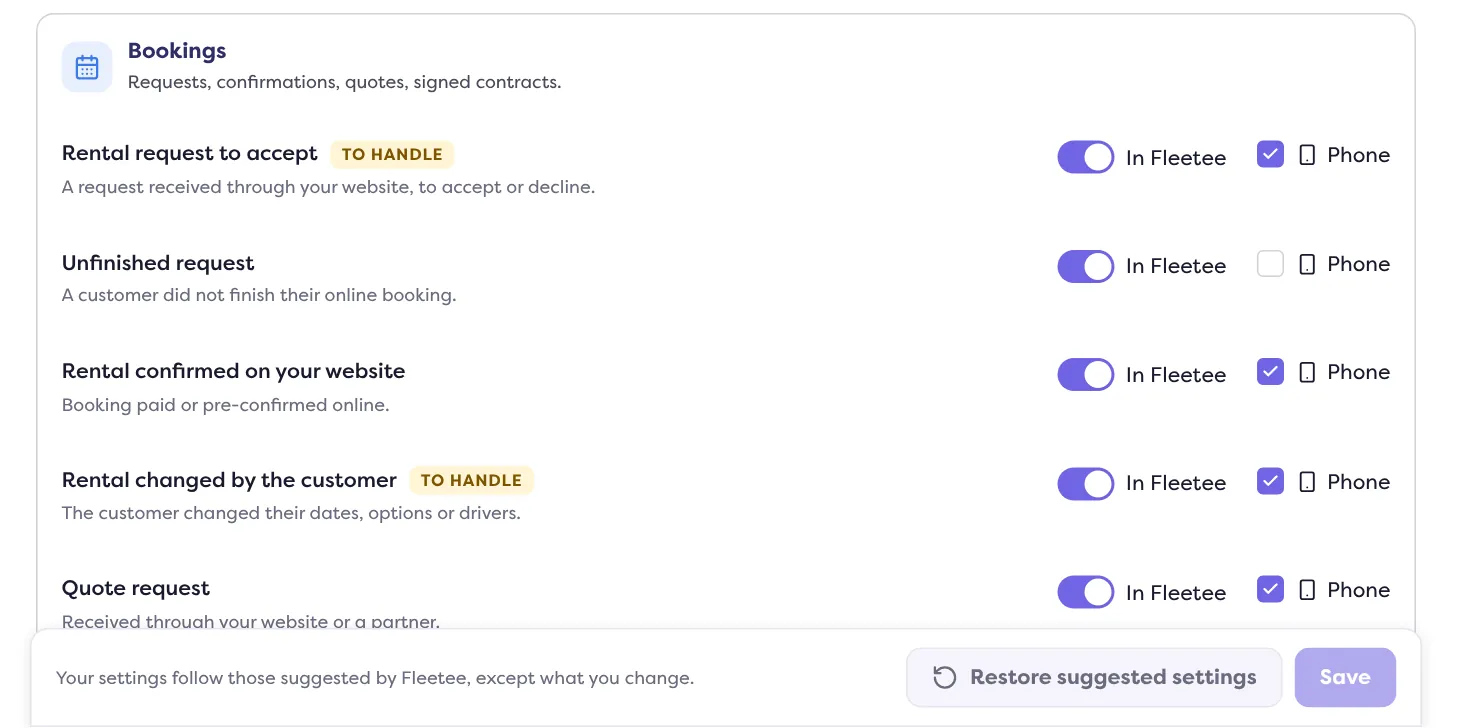
Types are arranged in families (notably bookings and quotes, payments and deposits, documents to check and reviews, inspections and vehicles returned to another agency, your reports ready). Each type has two switches: “In Fleetee” (the bell and your browser; turning a type off stops it everywhere) and “Phone” (the Fleetee apps’ notifications on the phones where you are signed in).
Set quiet hours (optional)
“Turn on quiet hours”: choose In the evening (from … to …) and/or All weekend. During these times, neither the browser nor the phone bothers you; everything stays in the bell.
Choose the language
“Language of notifications received outside Fleetee”. Inside Fleetee, notifications follow the language of the screen.
Click “Save”
While you have not saved, the page says “Unsaved changes”. “Restore suggested settings” goes back to Fleetee’s starting settings.
Receive notifications in your browser
In On this device: “Turn on in this browser”, then “Send me a test”. The browser then receives everything that arrives in your bell, even when Fleetee is in another tab, except during your quiet hours. “Turn off” stops them.
- If the browser blocks them (“Your browser blocks Fleetee’s notifications”), click the padlock to the left of the address, then “Notifications”: “Allow”.
- On iPhone and iPad, first add Fleetee Manager to the Home Screen: notifications only work from there.
For customer reviews
Alerts when a review arrives are also set in the company settings: see Get notified when a customer leaves a review.
Where to find it: Account menu › “My notifications” › Preferences
Where to find it: Account menu › “My notifications” › Preferences
Go further
Updated on 18 November 2026 with version 3.0