

How do I export my dashboard data?
- Manager v3
- Administrator
- Agency manager
In short. On the dashboard, “Export” downloads all the widgets; on a card, “Export data” downloads only that one. The file uses the period, comparison and filters shown, in the format set for this dashboard.
To take your figures into a spreadsheet or a report, export them from the dashboard.
Set what you want to export
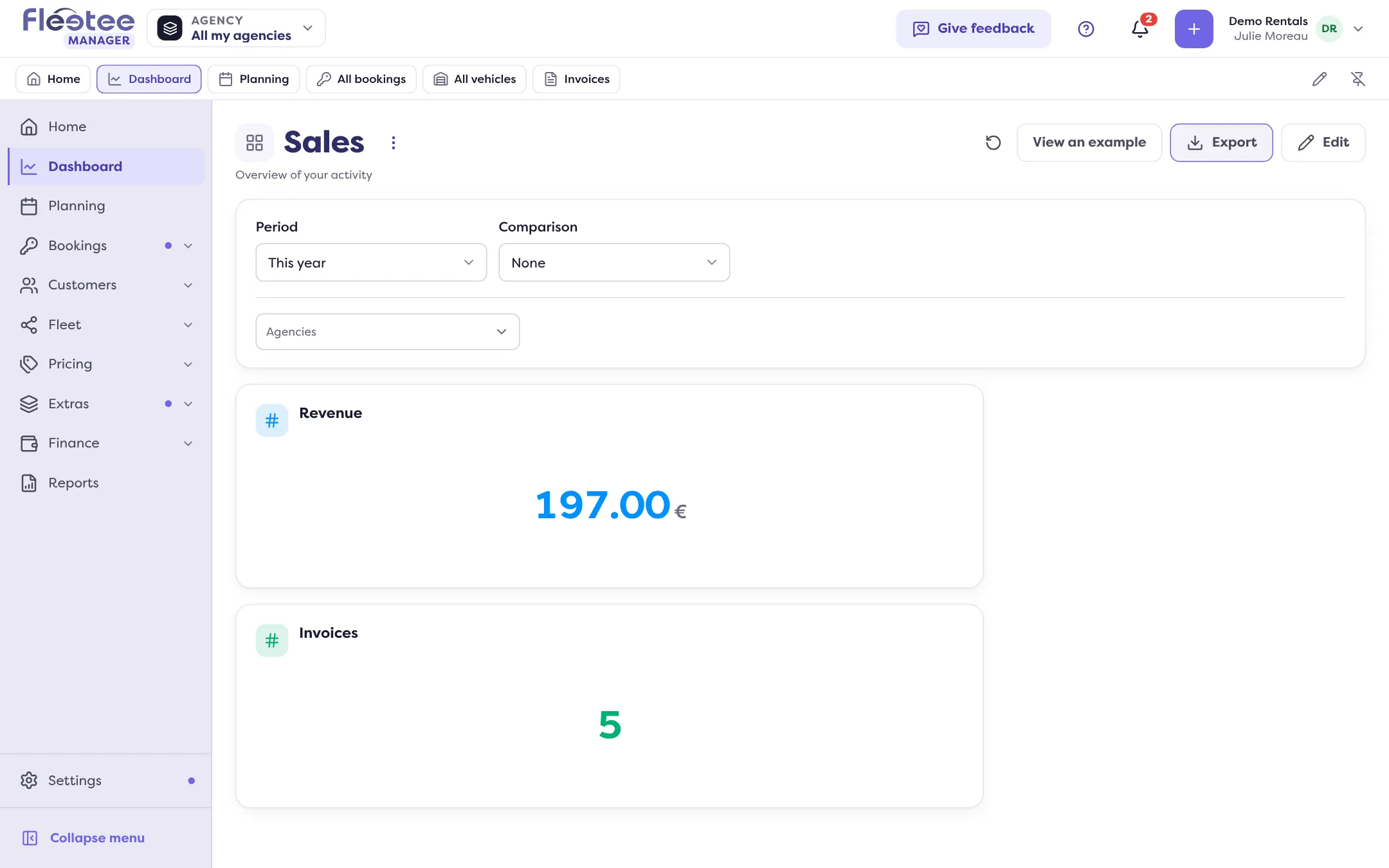
Choose the period, the comparison and the filters (agencies, vehicle type, category, source) at the top of the dashboard. The export uses what the screen shows.
Choose the scope
The whole dashboard: click “Export” at the top of the page. The button is greyed out if there is no widget. One card only: click the download icon “Export data” on the card.
Get the file
It downloads straight into your browser, with the name Fleetee gives it. If the export fails, the message “Export failed.” shows: try again.
Good to know
- The file format is set in “Export format”, at the General step of the dashboard (“Edit dashboard”, see Change my dashboard).
- To see the rows behind a figure, use “View elements” on the card instead.
- For a detailed file (rentals, invoices, accounting entries), use reports.
Where to find it: Dashboard › “Export”; card › “Export data”
Where to find it: Dashboard › “Export”; card › “Export data”
Go further
Updated on 18 November 2026 with version 3.0