

How do I save a report template to run it every month?
- Manager v3
- Administrator
In short. Reports › Templates › “New template”: choose the report type, the columns, their order and the file format, and save. Each month, start a new report with that template and only set the period. Administrator only.
A report template keeps your settings: the file’s columns, their order and name, the sort, the format. You create it once; each month, you ask for a report with that template and only change the period.
Only the administrator creates, changes or duplicates a template. The agency manager uses them all. Templates provided by Fleetee (Fleetee badge) cannot be changed: duplicate one to make a version of your own.
Open Reports › Templates
The list gives the template, its report type, who created it and its update date. Filter by name or by origin (Provided by Fleetee or Created by us).
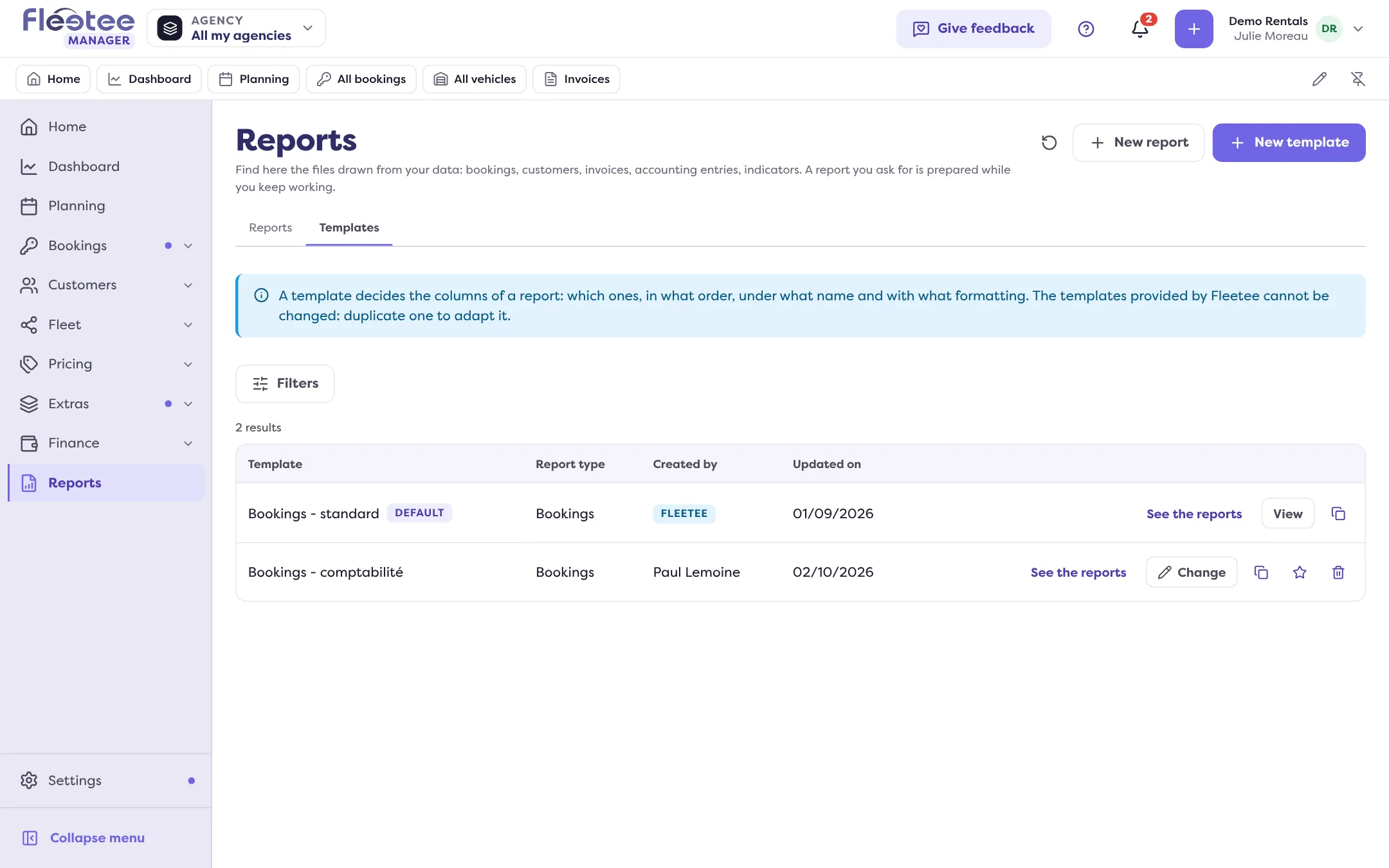
Click “New template”
To start from an existing template, use “Duplicate” on its line instead.
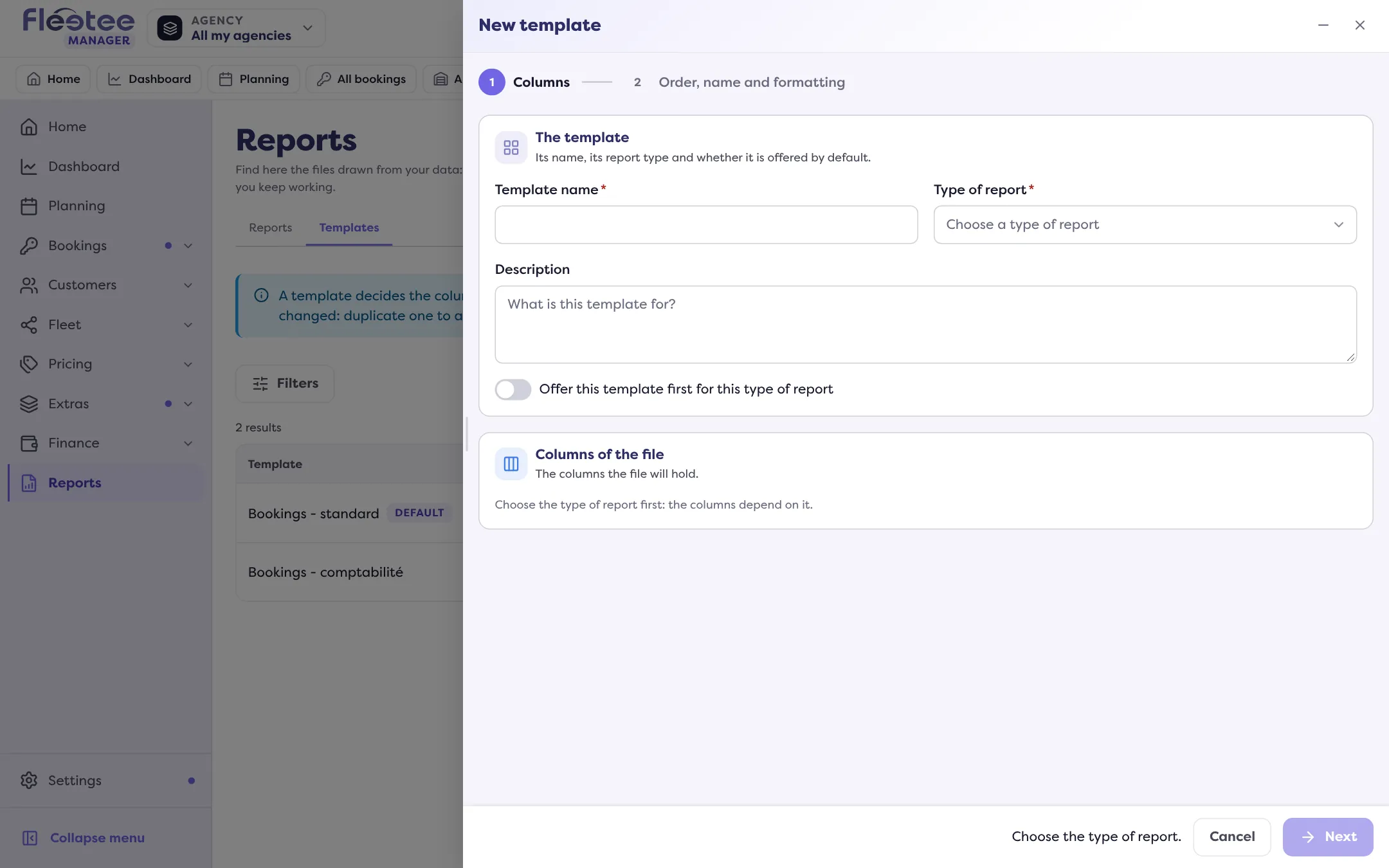
Name the template and choose the type
“Template name” (a template of the same type cannot have the same name), “Type of report” (it cannot change once the template is created: the columns depend on it) and a description. “Offer this template first for this type of report” makes it the default.
“Columns” step
Tick the file’s columns (“Search a column”, “Tick all”, “Untick all”). For an accounting report, an accounting standard (Default, Sage, EBP, Cegid) uses the columns and format your software expects: it replaces the columns already chosen after confirmation.
“Order, name and formatting” step
The first column of the file is at the top: reorder, rename each column and set its formatting (date format, thousands separator…). Choose the sort and the file settings: suggested format, cells without a value, and “Put the column names on the first row”. A template can also keep filters: complete or remove its conditions.
Click “Save the template”
“Template created.”
Run it every month
In Reports › New report, choose the type then that template, the agencies and the period (for example Last month), and start the report. The columns and formatting are always the same; only the period changes. If a report fails, see My export failed.
Change or delete a template
“Change” changes the columns or formatting for the next reports. “Delete” removes the template: it is no longer offered for new reports, but reports already made stay available. A template that can no longer be used makes a report started from it fail: “The template or filters you chose can no longer be used”.
Where to find it: Reports › Templates
Where to find it: Reports › Templates
Go further
Updated on 18 November 2026 with version 3.0