

Creating a real rental
Dates and agencies, category then vehicle, customer, pricing, payment: a single window, with the summary always in view. Or paste the customer’s request.
Objective
By the end of this lesson, you will know how to create a rental in the right order, understand Fleetee’s warnings, and save time by pasting a customer’s request.
The essentials
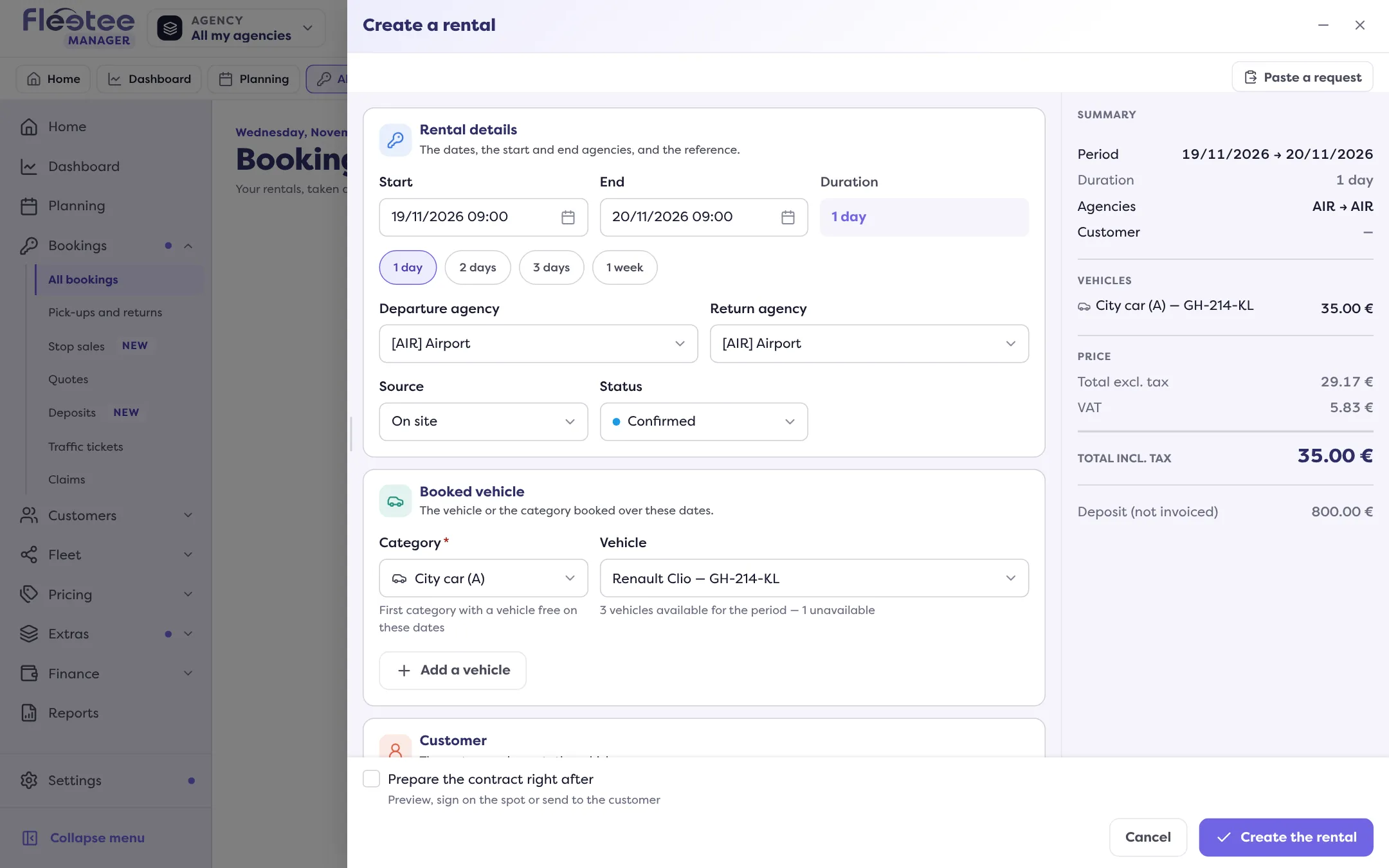
A customer calls “Location Démo” for a city car from 12 to 15 December. Julie clicks “Create a rental”. A single window opens, with the summary of amounts always visible on the right: she sees the price build up as she fills in.
The order of the window follows the logic of a rental:
- dates and agencies of departure and return: the duration is calculated for you;
- the category, then the vehicle among those free over the period;
- the customer, to search, or to create without leaving the rental (“+ Create a customer”);
- pricing: price list, options, deductible, reductions, planned deposit;
- payment: none for now, a payment recorded, or a payment link sent to the customer (chapter 5).
Before creating, Fleetee warns you: a vehicle from another agency, a closed agency or a stop sale give a warning, and you can “Create anyway”. Some cases are blocks decided by your company settings (creation in the past, overbooking), in Settings › Rentals › Bookings.
When the customer writes rather than calls, Julie picks “Paste a request”: she pastes the e-mail, Fleetee prepares the rental, and she checks what was read before creating. Nothing is created without her.
Key steps
Click “Create a rental”
From All bookings, the Planning (by selecting a range on a vehicle’s row) or a customer’s page.
Fill in from top to bottom
Dates and agencies, category then vehicle, customer, pricing, payment.
Read the warnings, then “Create the rental”
A message confirms the rental, its record opens, and it shows in the list and on the planning.
Creation rules (overbooking, booking outside the criteria, creation in the past, price editable by hand) are set in Settings › Rentals › Bookings, a page reserved to the administrator.
Your turn
Paste a request, without creating it
Open “Create a rental” › “Paste a request” and paste a made-up message (“Hello, I’d like a small car from 12 to 15 December”). Look at what Fleetee filled in, then close the window and choose “Discard”: nothing is created.
Further reading
Check what you learned
Answer every question correctly to complete the lesson.
Progress kept on this device. Soon with your Fleetee Account.