

Reading and using the planning
One row per vehicle, one bar per booking, colours by status: create from a free range, move a booking by dragging it, read the legend.
Objective
By the end of this lesson, you will know how to read the planning, create a booking on a free range, move a booking with no bad surprise and recognise the statuses.
The essentials
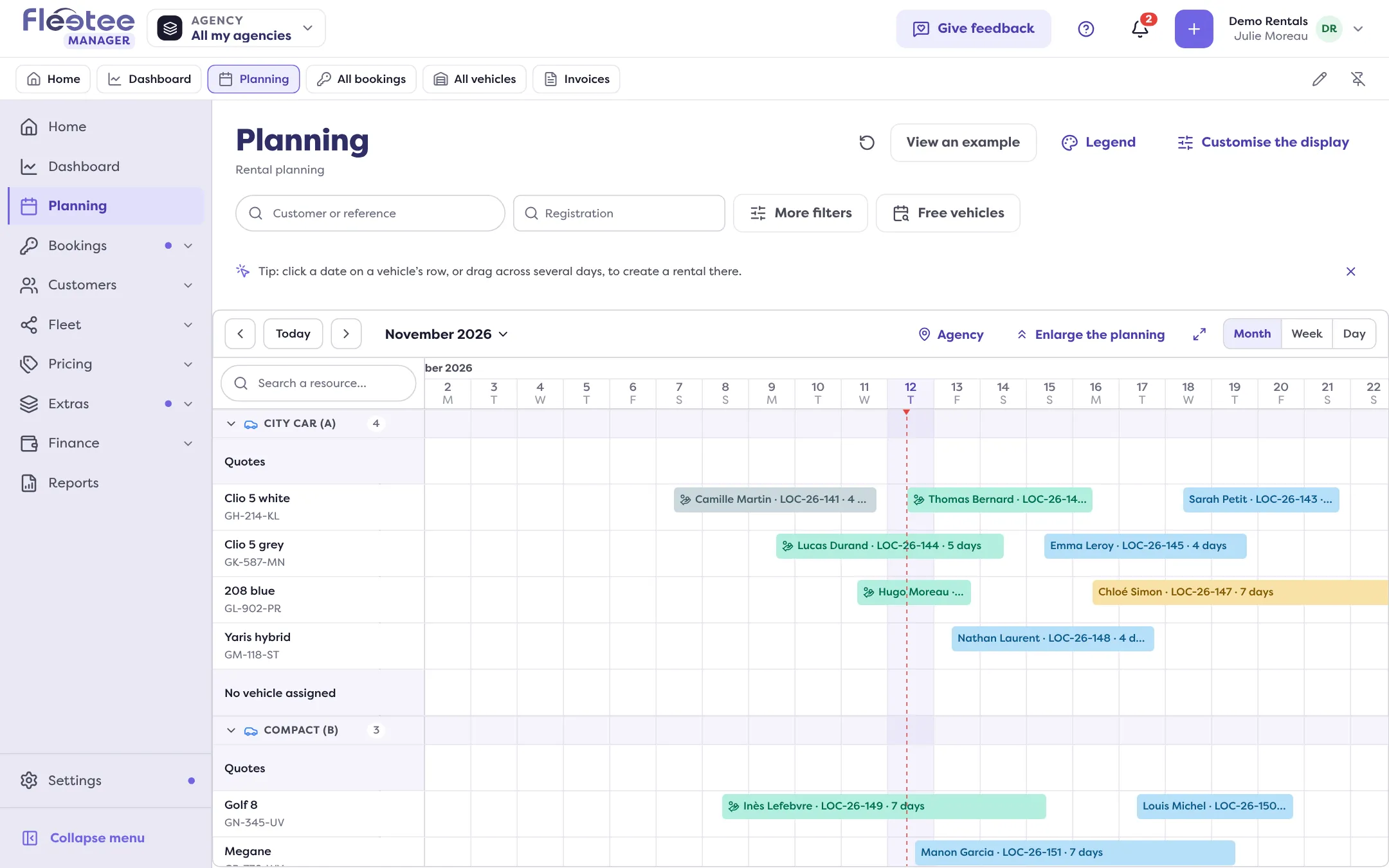
The Planning is the calendar view of the fleet: one row per vehicle, sorted by category (in the order set in chapter 2), and one bar per booking, quote, repair or block. Colours follow the status; the “Legend” button explains them (Unpaid, Late departure, Late return, Overlap, Overbooking…).
Julie uses it for two things. Seeing: hovering over a bar gives its details, a click opens the record, and “Free vehicles” shows what is available over a range. Acting: clicking a date on a vehicle’s row, or dragging over several days, opens a card with the estimated price and “Create a rental”, “Create a quote” or “Block the calendar”.
Moving a booking is done with the mouse, but dragging changes nothing on its own: it opens the “Change the dates” or “Change the vehicle” page with the new values and the recalculated price, and you confirm. Two limits to know: you cannot change vehicle and dates in one move, and an ongoing booking keeps its start (you can only stretch its end).
Statuses tell a booking’s life: Pending request, Awaiting payment, Reserved, Confirmed (the record offers “Start”), Ongoing (the vehicle has left, the record offers “Close”), Completed. Lateness is not a status you choose: Fleetee flags it from the dates.
Key steps
Choose the view
Month, Week or Day. “Customise the display” sets the opening view and the order of vehicles.
Create from a free range
Drag along a vehicle’s row, then “Create a rental”: dates, category and vehicle are filled in.
Move by dragging the bar
Read the recalculated price on the page that opens, then save. Closing without saving puts the bar back.
Your turn
Explore the planning safely
Open the Planning, click “Legend” and find the colour of an unpaid booking. If your planning is still empty, click “View an example” to practise reading the bars, then come back with “View my real data”.
Further reading
Check what you learned
Answer every question correctly to complete the lesson.
Progress kept on this device. Soon with your Fleetee Account.