

What is in a booking file?
- Manager v3
- Administrator
- Agency manager
- Rental agent
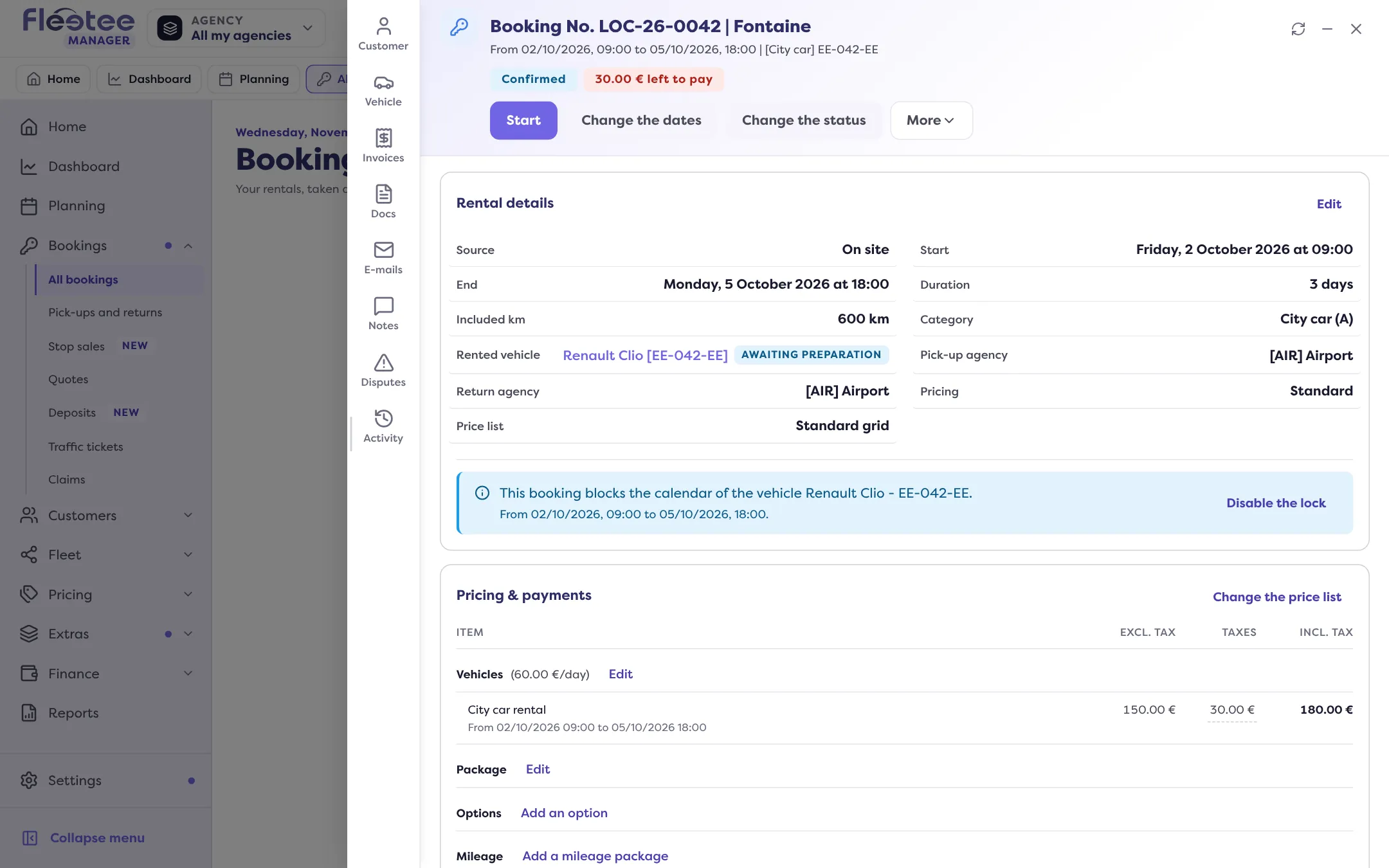
In short. A booking file gathers the details, the pricing and payments, the actions (edit, change status, start, close) and eight panels: Customer, Vehicle, Invoices, Docs, E-mails, Notes, Disputes and Activity.
The file opens when you click a booking: in Bookings › All bookings, in the Planning, or from the search. It does not change page: it is a panel laid over the screen, which you close with “Close”.
The header
It shows the title “Booking No. …” with the customer’s name, the period (“From … to …”), the vehicle with its category, and the status. The action buttons follow the status: “Change the status”, “Change the dates”, “Start”, “Close” (see What do the booking statuses mean?). The “More” menu gathers the rest: Edit, Add, View, Digital key and Danger zone (for example “Delete the booking”). See How do I change a booking: dates, vehicle, extras?.
The content of the file
- “Rental details”: the dates, the vehicle, the mileage, the rate (“Standard” or “Rate package”), the delivery, the custom fields, the customer’s special request, the properties and the customer’s review.
- “Pricing & payments”: the subtotal, the discounts, the “Total incl. tax”, what is “Paid”, the “Left to pay” or the “Overpayment”, and the deposit. See How do I read a booking’s Deposit block?.
The eight panels
The file’s rail opens one panel per subject:
- Customer: the renter, the invoicing customer, the drivers (“Manage drivers”) and the customer’s online check-in. See How do I add a driver to a booking? and How do I follow a booking’s online check-in?.
- Vehicle: the rented vehicle, and “Manage the rental’s vehicles” (replacement, see How do I replace the vehicle of an ongoing booking?).
- Invoices: the booking’s invoices. See How do I create a booking’s final invoice?.
- Docs: the contract, the confirmation, quotes, receipts, invoices, inspection reports, the licence. See How do I send the booking confirmation to the customer?.
- E-mails: the e-mails sent about the booking, and “Send an e-mail”.
- Notes (“Comments” in the panel): internal notes. A comment can be shown on the contract (“Show on the rental contract”).
- Disputes: the booking’s claims and “Report a claim”.
- Activity: the log of everything that happened. See Where can I see the history of a booking?.
A quote has the same file, with an extra “Quote” panel and fewer panels: it has no contract, receipt or invoice, which are created once the quote is converted to a rental.
Where to find it: Bookings › All bookings › click a booking
Where to find it: Booking file: Customer, Vehicle, Invoices, Docs, E-mails, Notes, Disputes, Activity panels
Go further
- Where can I see the history of a booking?
- How do I change a booking: dates, vehicle, extras?
- How do I add a driver to a booking?
- How do I send the booking confirmation to the customer?
- What do the booking statuses mean?
- How do I cancel a booking, and what happens to its payments?
- How do I read a booking’s Deposit block?
Updated on 18 November 2026 with version 3.0