

Pick-up and return
Prepare the day with Pick-ups and returns, get the contract signed, record the check-out then check-in inspection: the booking goes ongoing, then completed.
Objective
By the end of this lesson, you will know how to prepare the day’s pick-ups and returns, get the contract signed, and record the inspections that move the booking forward.
The essentials
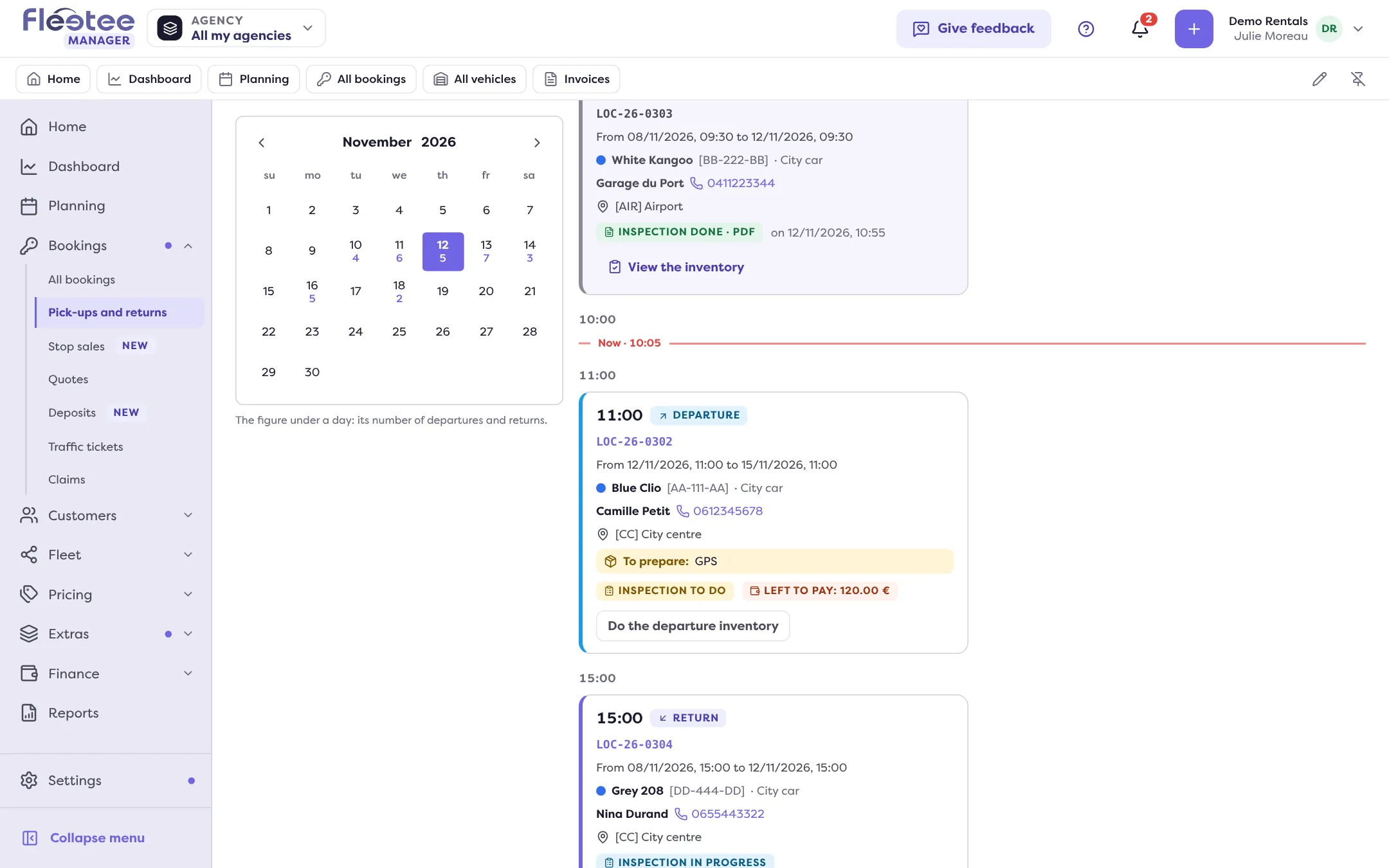
In the morning, Julie opens Bookings › Pick-ups and returns. The page shows, hour by hour, what leaves and what comes back. Each card gives the essentials: the customer and their number, the vehicle, what to prepare (“To prepare: child seat × 1”) or get back, what is left to pay, and where the inspection stands.
At the counter, a pick-up always follows the same order:
- the contract: in the booking’s record, Docs panel, Contract card, “View the contract”. The customer signs on the spot, or receives a link with “Send for signature”. You do not have to do anything: the contract is validated automatically at pick-up or when signed anyway;
- the check-out inspection: mileage, fuel, damage. When you save it, the booking goes Ongoing and the vehicle Rented. This cannot be undone.
On return, the check-in inspection compares each value with the pick-up, works out excess mileage and estimates return fees. When you save it, the booking is Completed and the vehicle is available again. The deposit still has to be returned (chapter 4) and the balance invoiced (chapter 5).
Once validated, the contract no longer changes: a later change to the booking goes through an amendment, which reuses the contract’s template.
Key steps
Prepare the day
Bookings › Pick-ups and returns: the Departures, Returns and Inspections to finish figures, then the cards by hour.
Get the contract signed
Booking record › Docs panel › “View the contract” › “Validate the contract” (sign online) or “Send for signature”.
Record the check-out inspection
Vehicle panel › “Do the check-out inspection”, then “Confirm and save”. Photos are taken with the Fleetee Check app.
On return, do the check-in inspection
“Do the check-in inspection”: compare, check the estimated fees, save, then collect the signatures and generate the PDF.
“Validate without signature” is final, and saving an inspection cannot be undone. Once an inspection’s PDF is generated, no signature can be added to it.
Your turn
Read your day
Open Bookings › Pick-ups and returns, move to the next day with “Next day”, and open a card to see the booking’s record. If you have no booking yet, make another test rental and open its sample contract.
Further reading
Check what you learned
Answer every question correctly to complete the lesson.
Progress kept on this device. Soon with your Fleetee Account.